- Open the image annotation

- Draw a square/circle
- Select Annotate
- Select Rectangle
- Click and drag your mouse to draw a square (or other shape you want to create as a highlight)

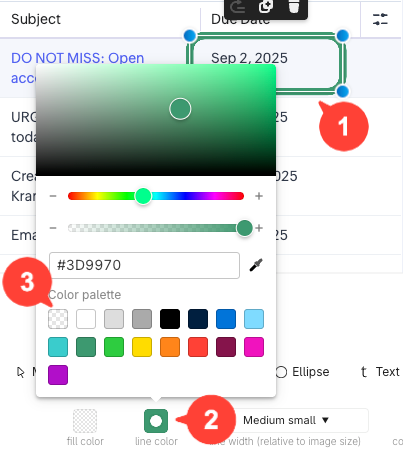
- Remove the outline
- Select the square
- Click line color
- Remove color
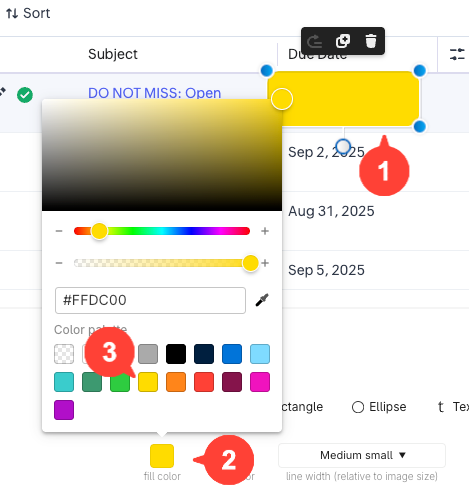
- Change Fill Color
- Ensure annotation is selected
- Click fill color
- Change fill color to the color you want for the highlight
- Decrease Transparency
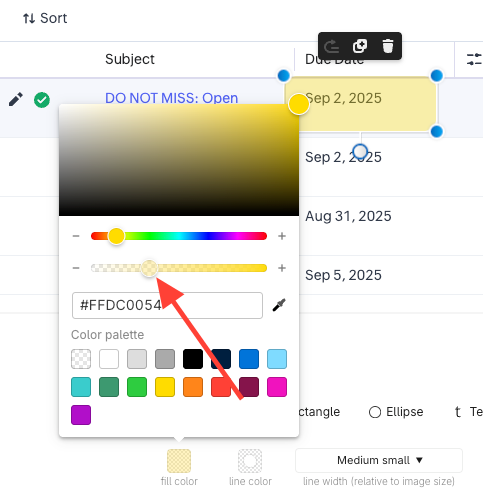
How to Add a Highlight Annotation
Updated on