- Confirm Copy Request is enabled in both accounts
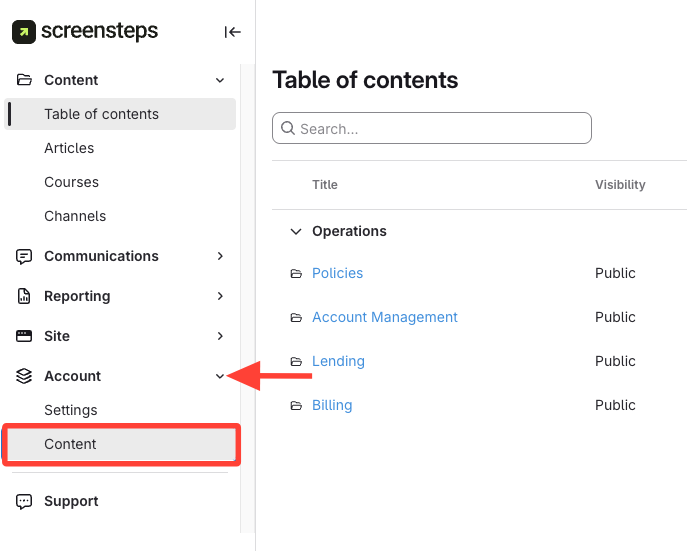
Navigate to Account > Content in both accounts and check the sidebar for Copy Requests. If missing, contact ScreenSteps support to activate it. Here are steps to check whether copy requests are enabled: How to Determine Whether Copy Requests are Activated On Your Account
- Open the Account menu and go to Content
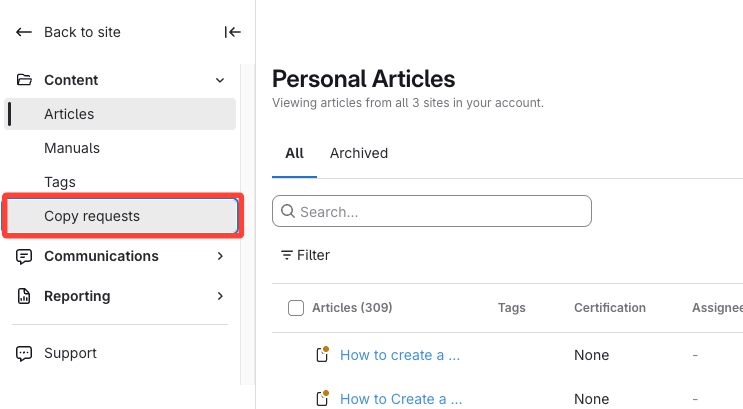
- Select Copy Request
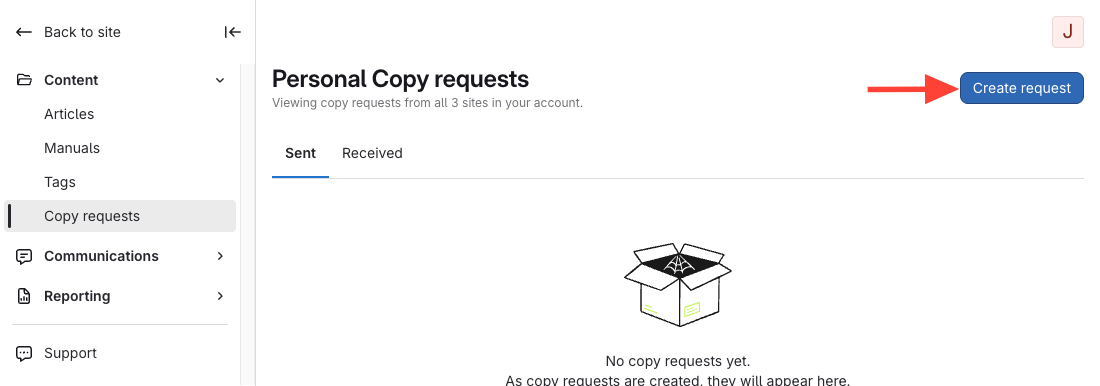
- Start a new copy request
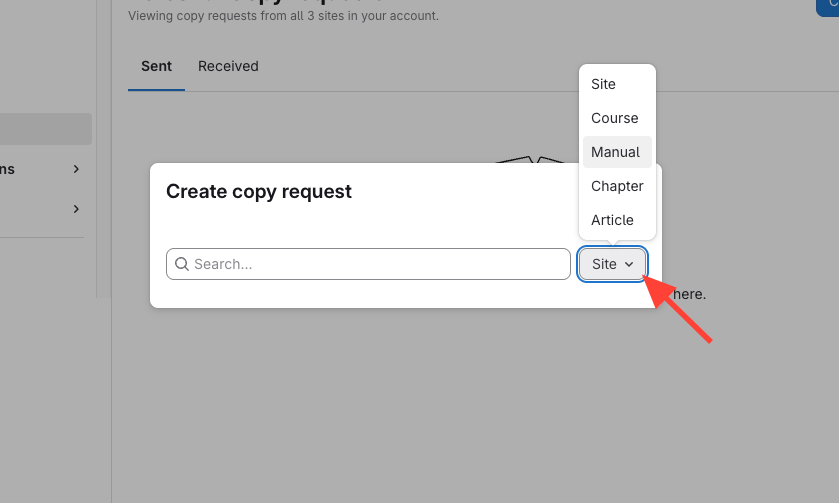
- Select the content type to copy
Select the content type: Site, Course, Manual, Chapter, or Article.
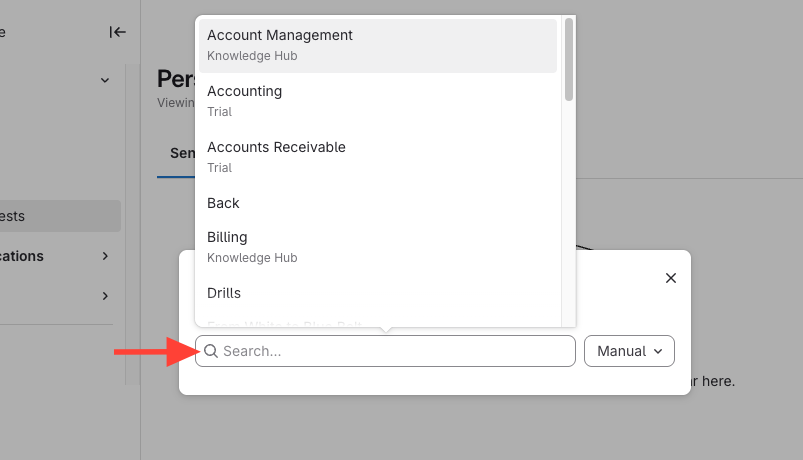
- Search and choose the specific content
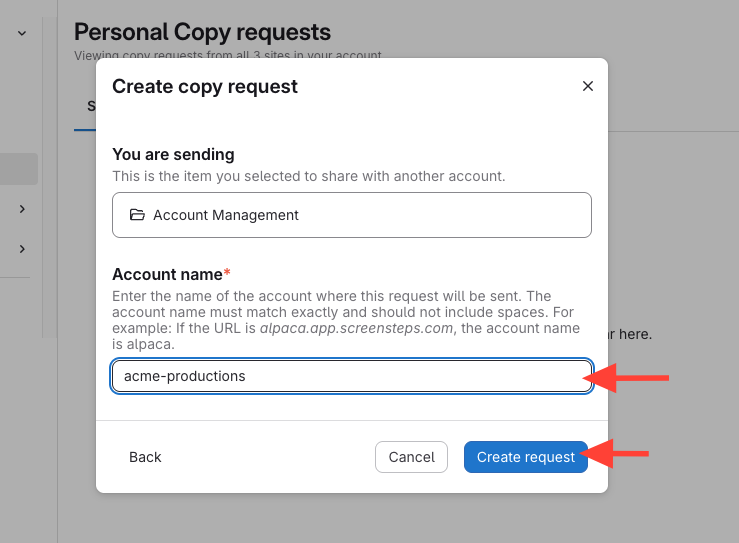
- Enter the destination account name > Create request
Enter the destination account name in the Account name field.
- Recipient must now accept the copy request
How to Create a Copy Request
Updated on