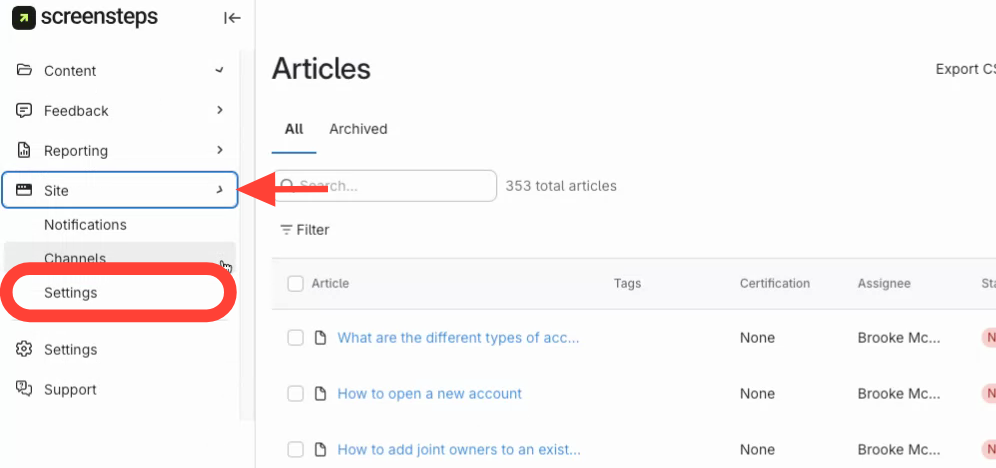
- Open a Site's Settings
- In the left-hand sidebar, click Site.
- Click Settings.
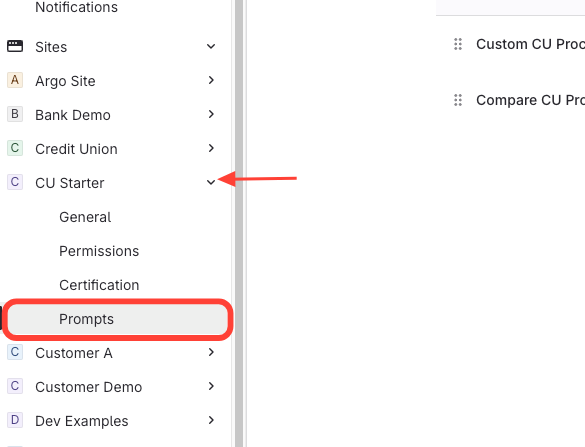
- Open Prompts
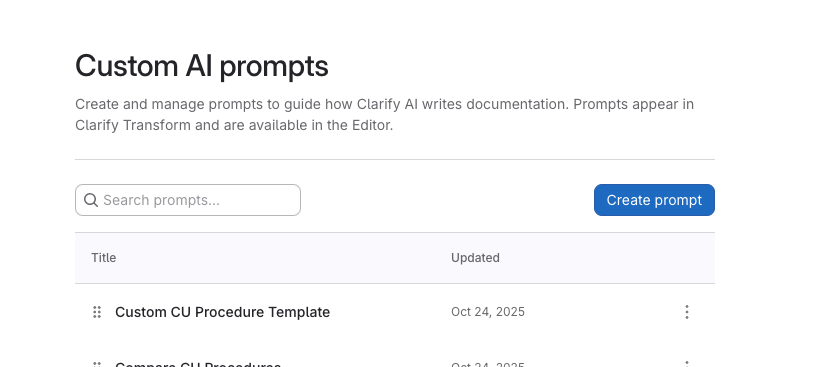
- Click Create prompt
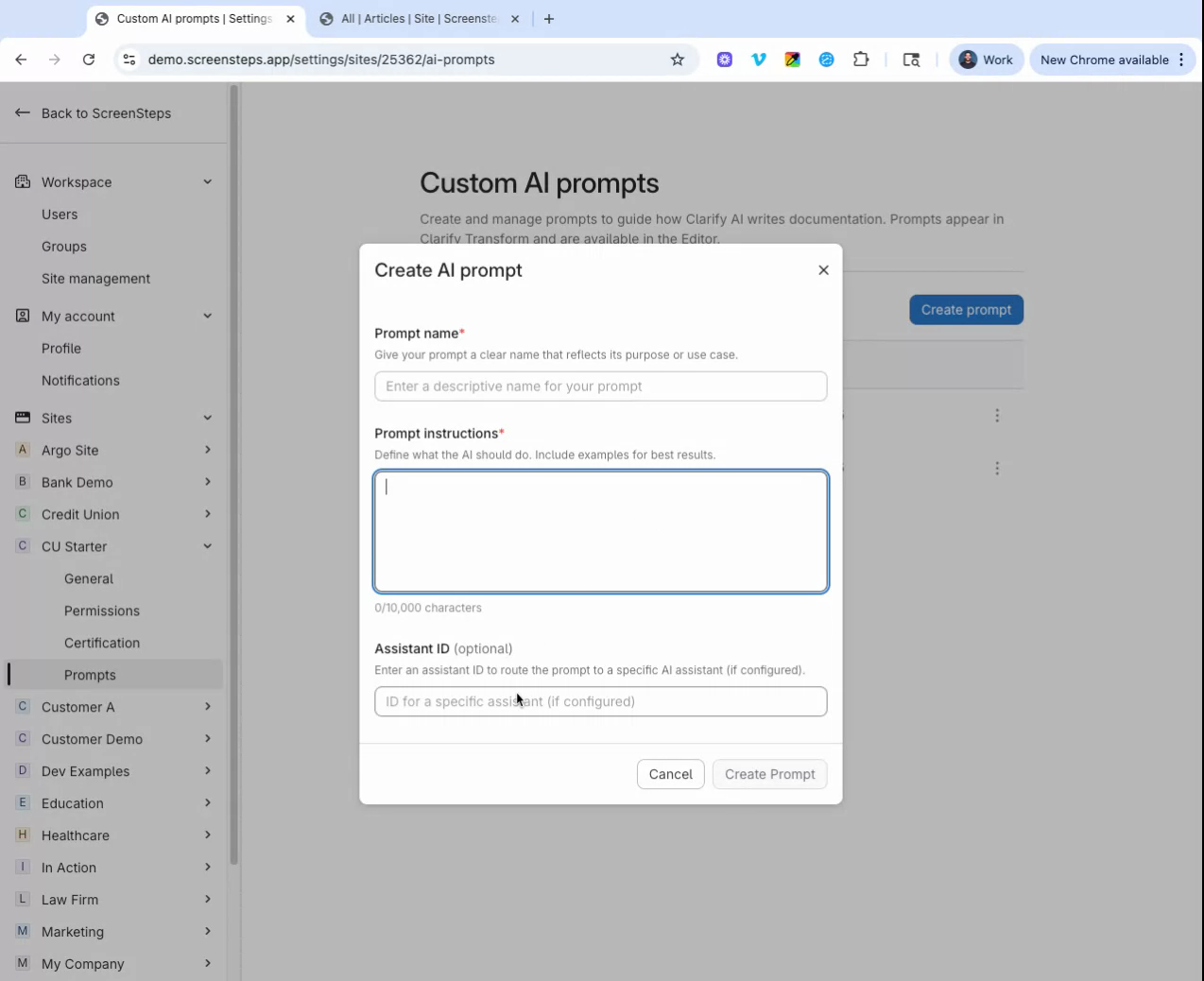
- Name the Prompt > Enter Instructions > Create Prompt
- In Prompt name, type a clear, descriptive name (e.g., “Summarize in 3 bullets”).
- In Instructions, type exactly what you want the prompt to accomplish (e.g., “Summarize the selected text in 3 concise bullet points using plain language”).
- Assistant ID: An optional identifier that routes the prompt to a specific AI assistant. Vector database: A specialized database used to store and retrieve AI-embeddings for semantic search and retrieval.
- Click Create Prompt.
- Use the Prompt in Articles
- Open an article in ScreenSteps.
- Select or position your text as needed.
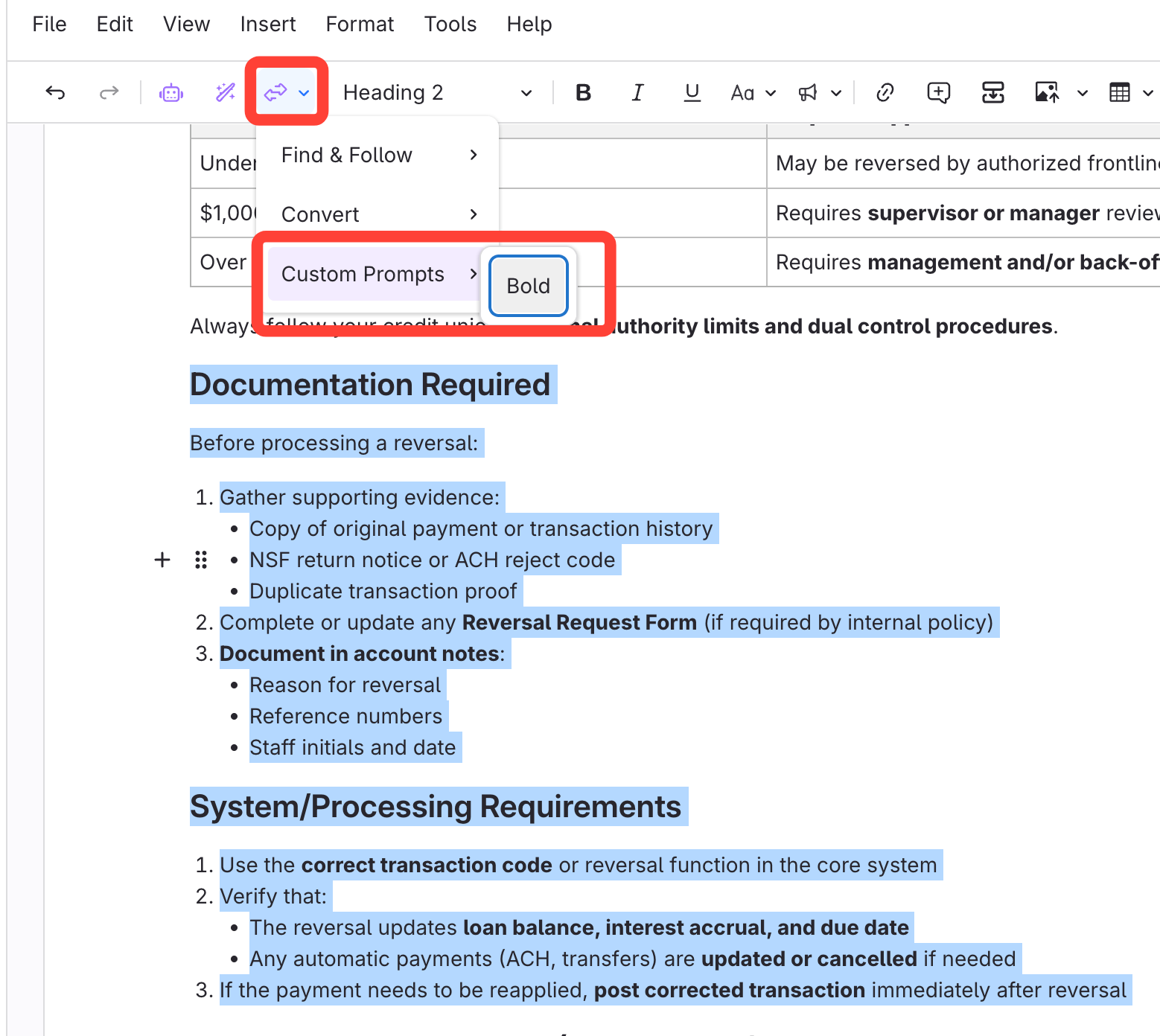
- Apply your new custom prompt
- Clarify Convert > Custom Prompts > Select prompt Name
Creating Custom Prompts
Updated on