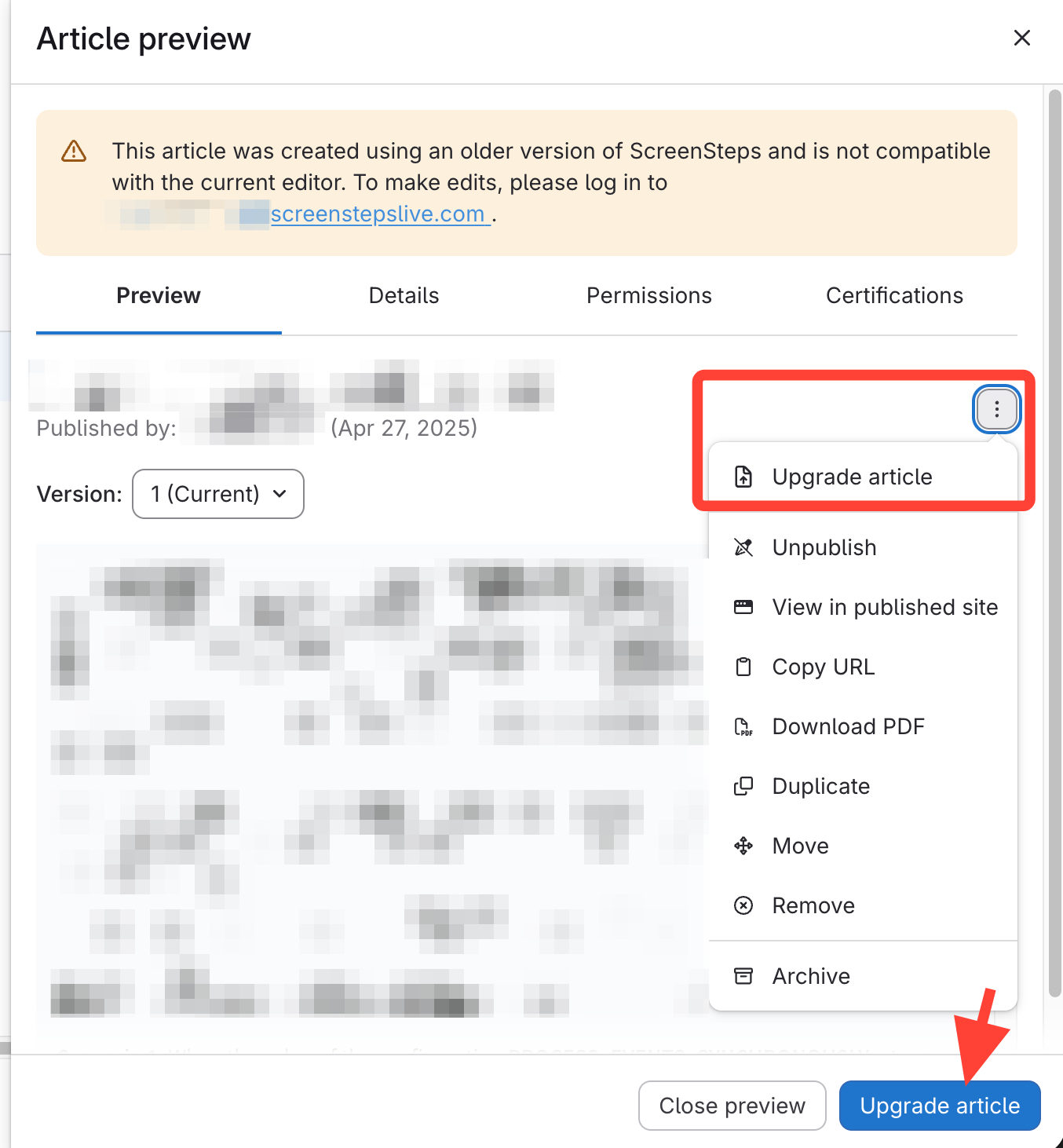
- Click "Upgrade article"
From article list Action menu
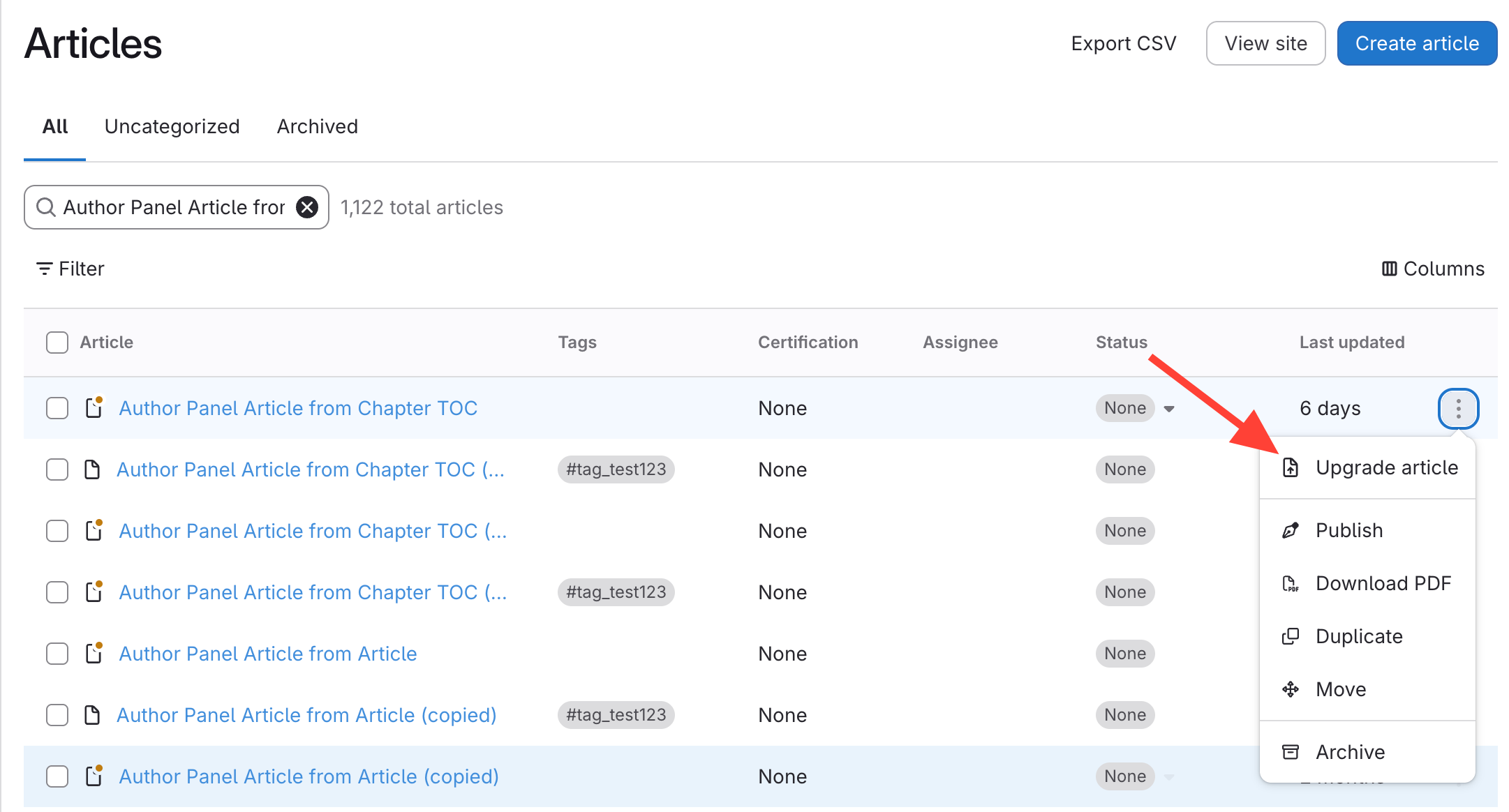
OR Article preview pane
Action menu or bottom Upgrade button
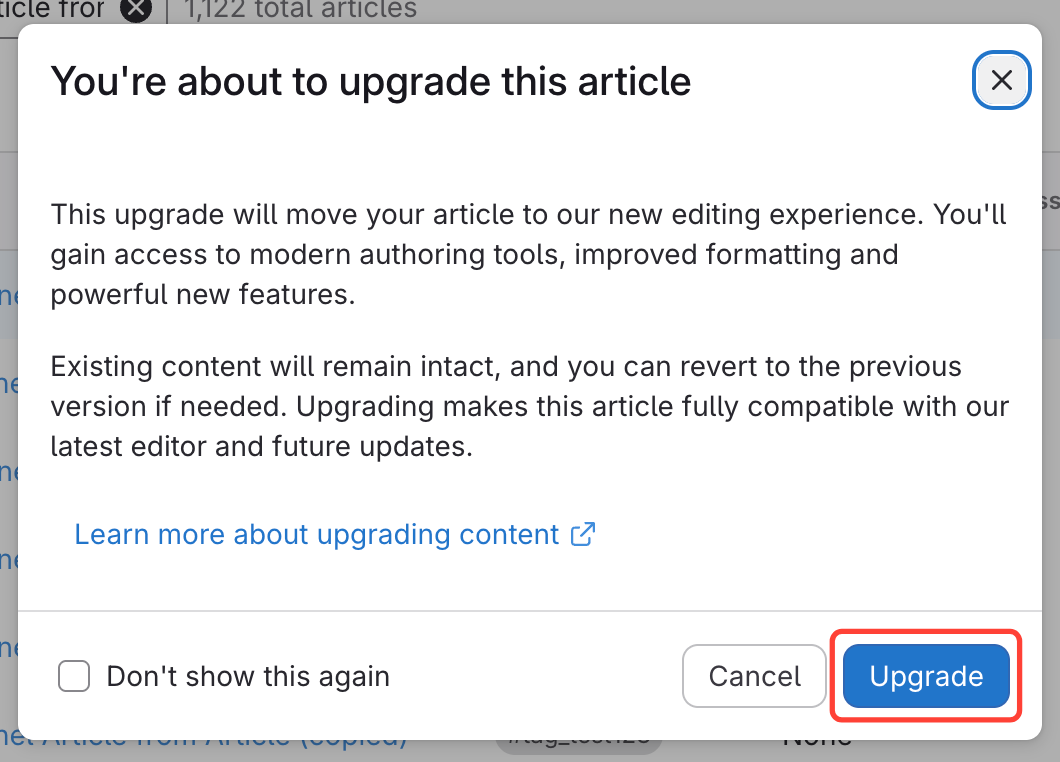
- Click "Upgrade"
If you do not want to see the this confirmation dialog in the future click check the Don't show this again checkbox.
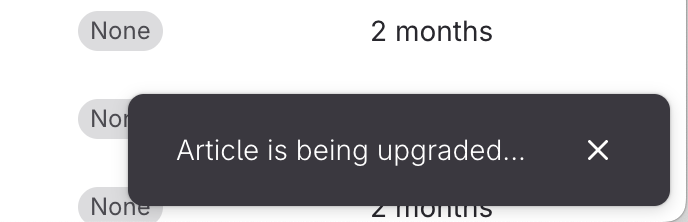
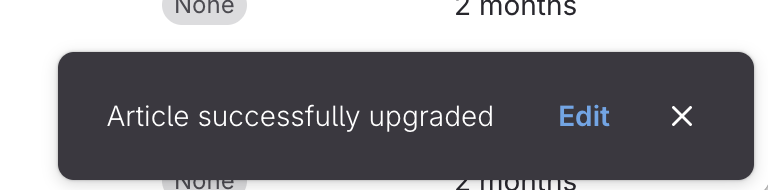
- Wait for the confirmation message: Article successfully upgraded.
After clicking Upgrade you will see a toast message confirming that the upgrade has begun.
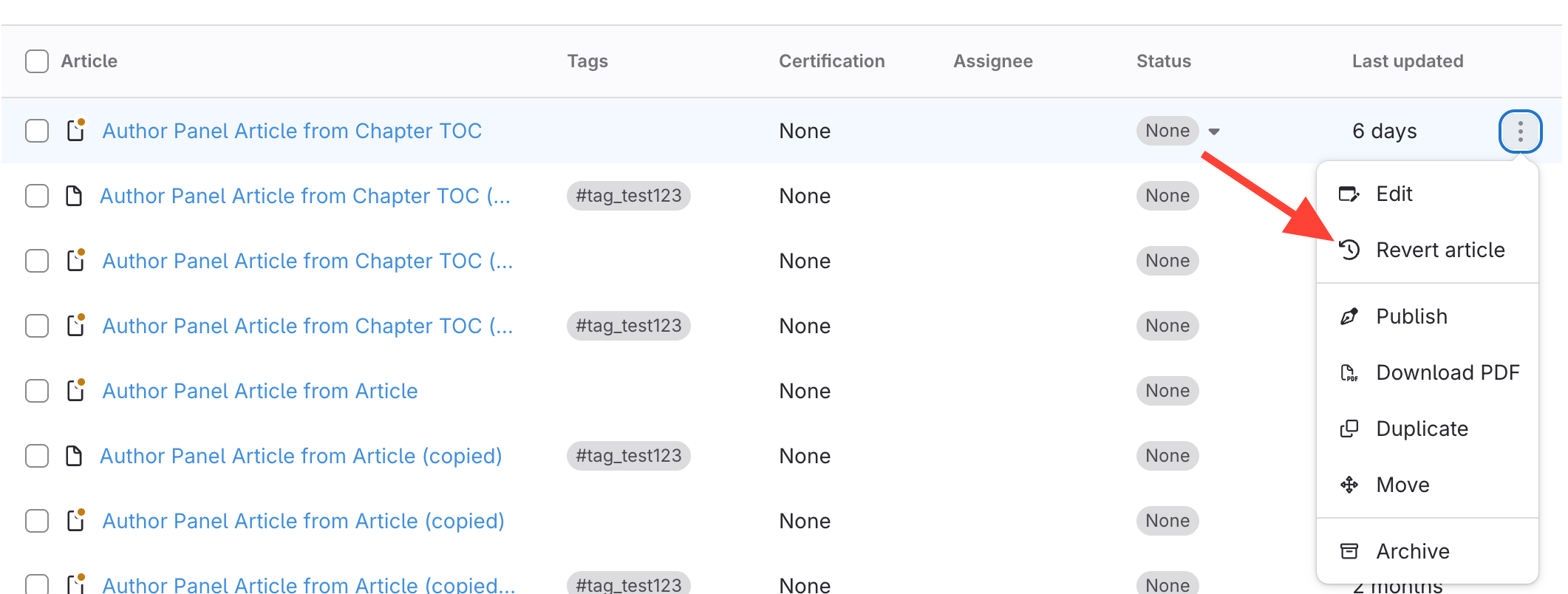
- (Optional) Revert to legacy format:
- In the action menu, selectRevert article (appears after upgrade).
- Note: All changes made in the new editor will be lost.
How do I convert a legacy article to the new format?
Updated on