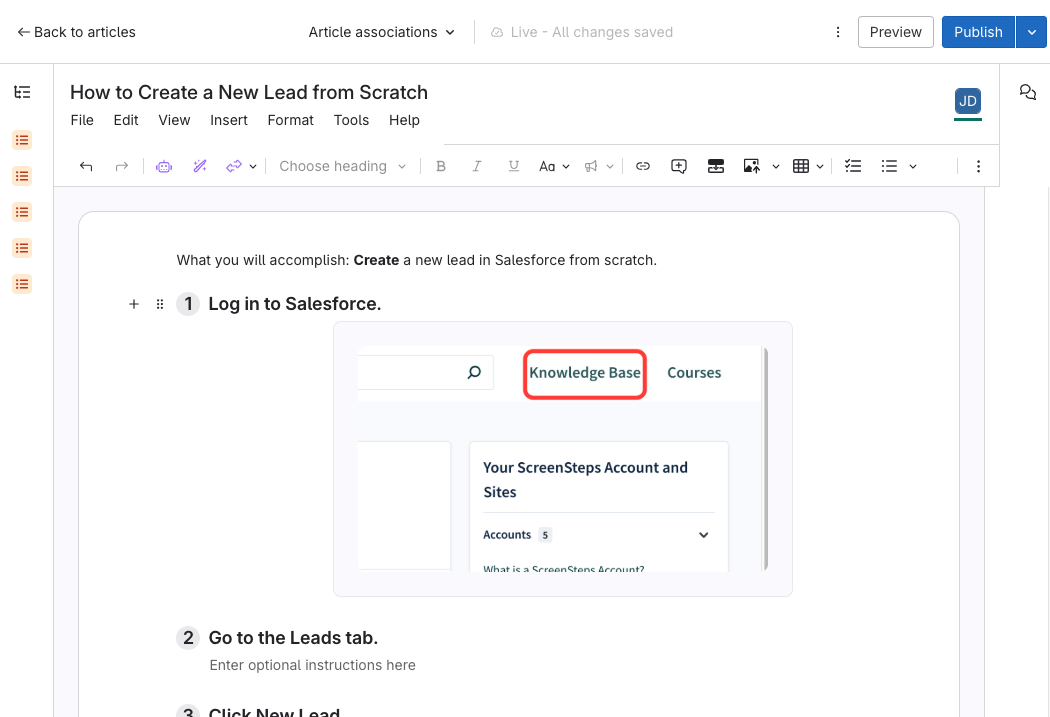
- Click Clarify Create
- Within the article editor, click Clarify Create.
- The article does nto have to be blank - you can do this for articles that already have content in them. The content will be added wherever yoru cursor is.

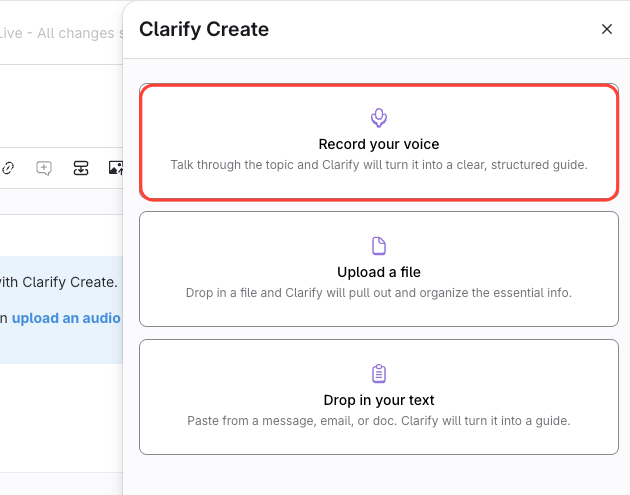
- Select Record your voice
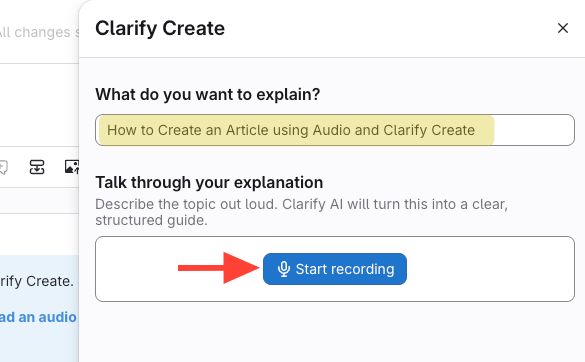
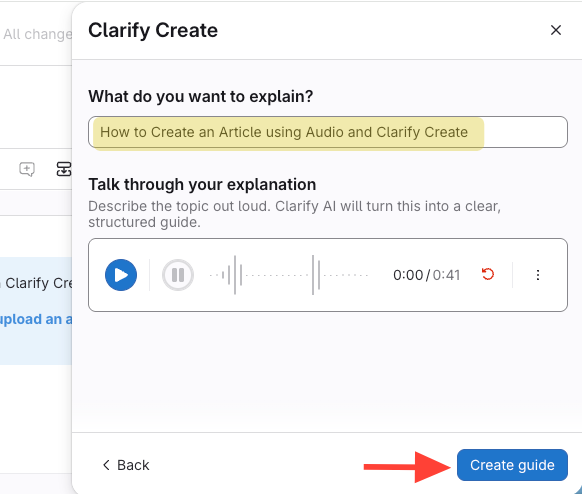
- Confirm you have a title > Click Start recording
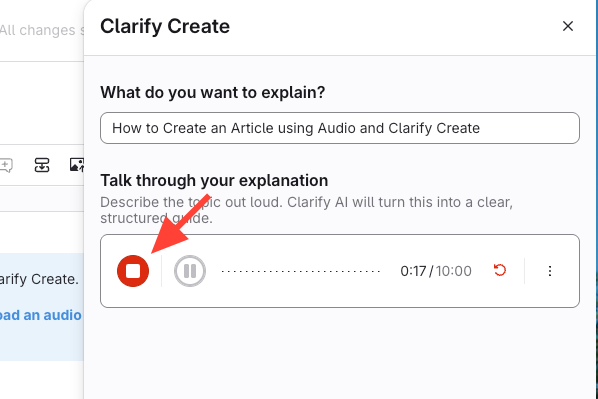
- Click Stop when finished
- Click Create Guide
- Click Insert guide
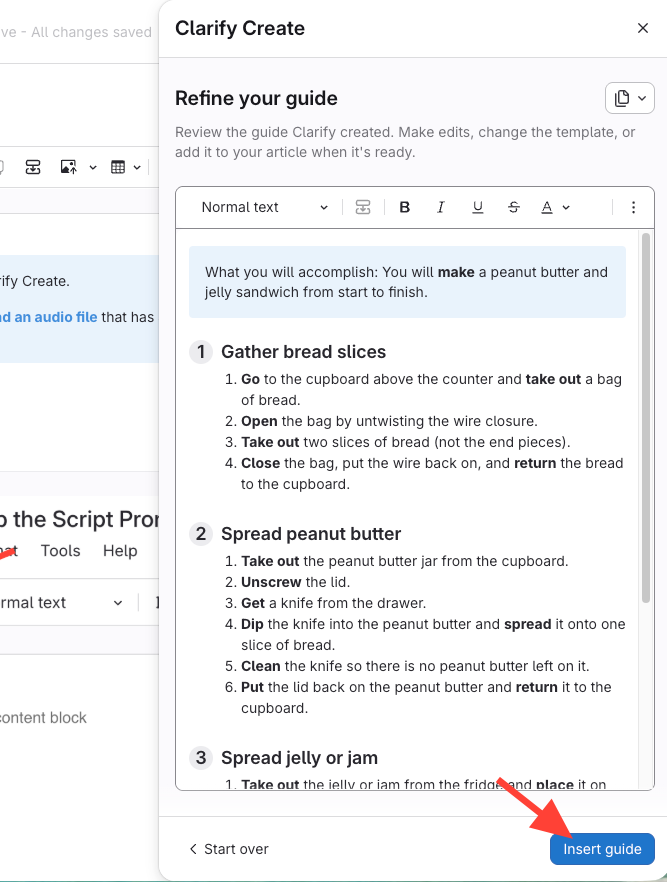
- Review the generated content
- Click Insert guide
- Your content will be dropped into the article wherever the curs
- Modify Content as needed