Video overview of adding and editing images
Step-by-step instructions
- Using your built-in hot key to get screenshots
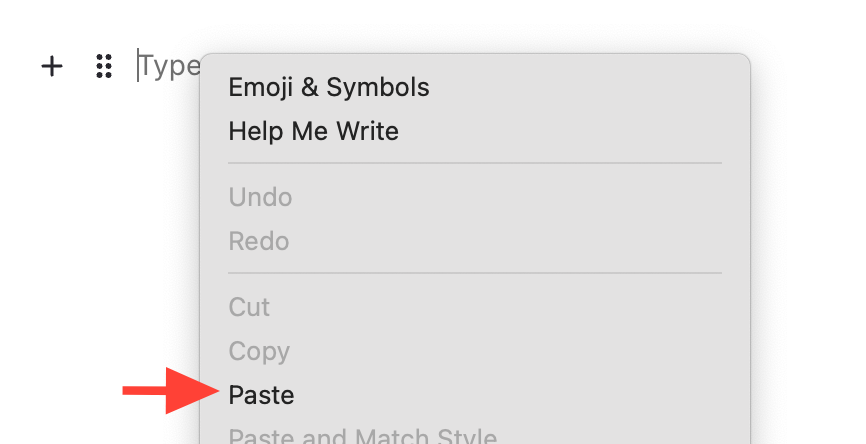
- Paste them into the ScreenSteps editor
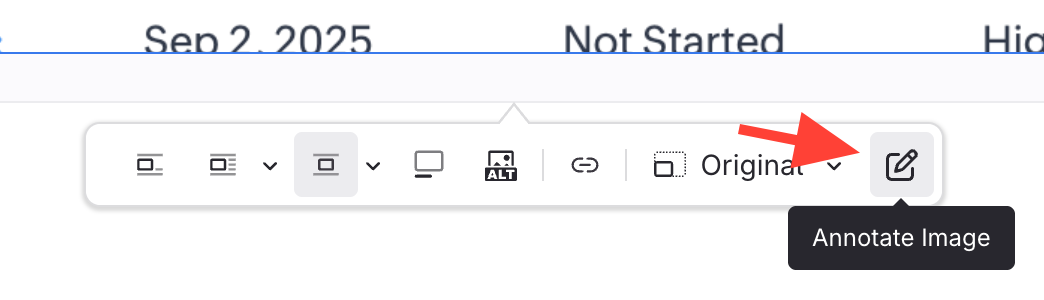
- Click the image edit icon
This appears above or below the image.
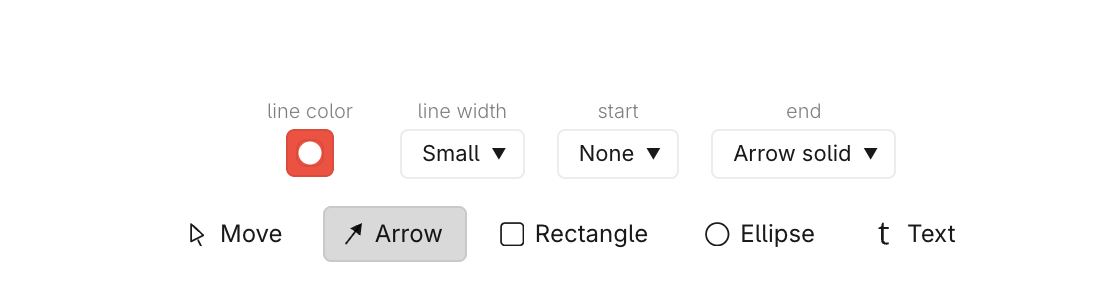
- Add annotations
- Select an annotation
- Click on the image and, while holding down your mouse, drag your mouse to draw
- Click Done