A | B | C | D | E | F | G | H | I | J | K | L | M | N | O | P | Q | R | S | T | U | V | W | X | Y | Z
A
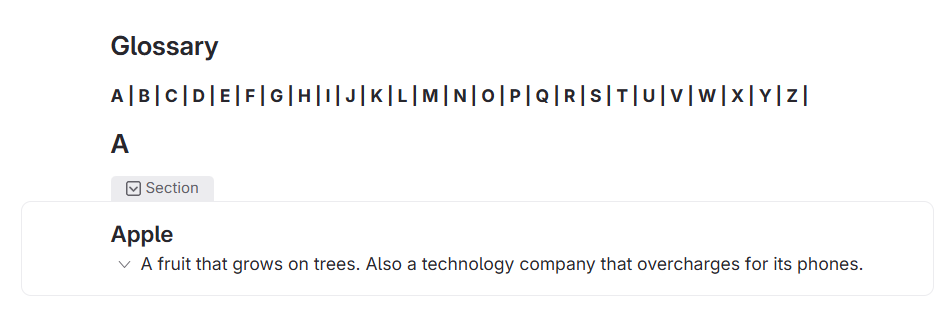
Apple
A fruit that grows on trees. Also a technology company that overcharges for its phones.
Atlanta
The capital of the state of Georgia.
Atlantis
A make believe island from one of Plato's stories. Also, a cool hotel in the Bahamas.
B
Banana
A yellow fruit
- Create the navigation
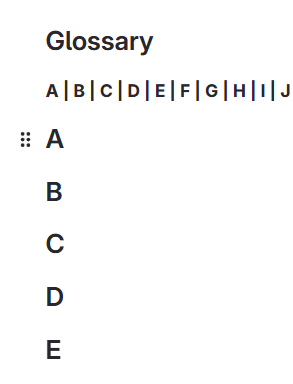
The navigation is simply a paragraph text block that has the alphabet written out.
Add paragraph text block
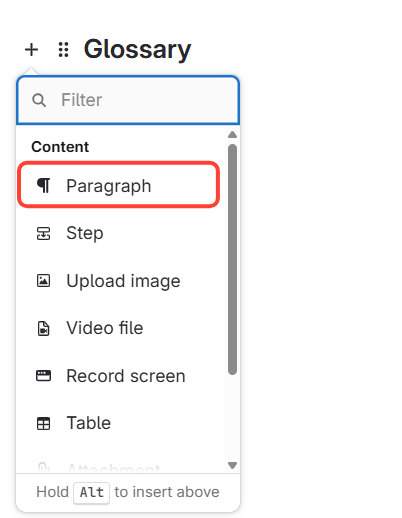
Write out the letters of your alphabet
For example: A | B | C | D | E | F | G | H | I | J | K | L | M | N | O | P | Q | R | S | T | U | V | W | X | Y | Z |
- Add sections
Add Heading blocks for each letter in the alphabet that you have a glossary term for.
Add paragraph text block
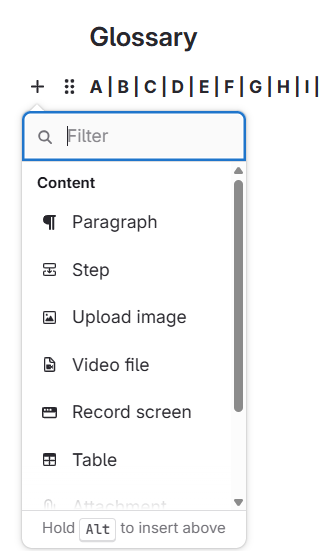
Change text to a Heading
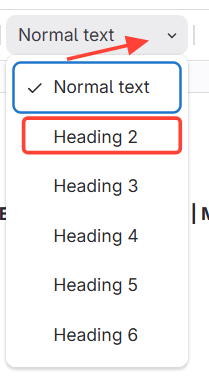
Type a letter in the alphabet
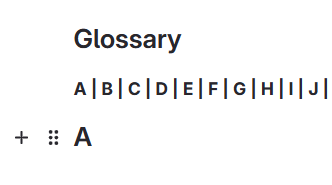
Repeat for each letter you have a glossary term for
- Add a Heading Link
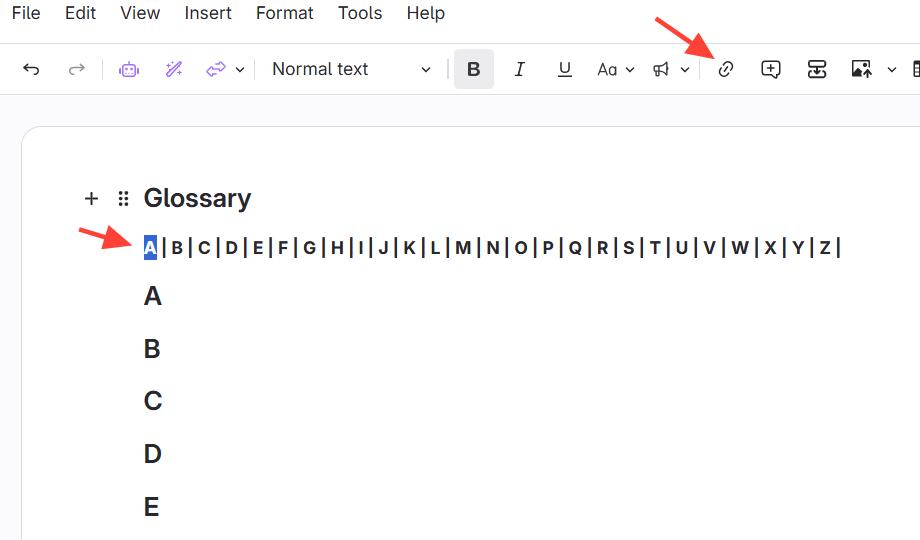
- Highlight the letter in the navigation area
- Click the hyperlink icon
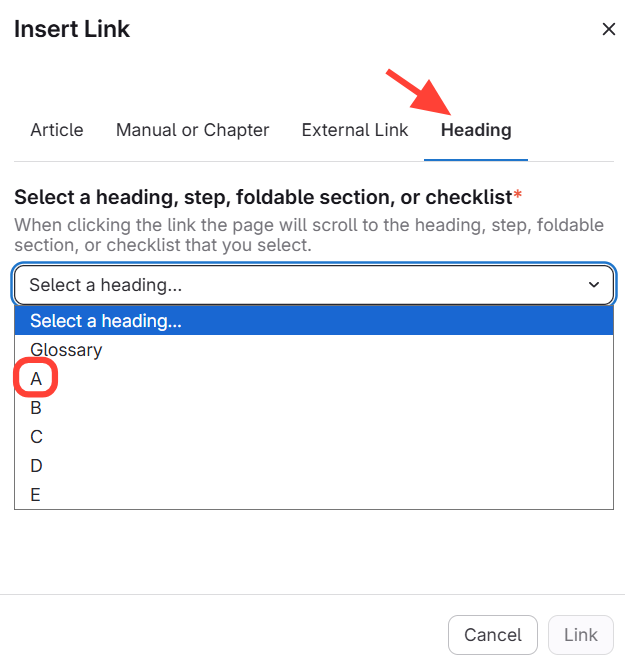
- Click Heading Link
Select the matching letter
- Create foldable sections for each term
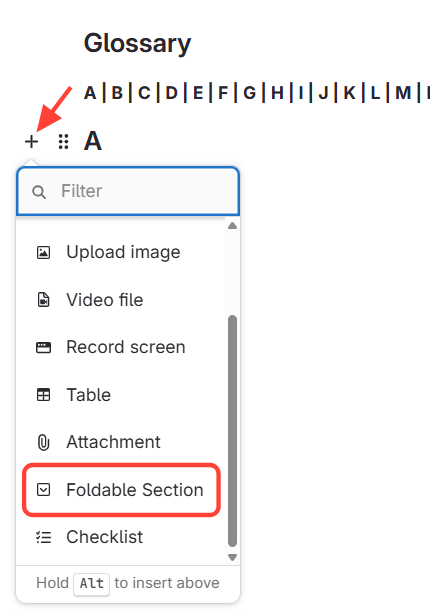
Write the term and definition below
Repeat for each term
Now your terms are foldable sections. When a user clicks on the term, the definition is revealed. Continue doing that for all of your terms