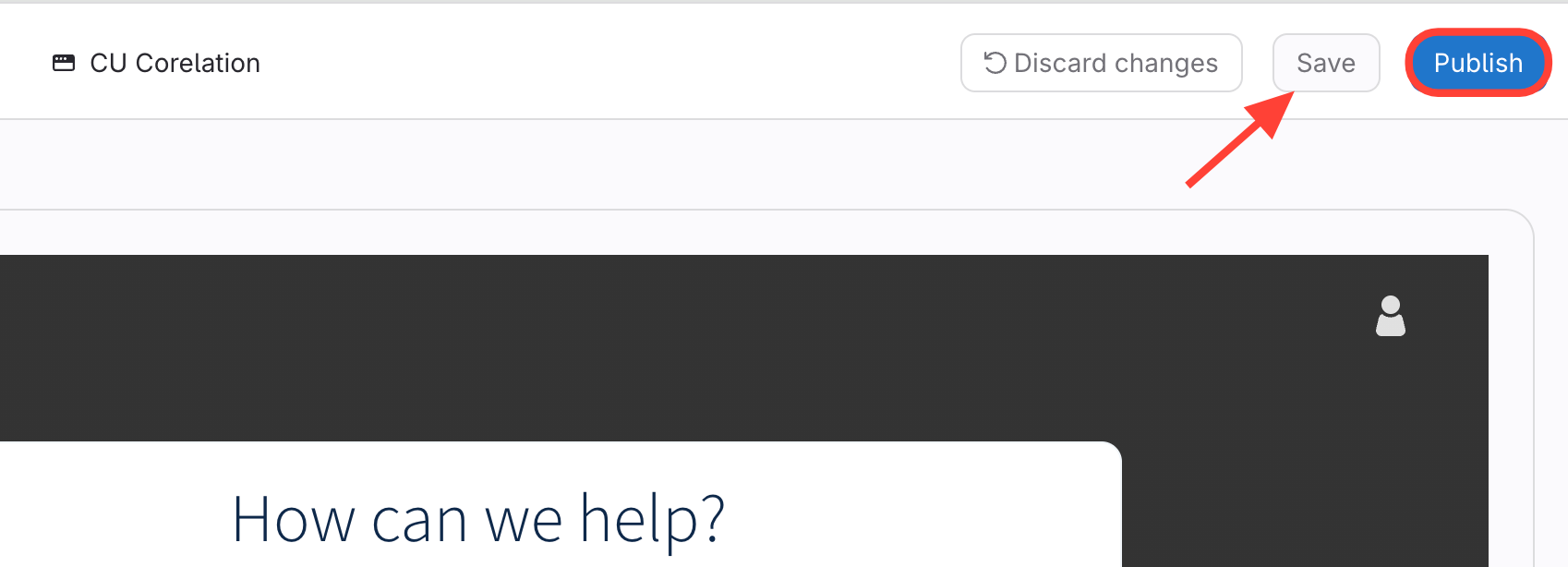
How to Change the Article Requests Button Color
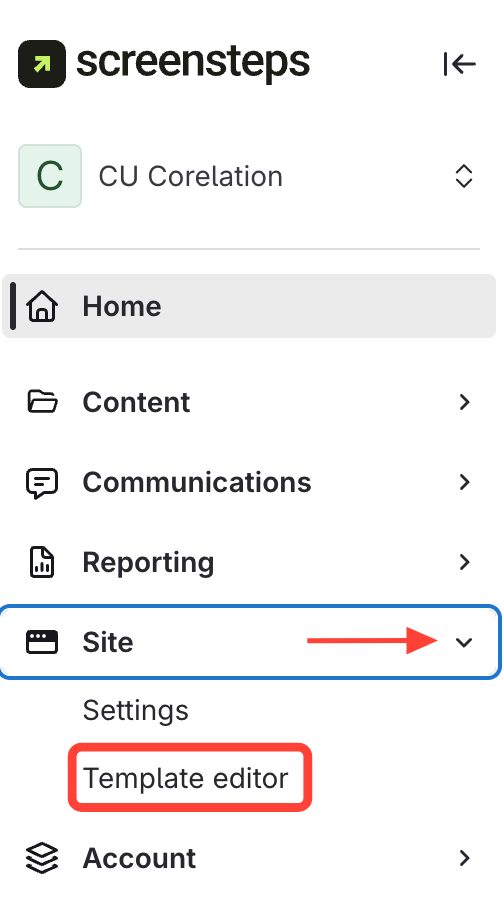
- Navigate to Site Template Editor
- Click Site
- Select Template Editor
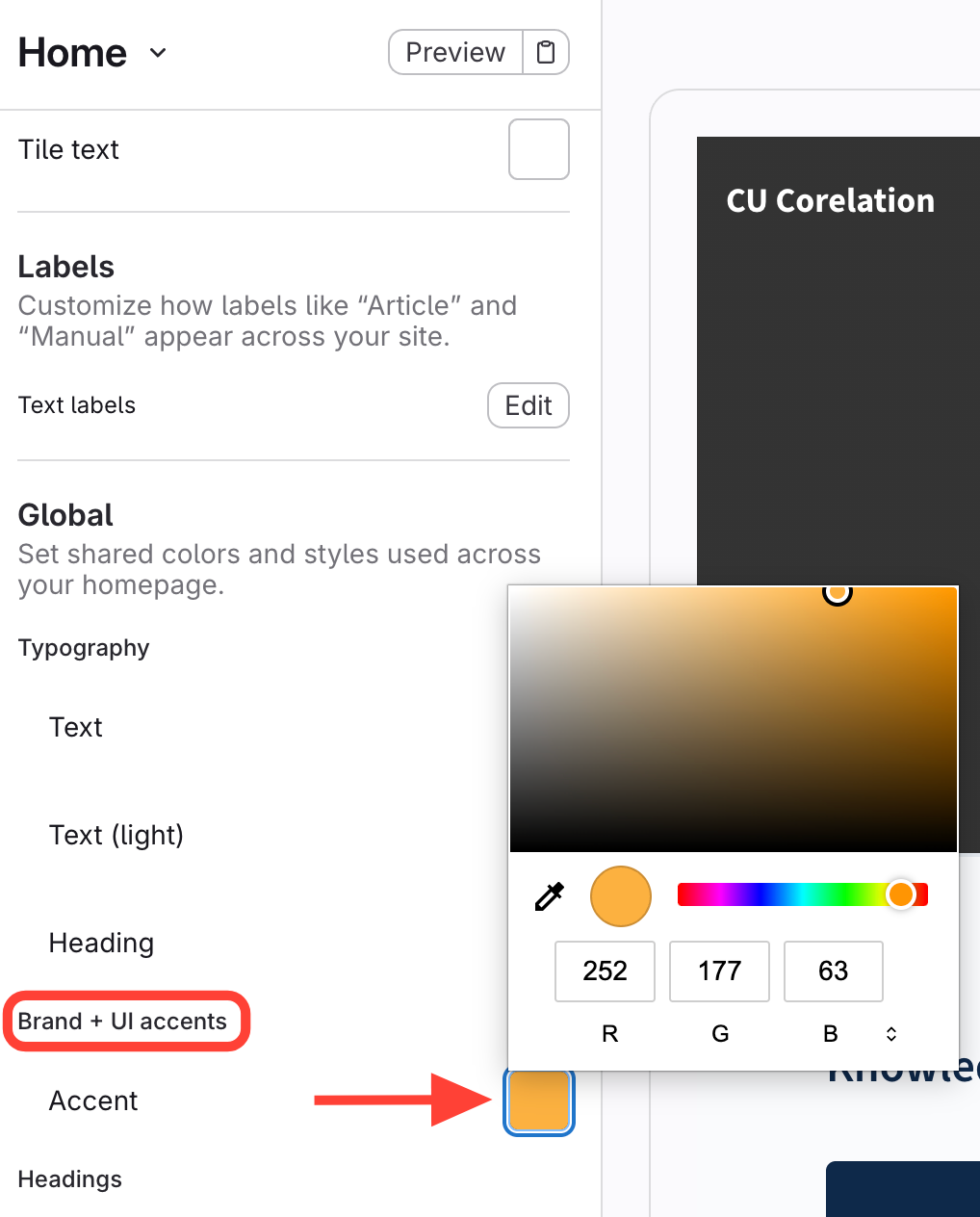
- Change the Color
- Navigate to Brand + UI accents
- Click the Color Box
- Select your color
- Save and Publish your Changes
- Select Save
Click Publish
How to Change the Article Requests Button Text
- Navigate to Site Template Editor
- Click Site
- Select Template Editor
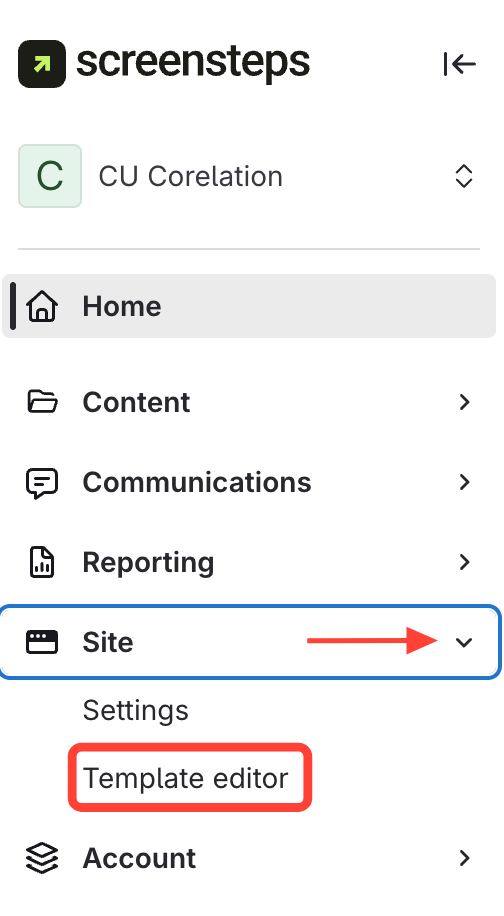
- Edit Text Labels
- Click Sidebar
- Select Edit
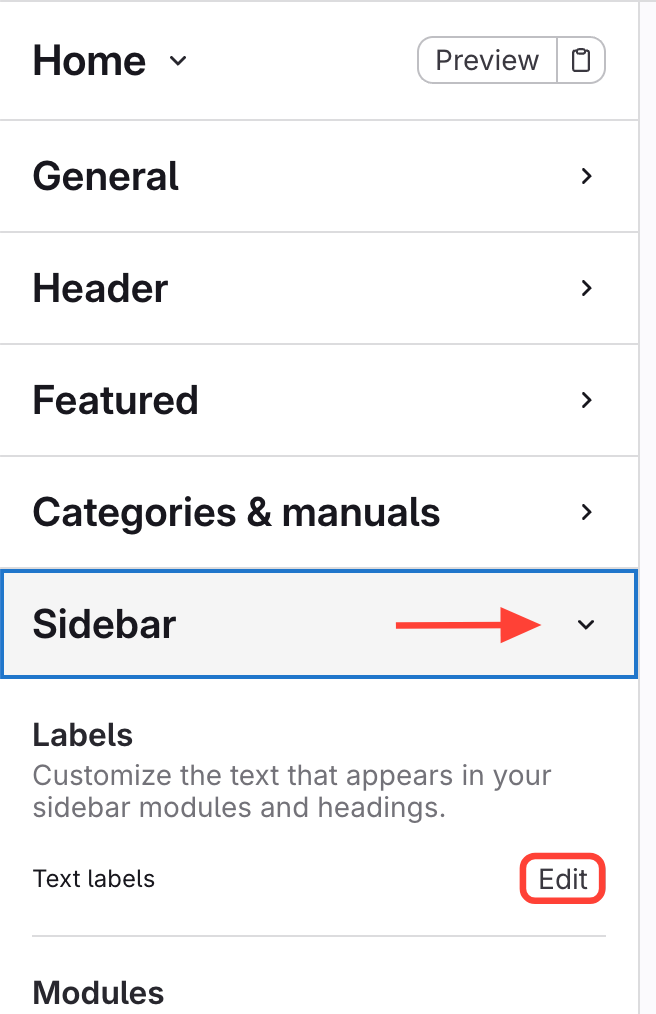
- Update the Text
- Navigate to "I need an article"
- Update text
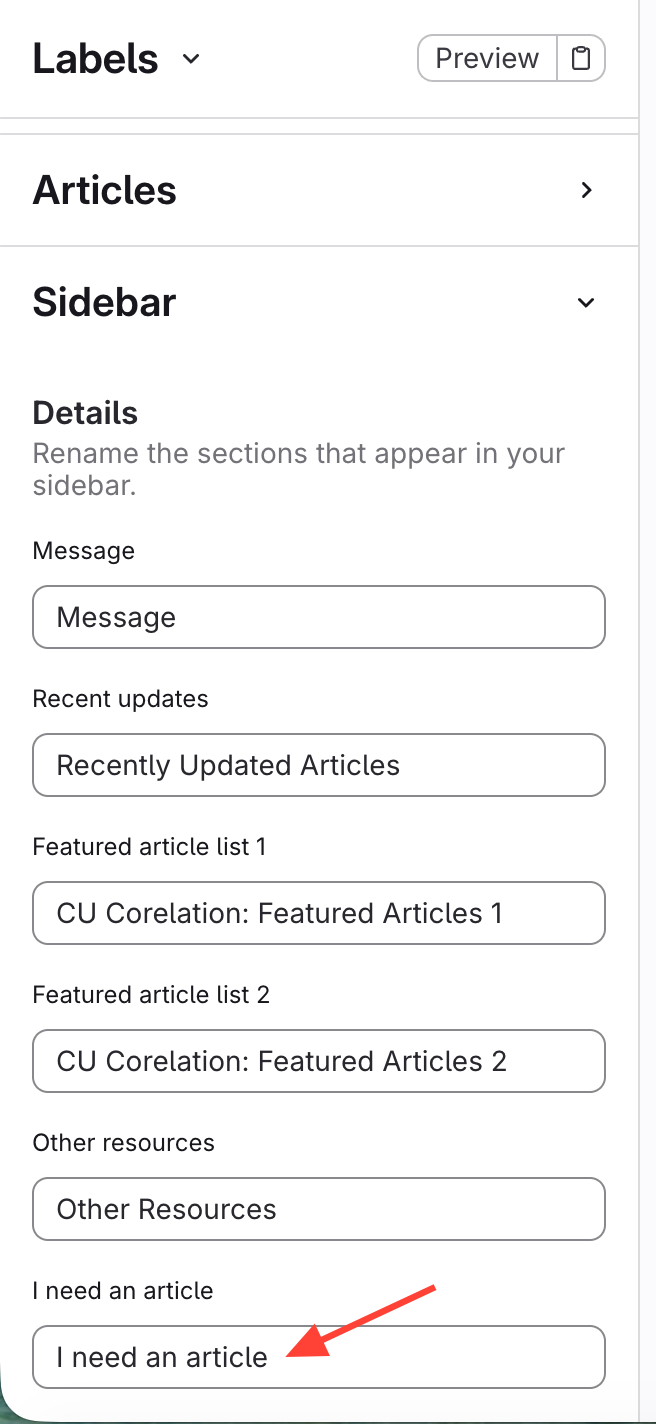
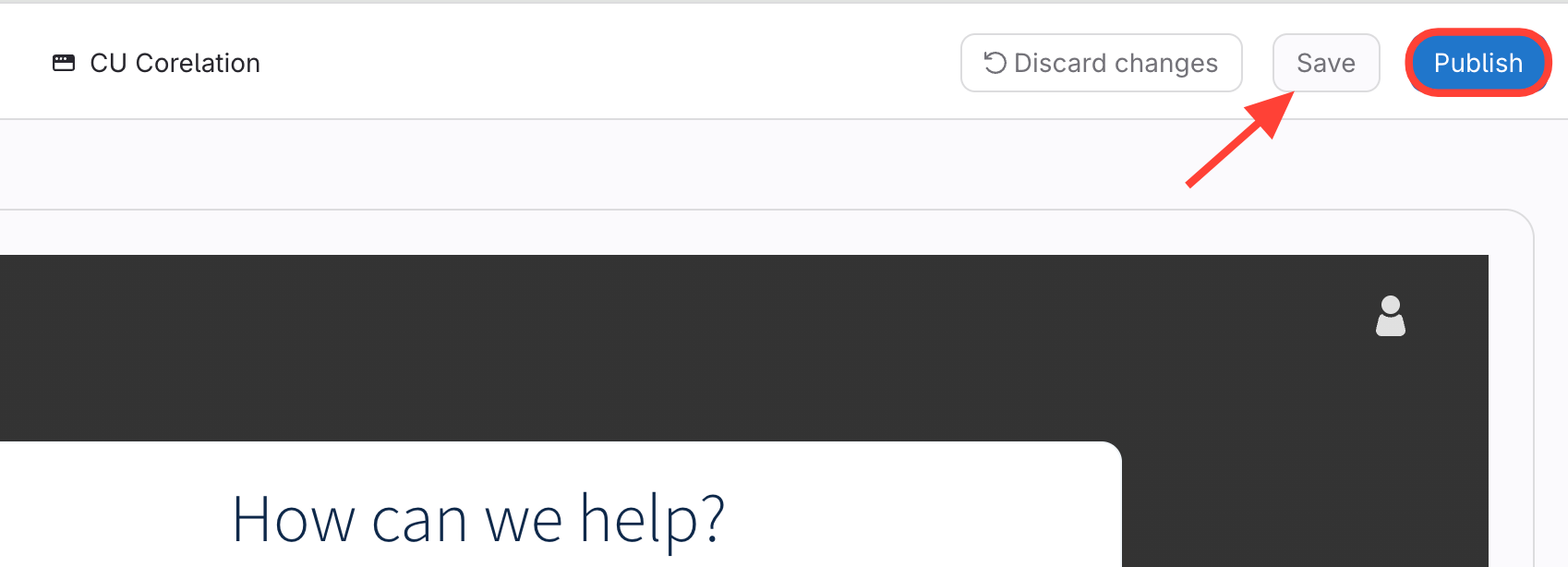
- Save and Publish your Changes
- Select Save
- Click Publish