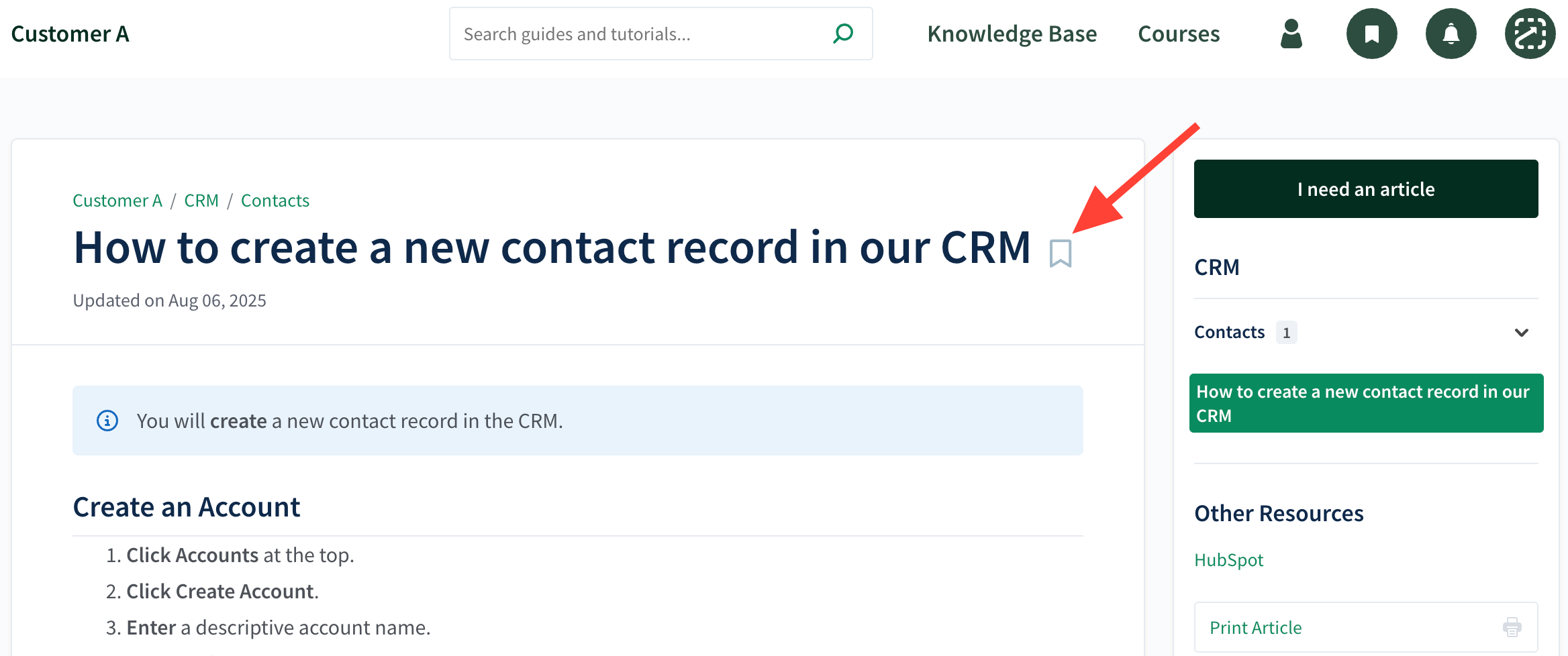
Add a Bookmark
- Click Bookmark Icon
- Log in to your account.
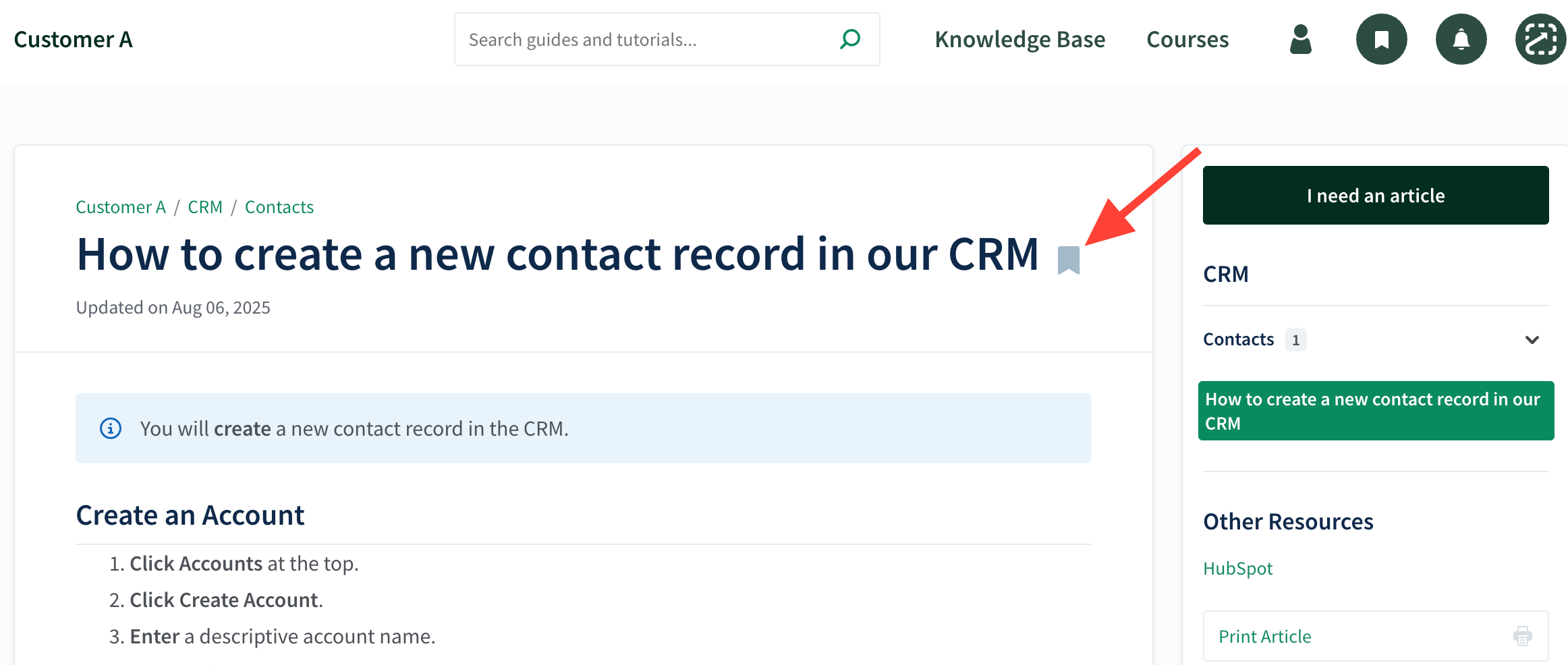
- Click the bookmark icon next to an article title.
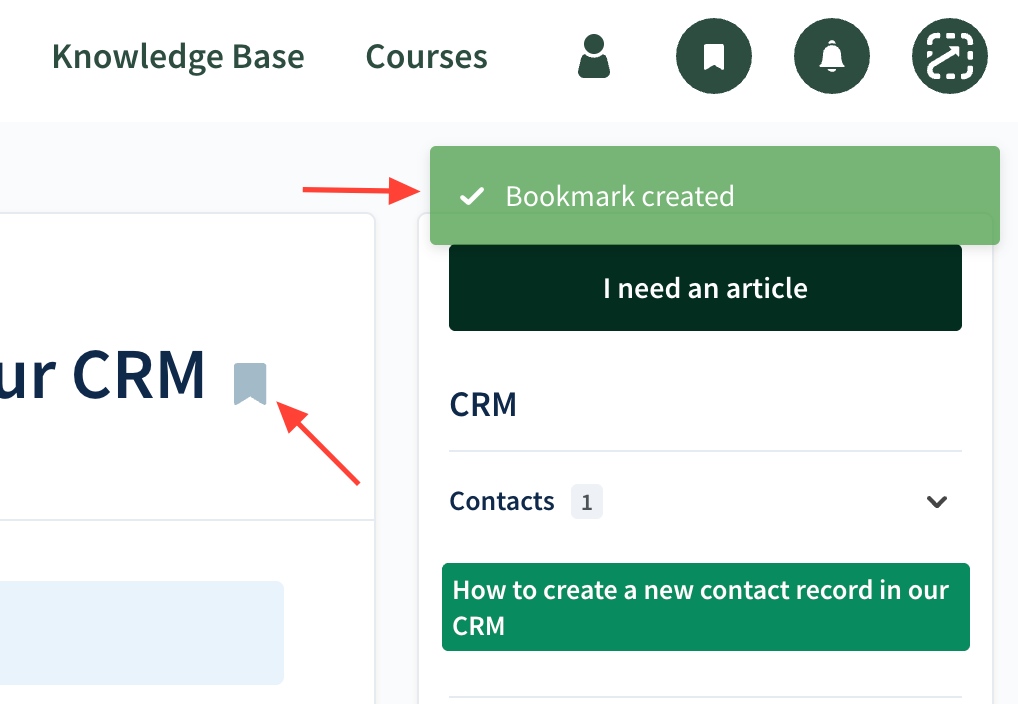
- Check that it was Created
- The icon turns gray.
- A green Bookmark Created message appears.
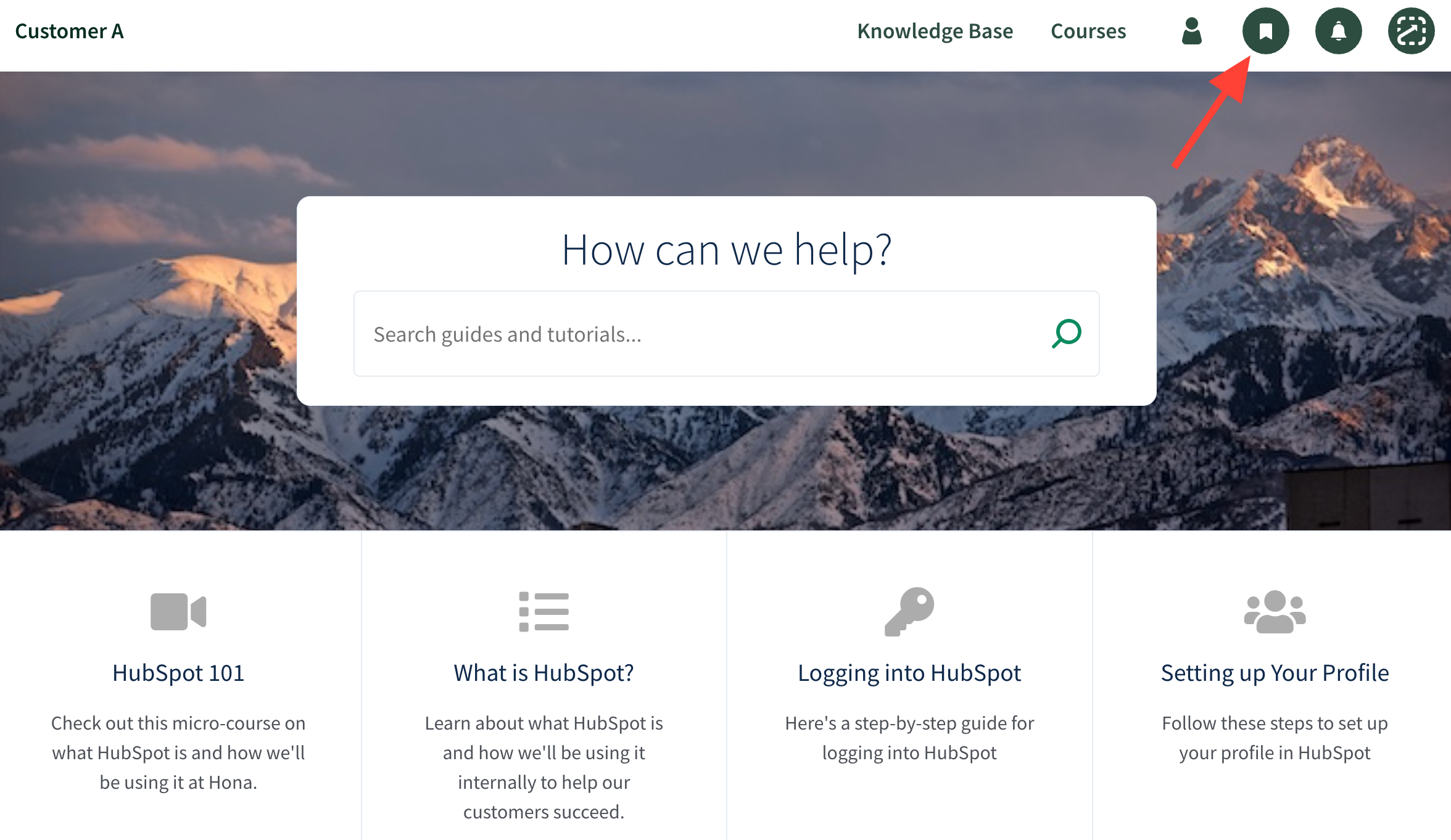
Retrieve Bookmarks
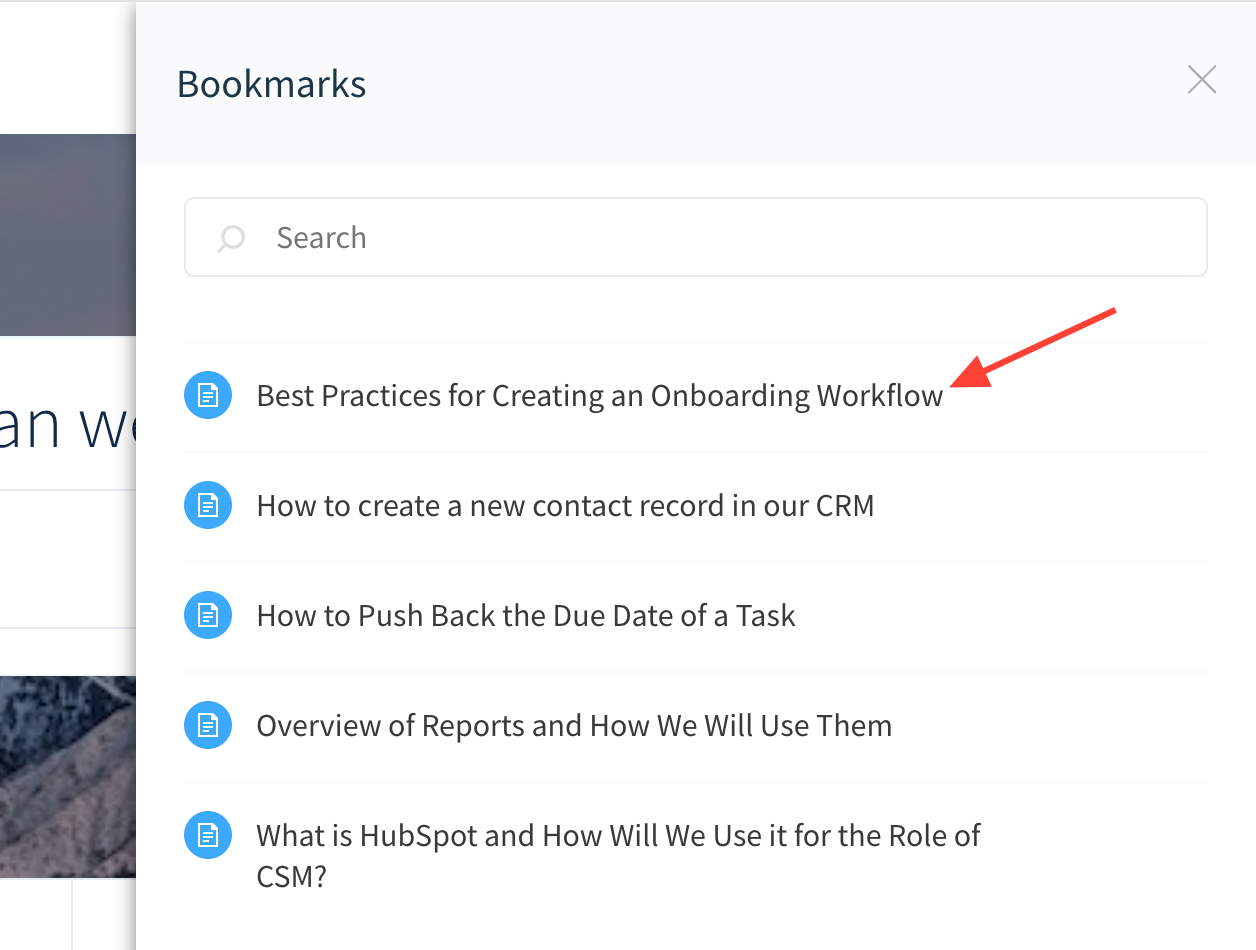
- Click the bookmark icon in the upper right.
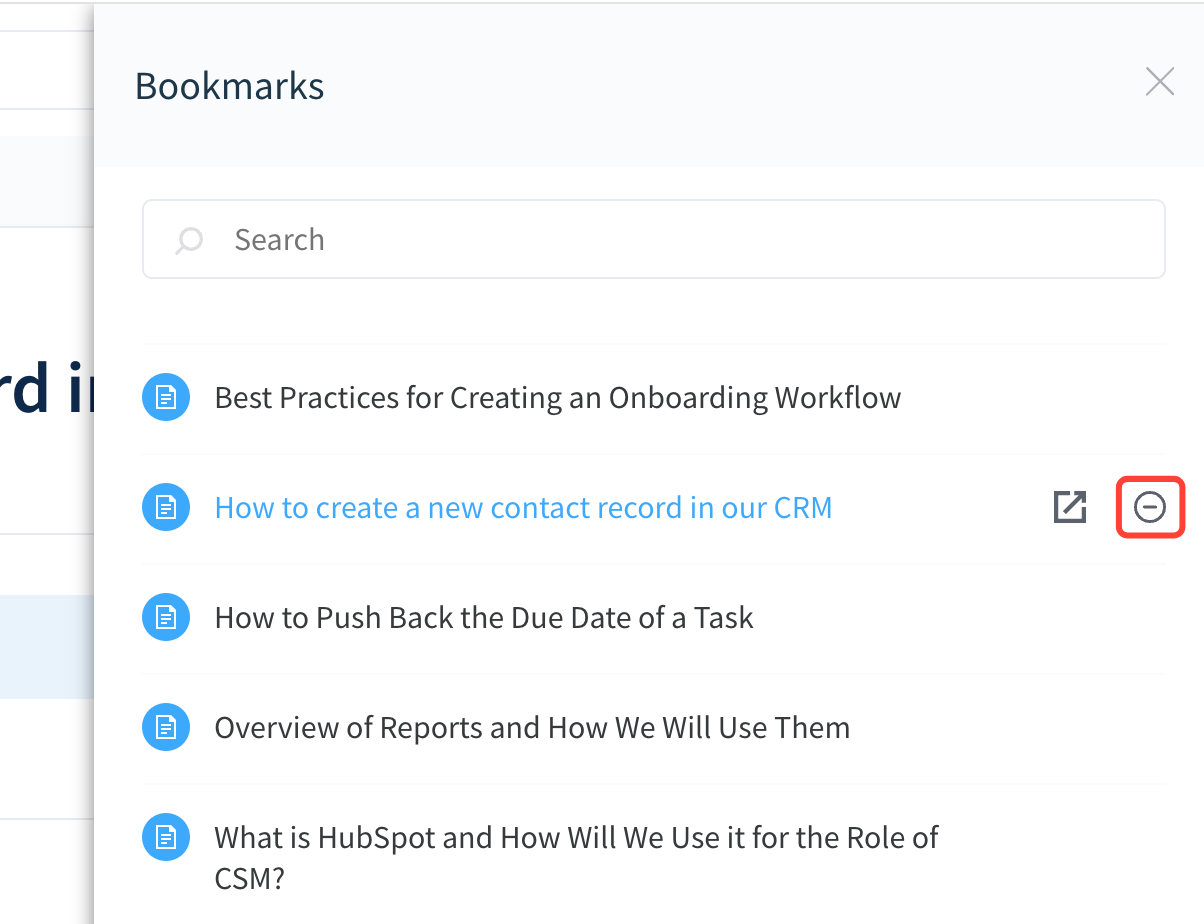
- Click a title to open the article.
Remove a Bookmark
Option 1: Click the Gray Bookmark Icon Next to the Article Title
Option 2: Click the Remove Icon Next to Bookmark in Your List
- Click the Bookmark Icon in the Upper Right
- Remove Bookmark