- Open the Article Preview
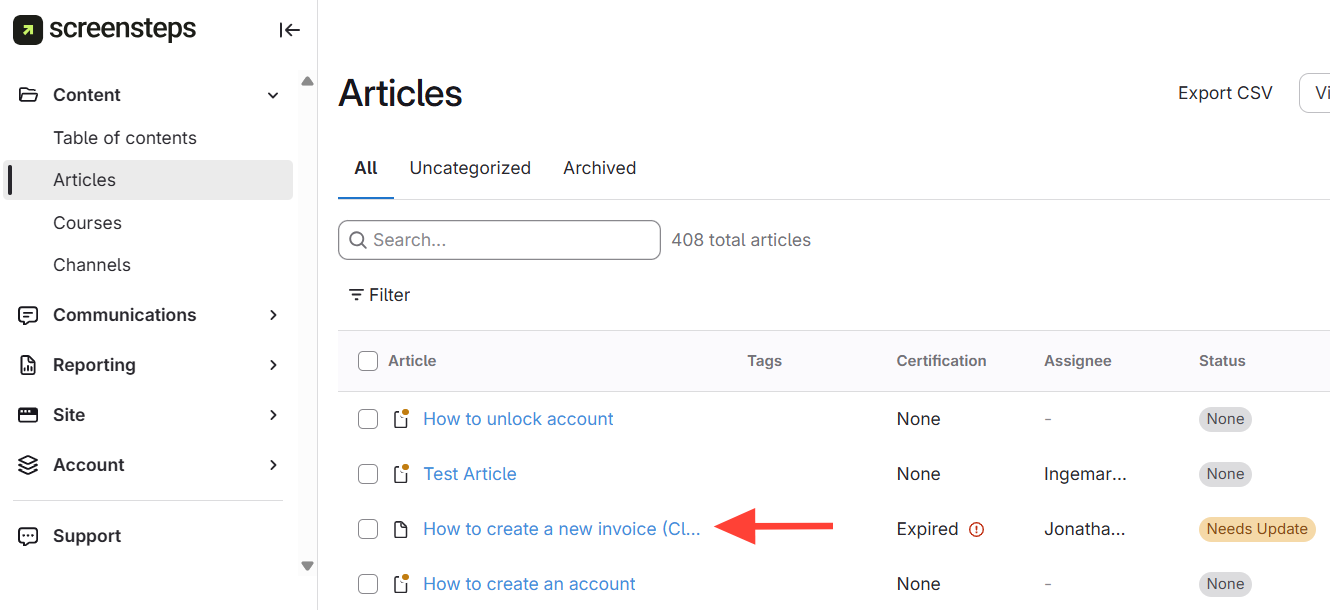
- Navigate to the article using one of these methods:
- From the table of contents: Click the manual > chapter > article title.
- From the left sidebar: Click Articles, then click the article title.
- Navigate to the article using one of these methods:
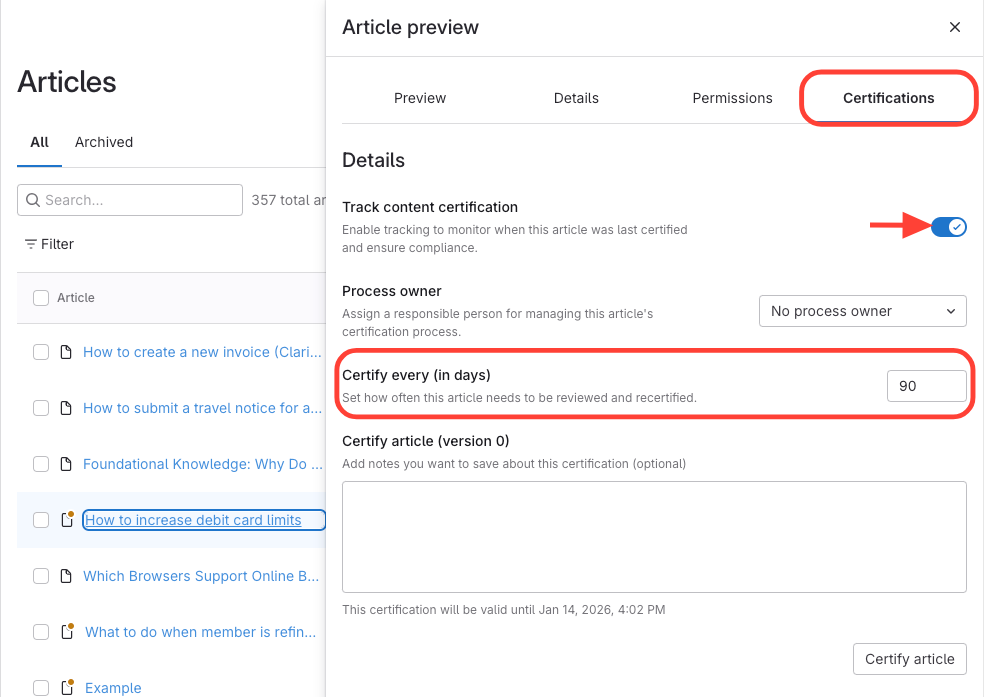
- Set Certification Cadence
- Go to Certifications.
- Confirm "Track certifications" is on.
- Find the "Certify every (days)" field.
- Enter the desired number of days (e.g., 90, 120).
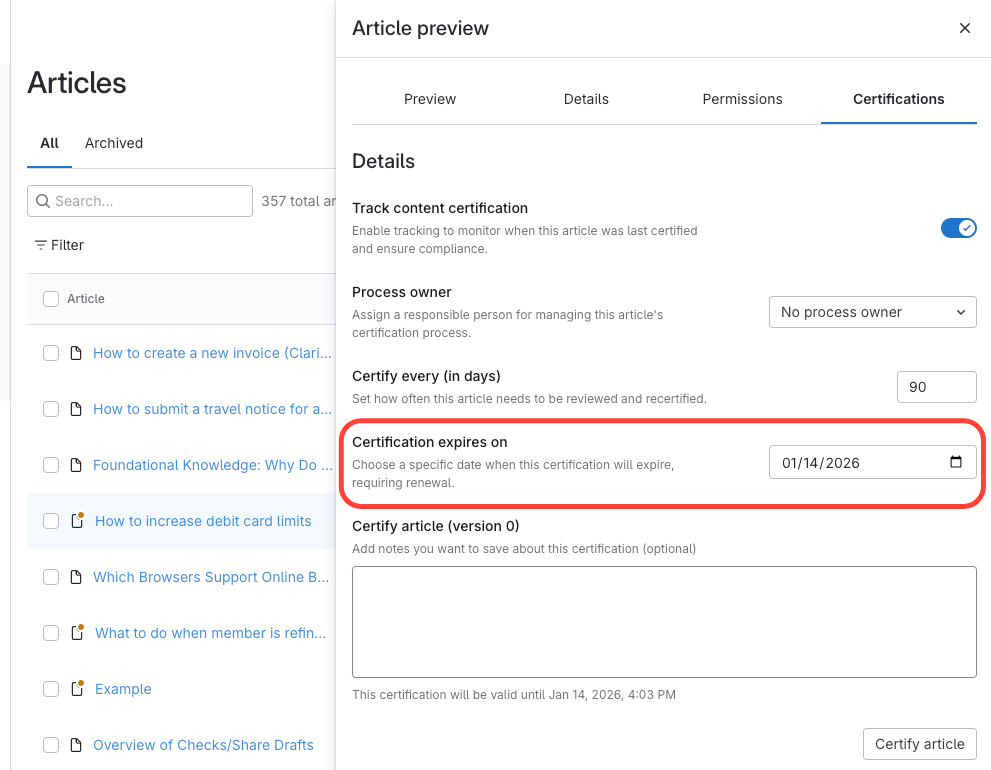
- Result
- Each certification will automatically set the next review date based on your chosen cadence.