- Select Articles
- Navigate to Articles
- You can either navigate to articles by clicking the Manual > Chapter, OR
- You can navigate to articles by clicking the Articles on the left-hand side and either searching for or filtering specific articles.
- Check the box next to each article to select it.
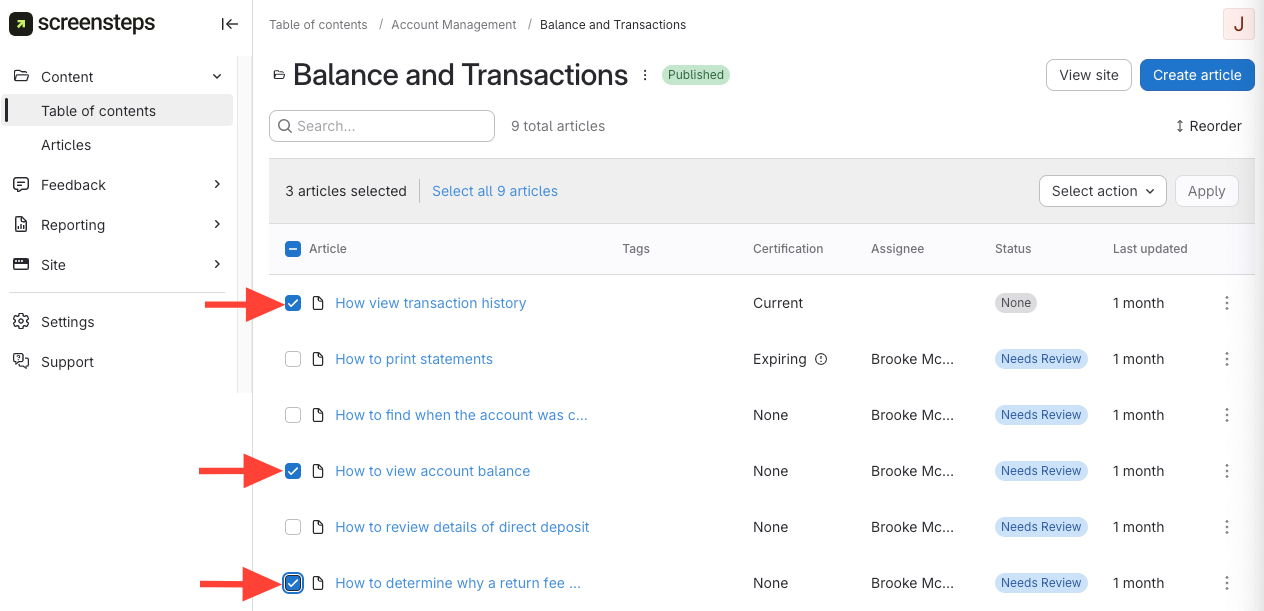
- Navigate to Articles
- Select Comment Permissions
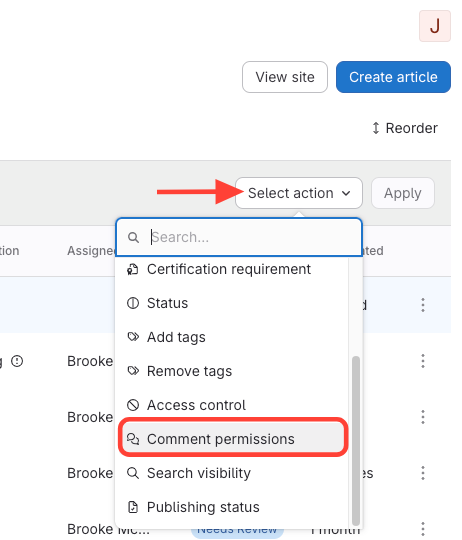
- Click Select Action.
- Select Comment Permissions
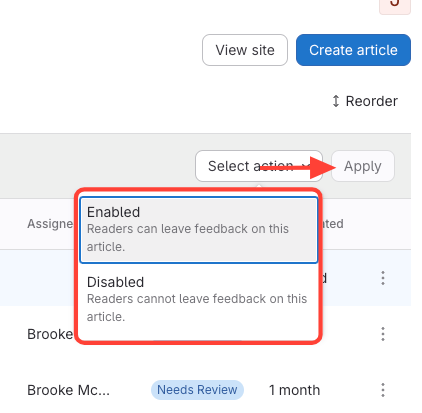
- Select Enabled or Disabled > Apply
- Enabled: Readers can leave feedback on the article in the published site.
- Disabled: Readers cannot leave feedback on the article in the published site.
How to Change the Comment Permissions for Multiple Articles at Once (i.e. Bulk Actions)
Updated on