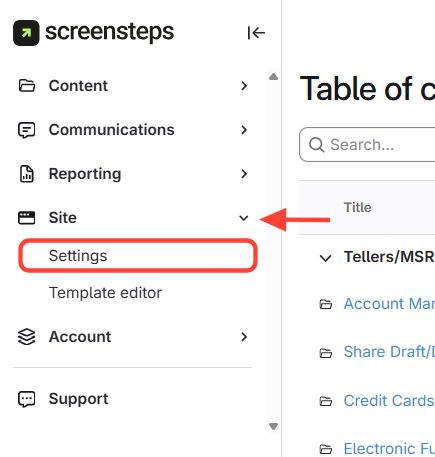
- Open the Settings menu
Click Site > Settings in the main navigation.
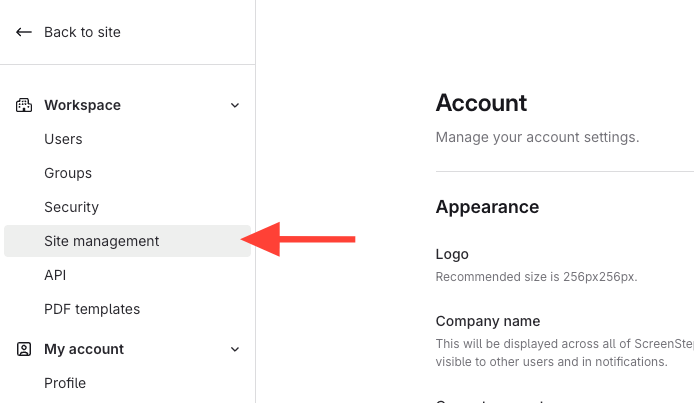
- Click Site Management
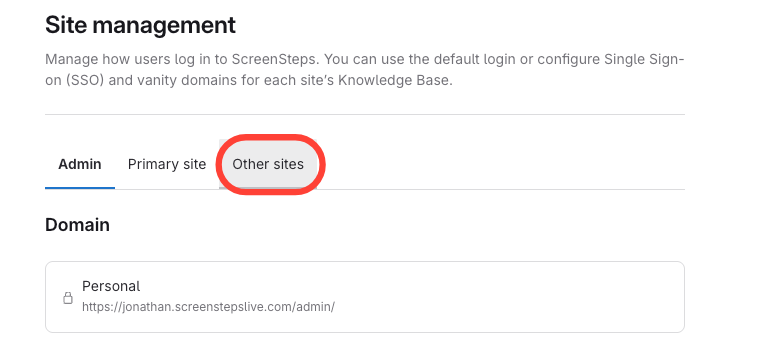
- Navigate to Other Sites
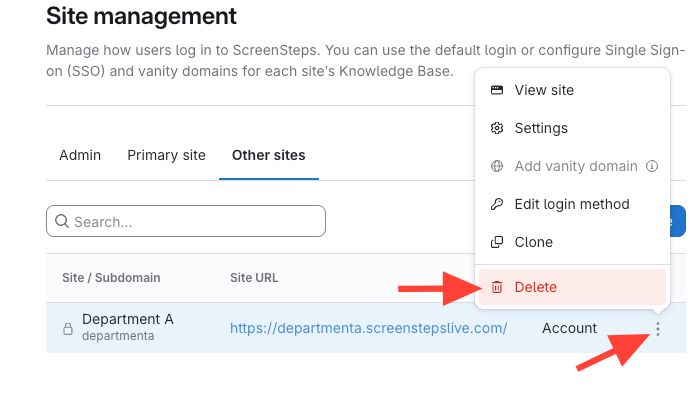
- Open the Action menu and select Delete
- Click the Action menu next to the site title.
- Select Delete from the menu.
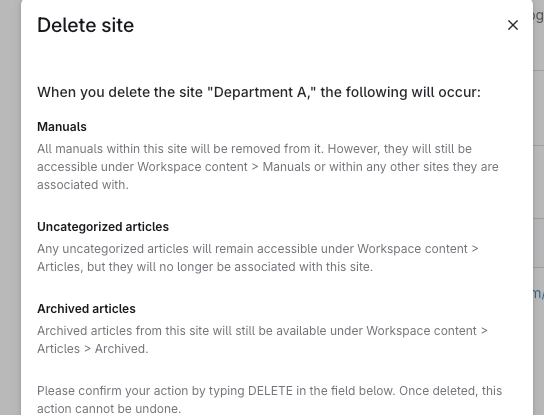
- Review deletion warning
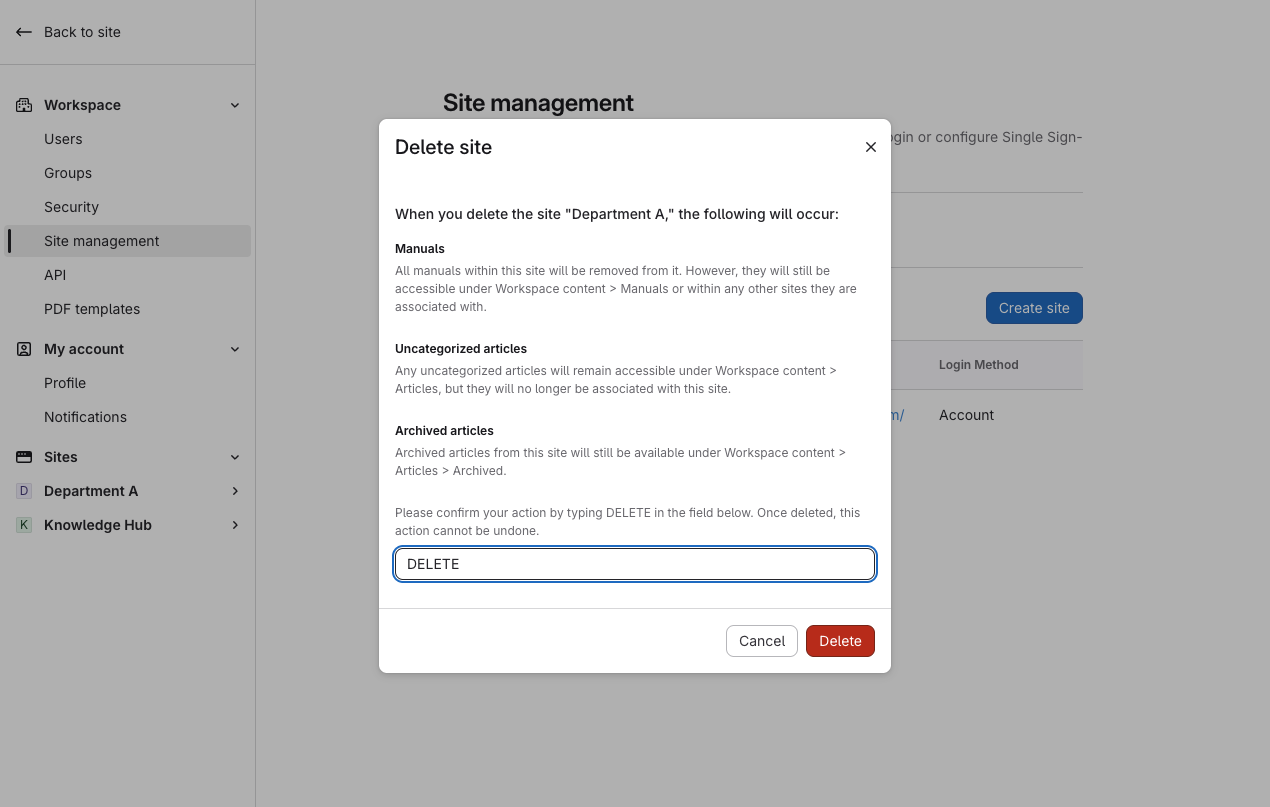
- Confirm deletion
- Enter Delete in the confirmation field.
- Click Delete to confirm.
How to Delete a Site
Updated on