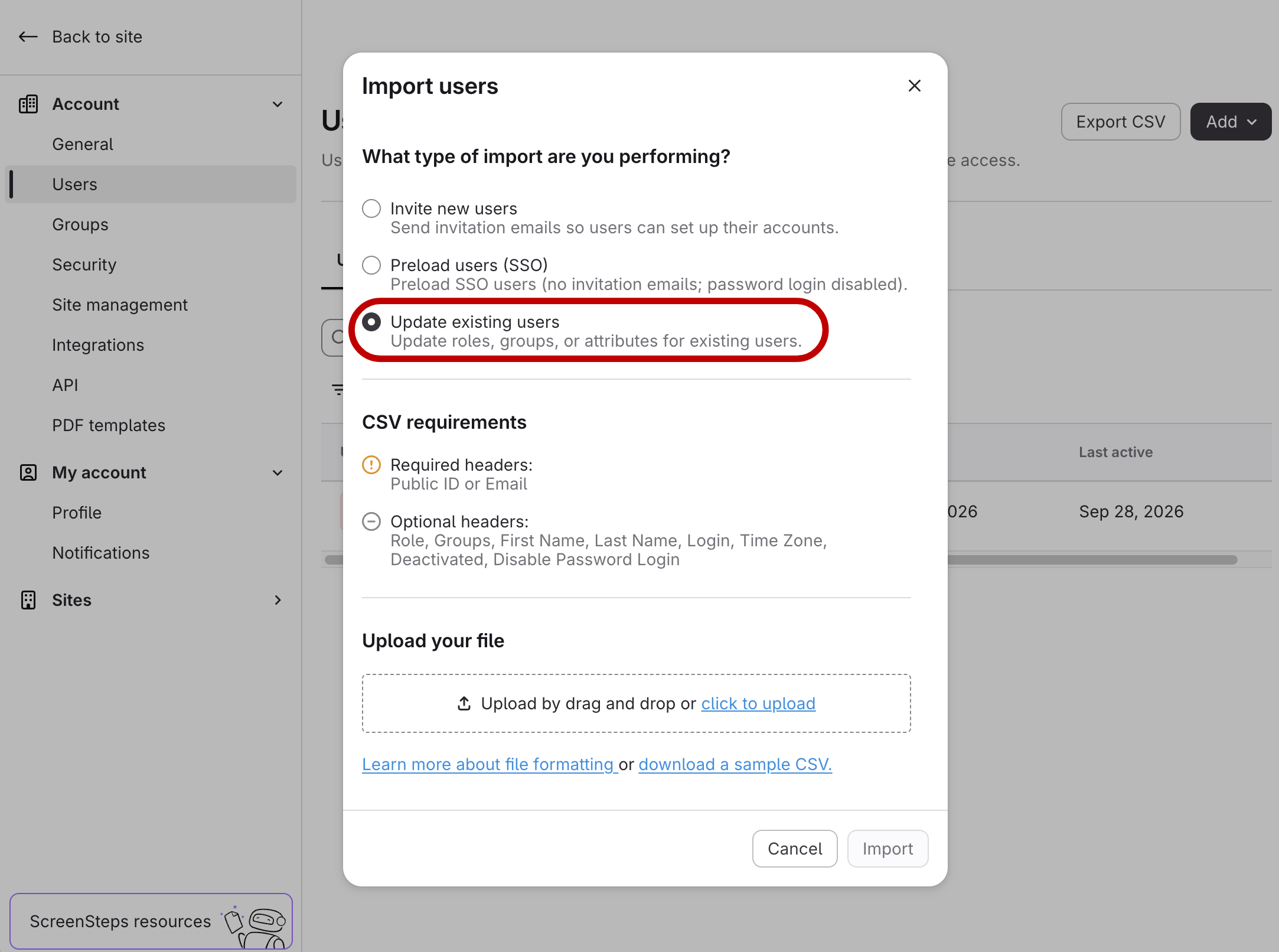
- In the navigation sidebar, click Account -> Settings
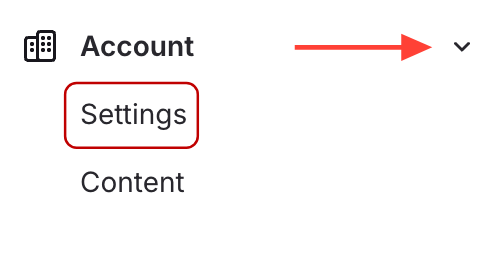
- Click Users
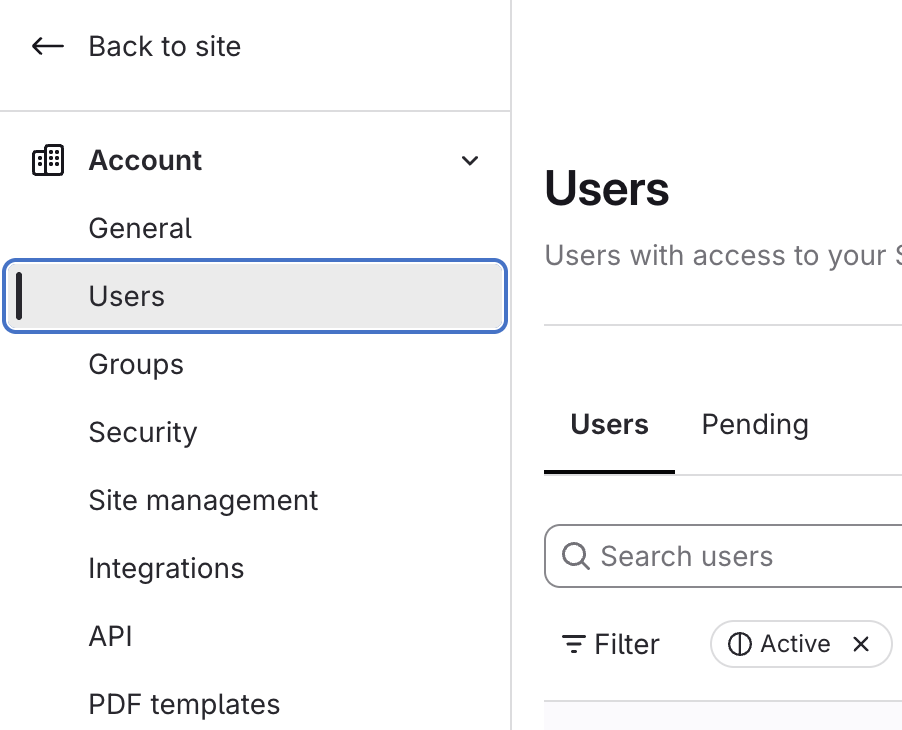
- Click Export CSV
Click Export CSV at the top right of the Users page, next to Add.
- View CSV Details

- (Optional) Update Users by Editing and Importing the File
The exported file uses the same columns as a user import, so you can edit it and import it without renaming anything.
- Edit the CSV and save it. Remove rows for users you don't want to change.
- On the Users page, click Add > Import users.
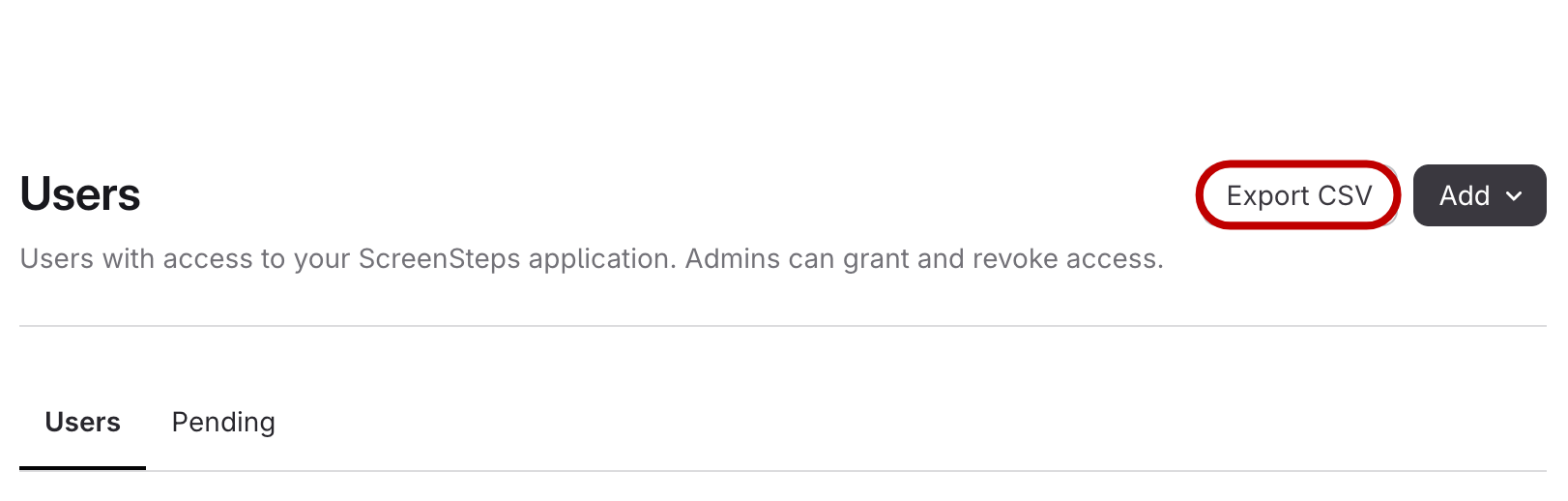
- Select Update existing users.
- Upload your CSV and click Import.