- Click Settings on the left side.
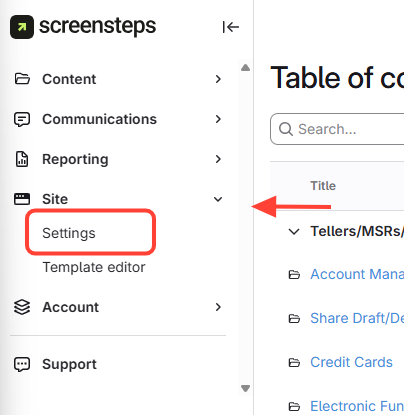
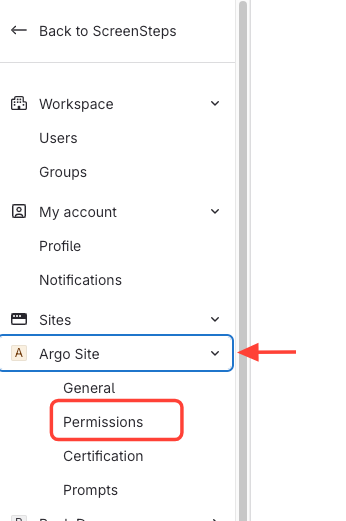
- Navigate to Site's Permissions
- Navigate to the desired site.
- SelectPermissions.
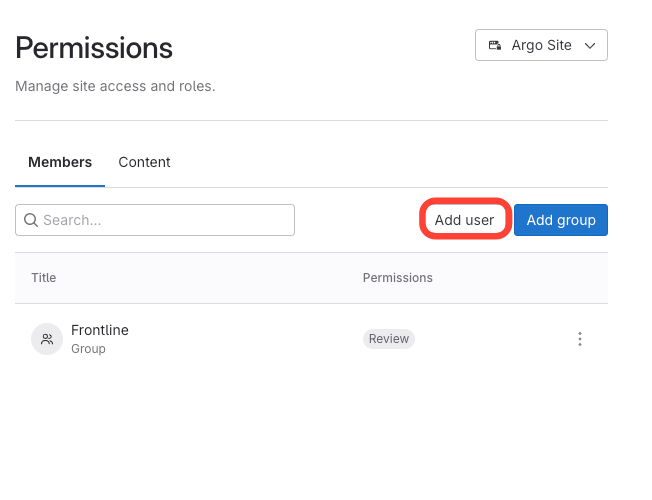
- Click Add User.
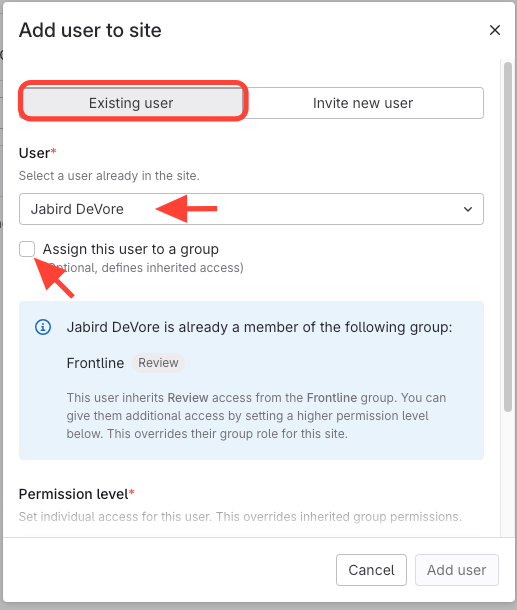
- Select User and remove group checkbox
- Select the existing user.
- UncheckAssign this user to a group (unless changing groups).
- Review the note about current group membership.
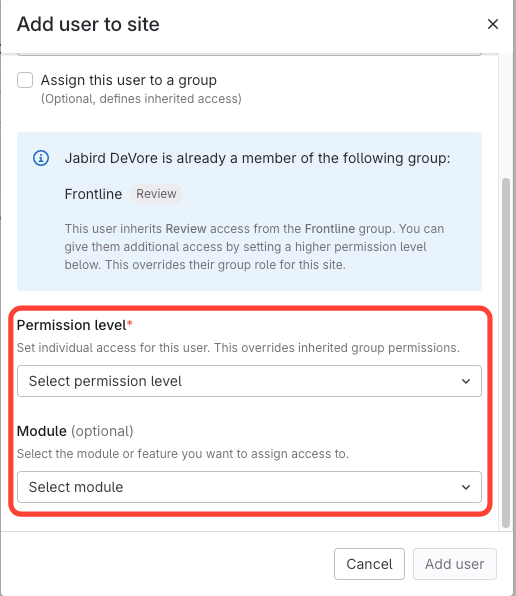
- Add Permissions and Modules (optional)
- Scroll down
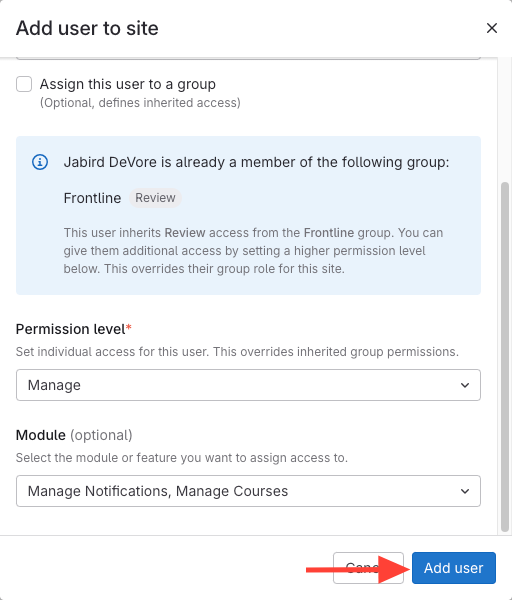
- Select additional permission levels as needed.
- Add modules if required.
- Click Add user
How to Add Additional Permissions to a User Who Belongs to a Group
Updated on