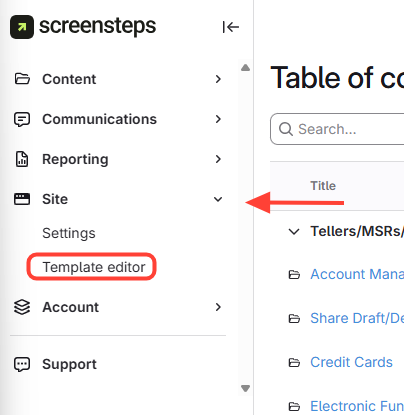
- Open the Template Editor
- Click Site.
- ClickTemplate Editor.
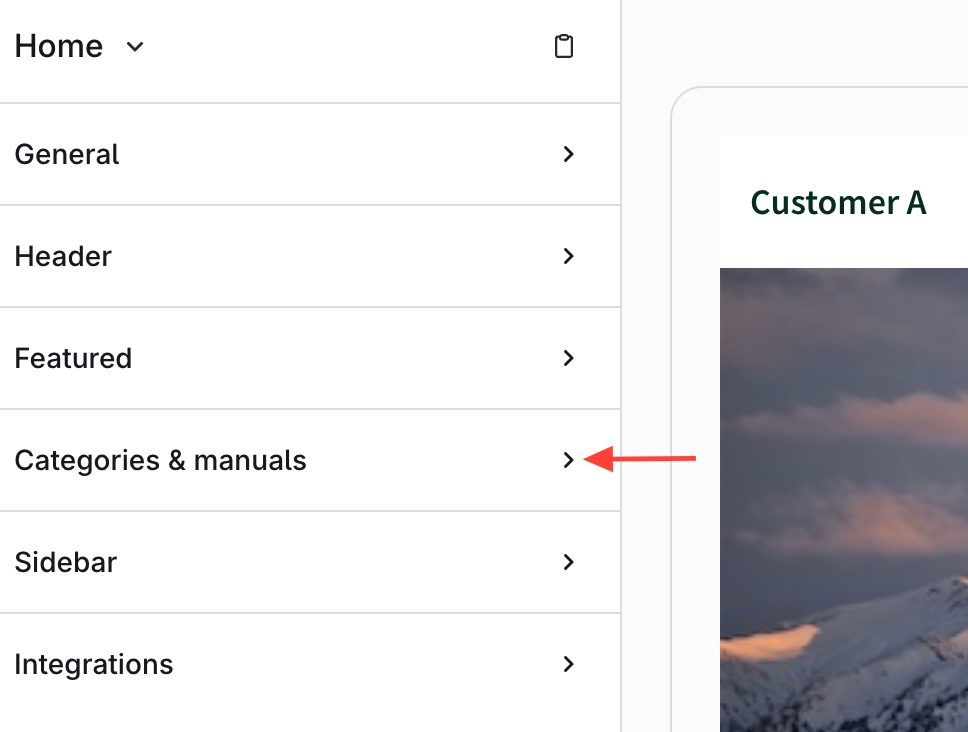
- Expand Categories & Manuals
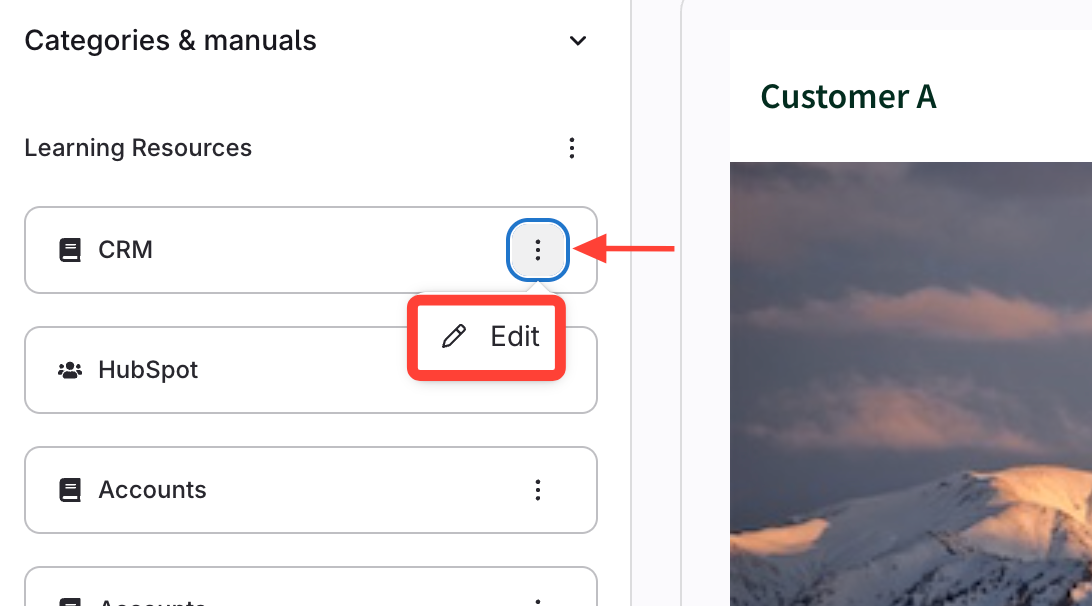
- Edit Manual
- Click the action menu (3 dots) next to the manual.
- Click Edit.
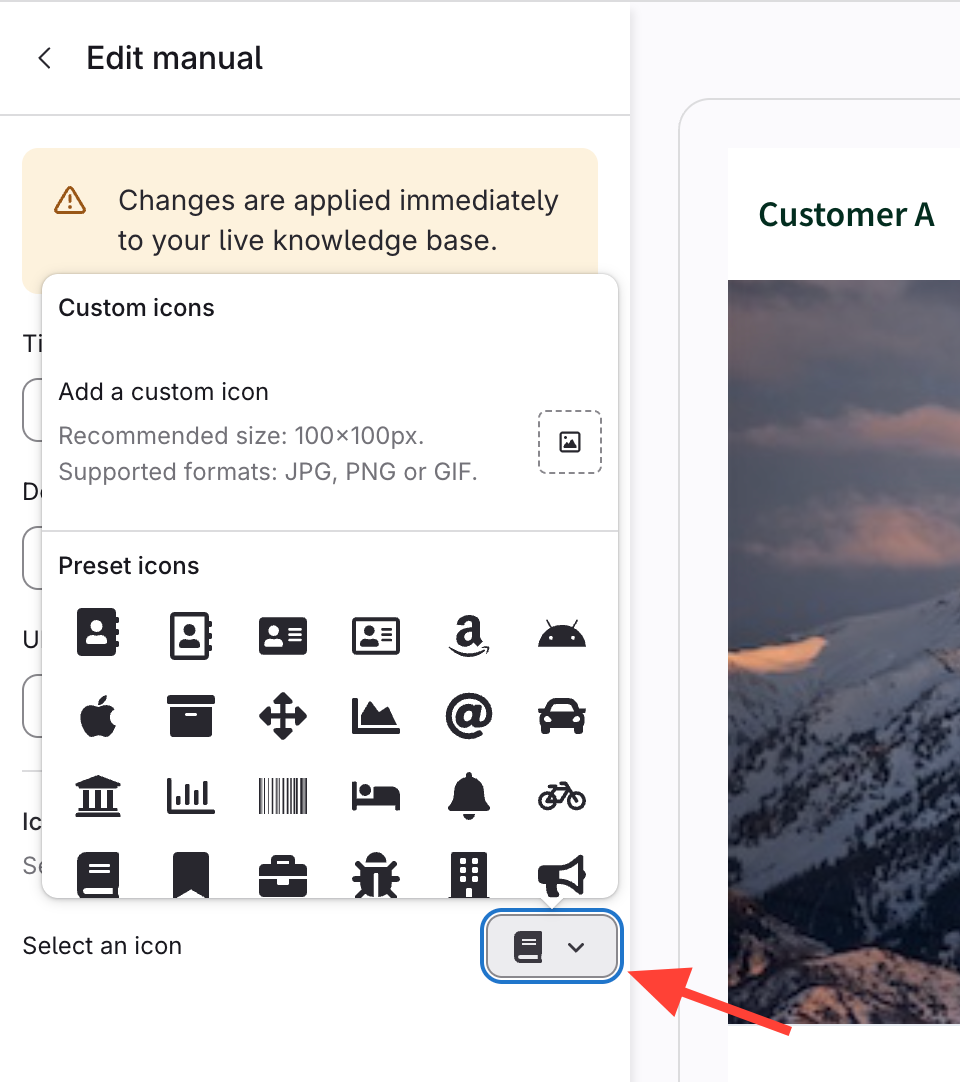
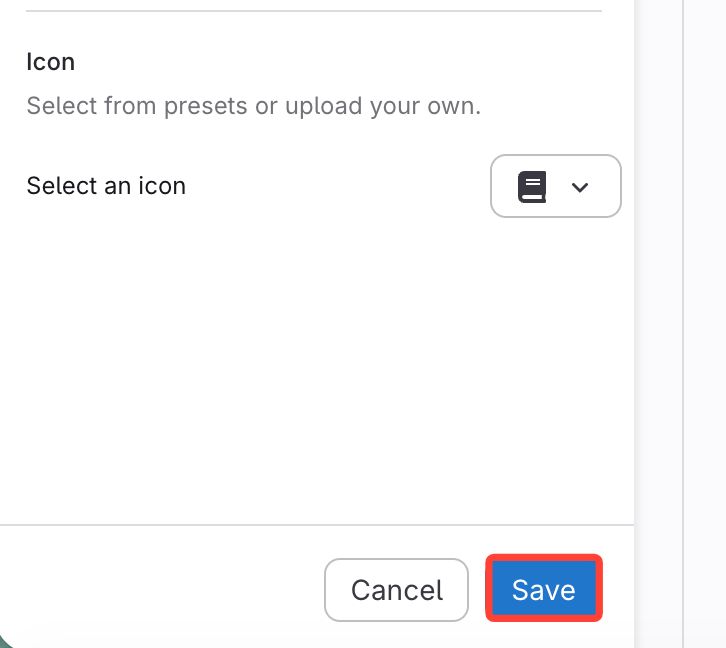
- Change the Manual Icon
- Click the dropdown next to Select an icon.
- Upload or Select an icon from the library.
- Click Save
How to change the icons that appear on each manual
Updated on