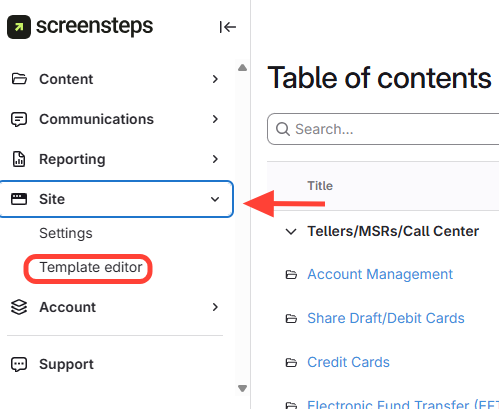
- Navigate to the Template Editor
- Click Site.
- ClickTemplate Editor.
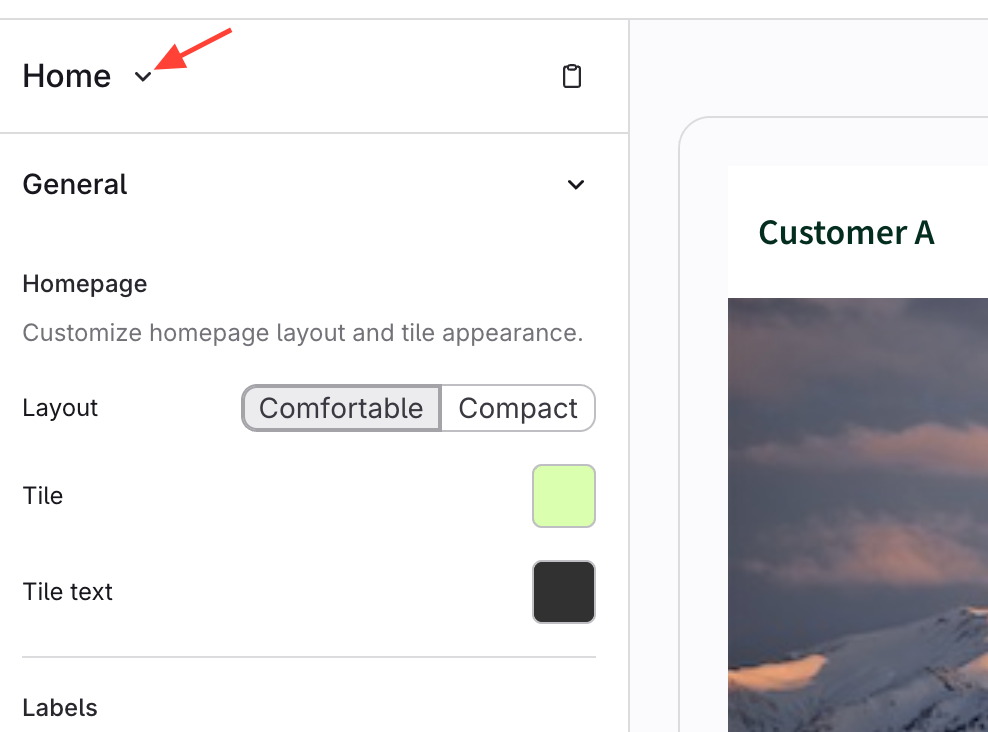
- Select a Page Type from the Dropdown
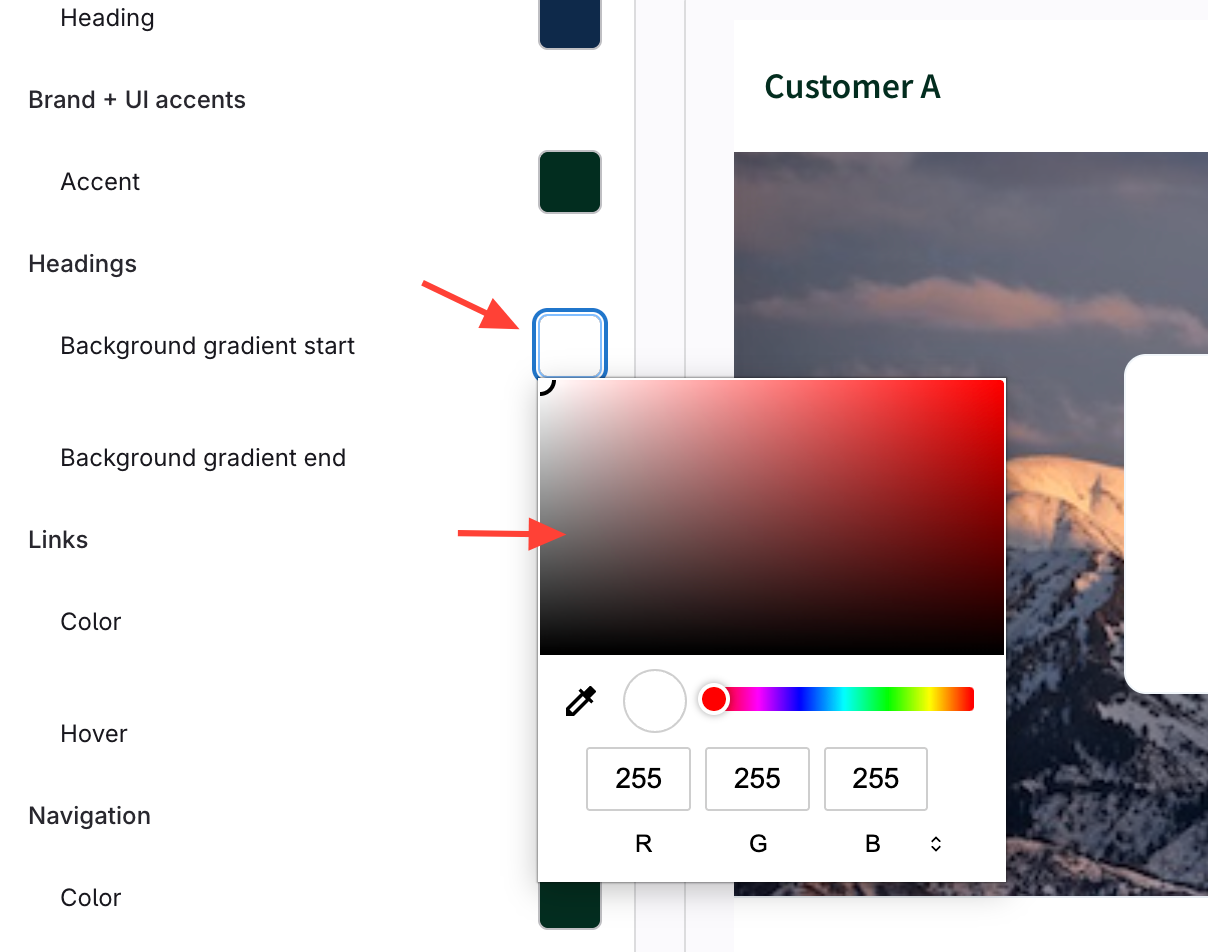
- Change your Colors
- Click the swatch next to the color name.
- Update the color using the color picker.
- Click outside the tool to close it.
- Click Save to Keep your Changes
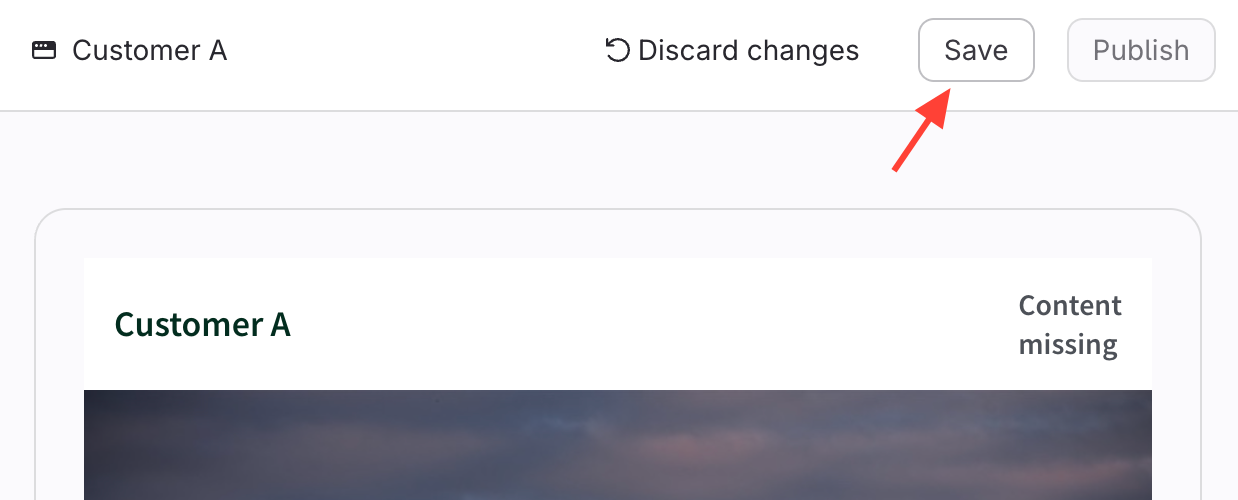
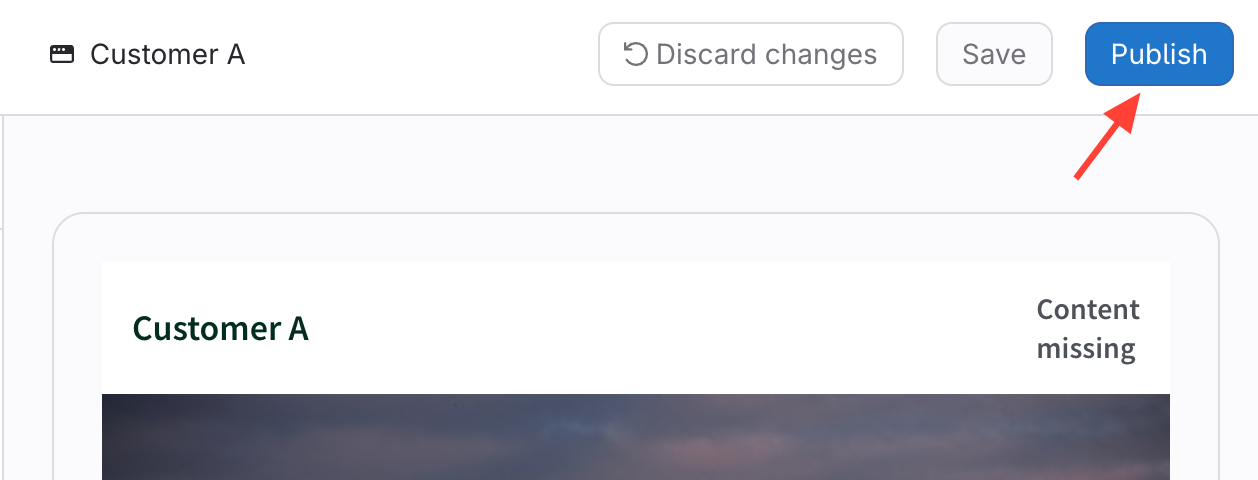
- Click Publish to Update your Live Site
How to Customize the Colors on Your Site
Updated on