Option 1: Access Password Change through Profile Icon
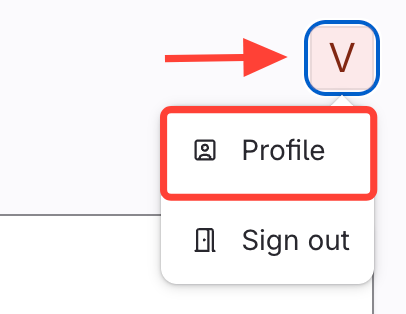
- Navigate to Profile
- Click the profile icon (top right).
- Select Profile.
- Change Password
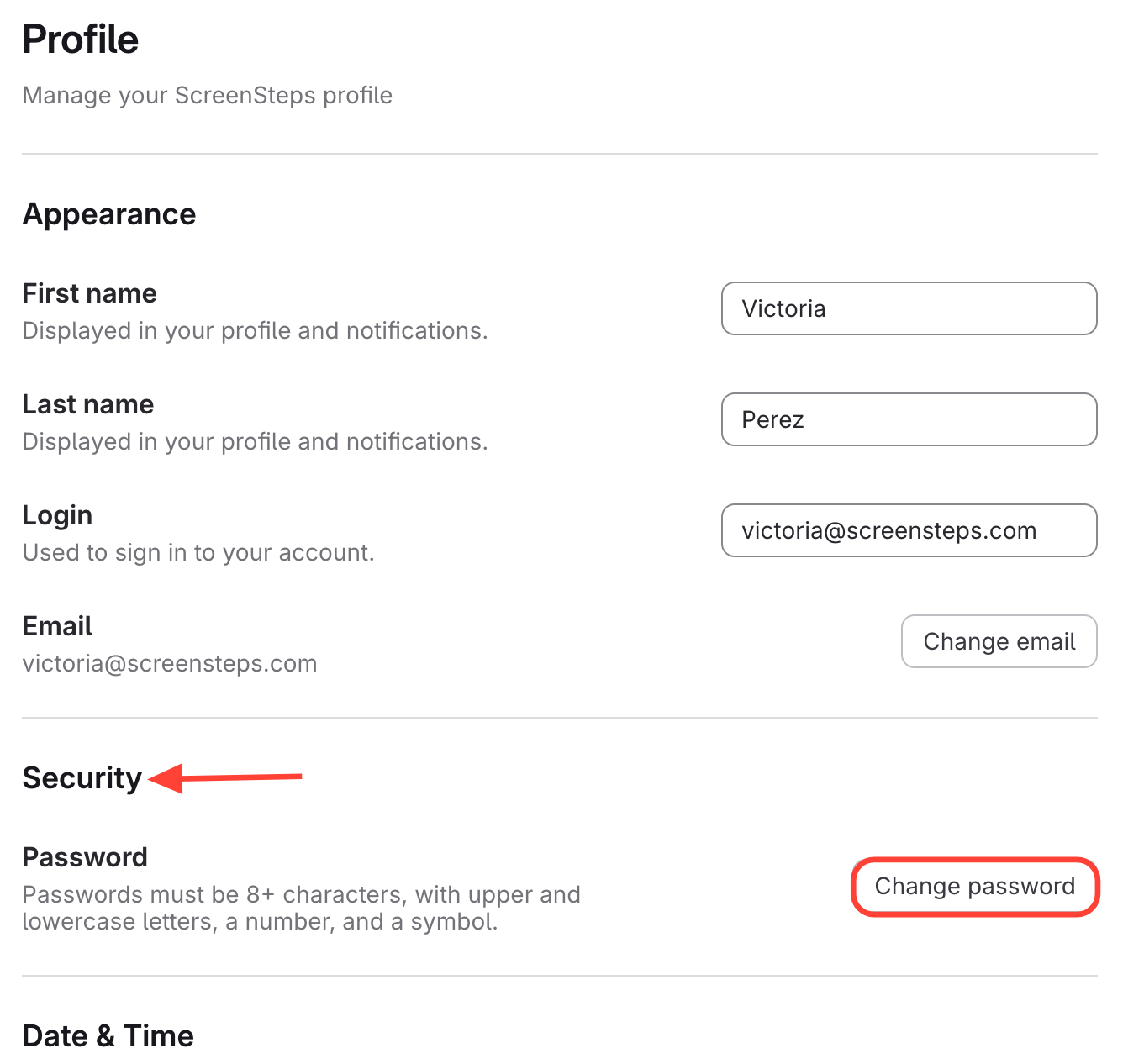
- Go to Security.
- Click Change Password.
Option 2: Access Password Change through Settings
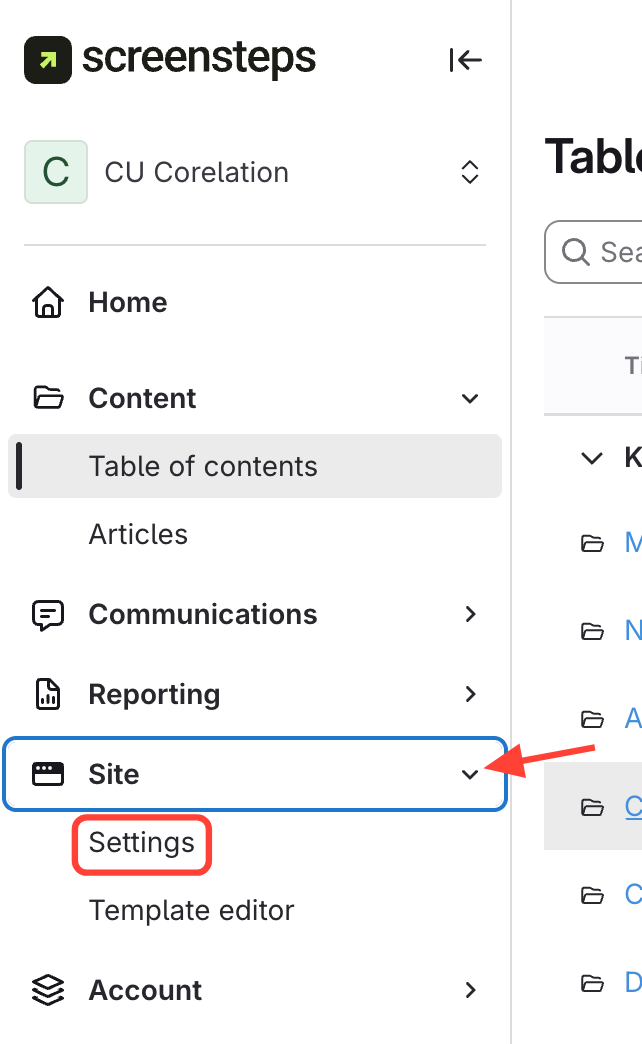
- Navigate to Settings
- Click Site
- Select Settings
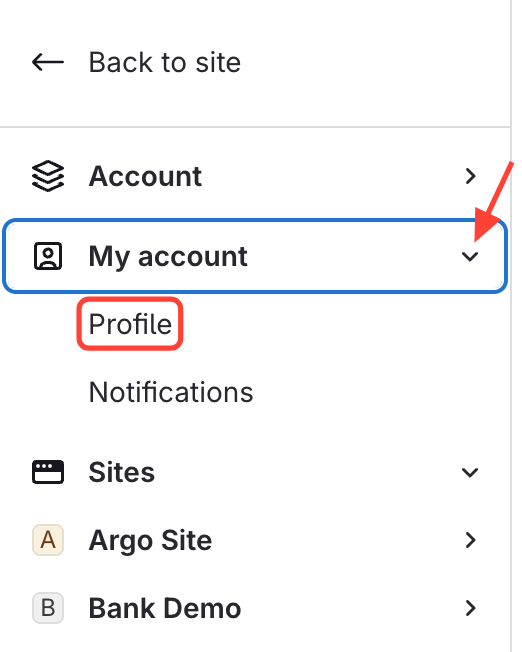
- Select Profile
- Click My Account
- Select Profile
- Change Password
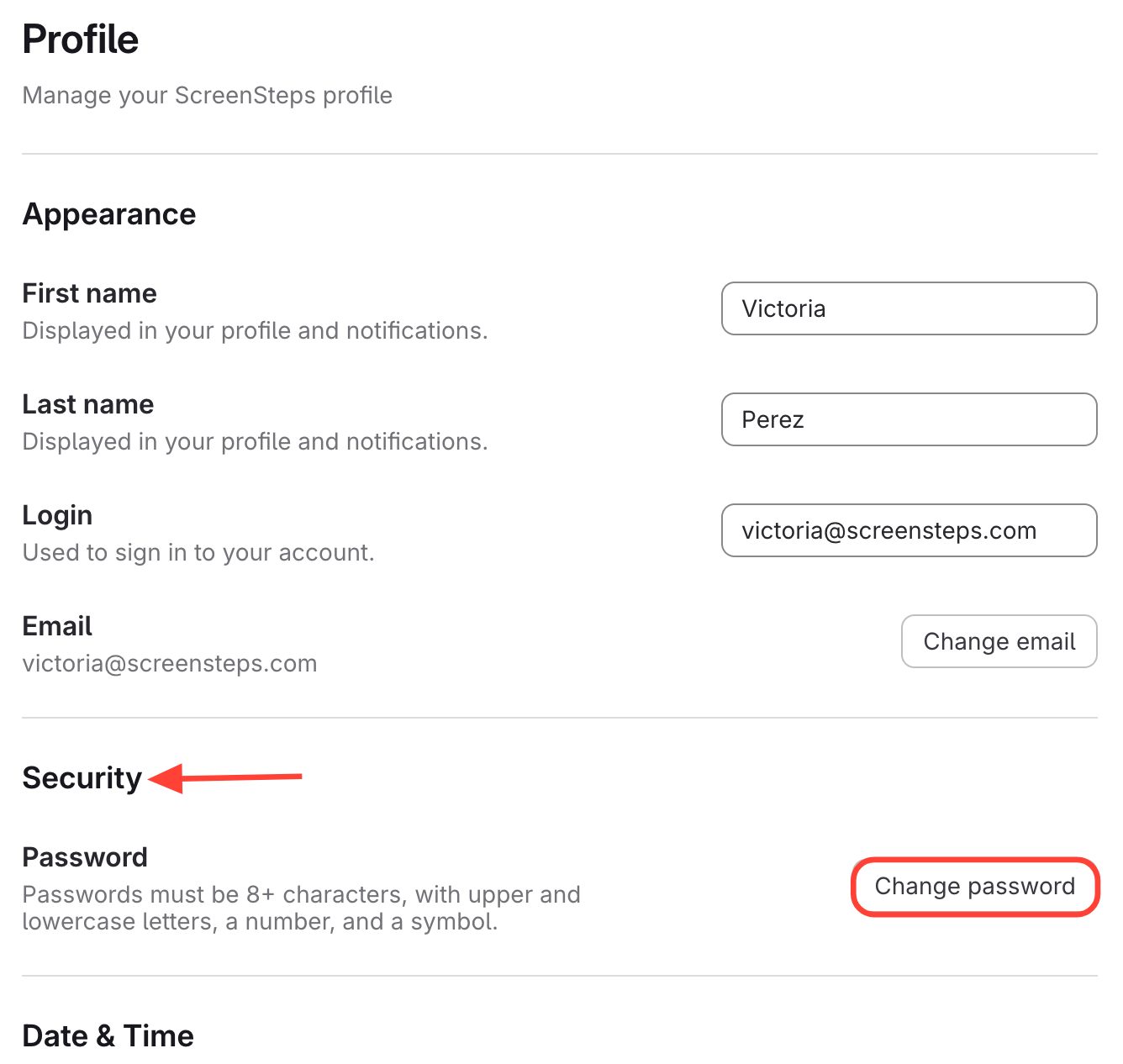
- Go to Security.
- Click Change Password.