Option 1: Reset Progress for One User
- Open the Course
- Click Content > Courses in the left menu.
- Click the course title. The course preview opens.
- Reset the User's Progress
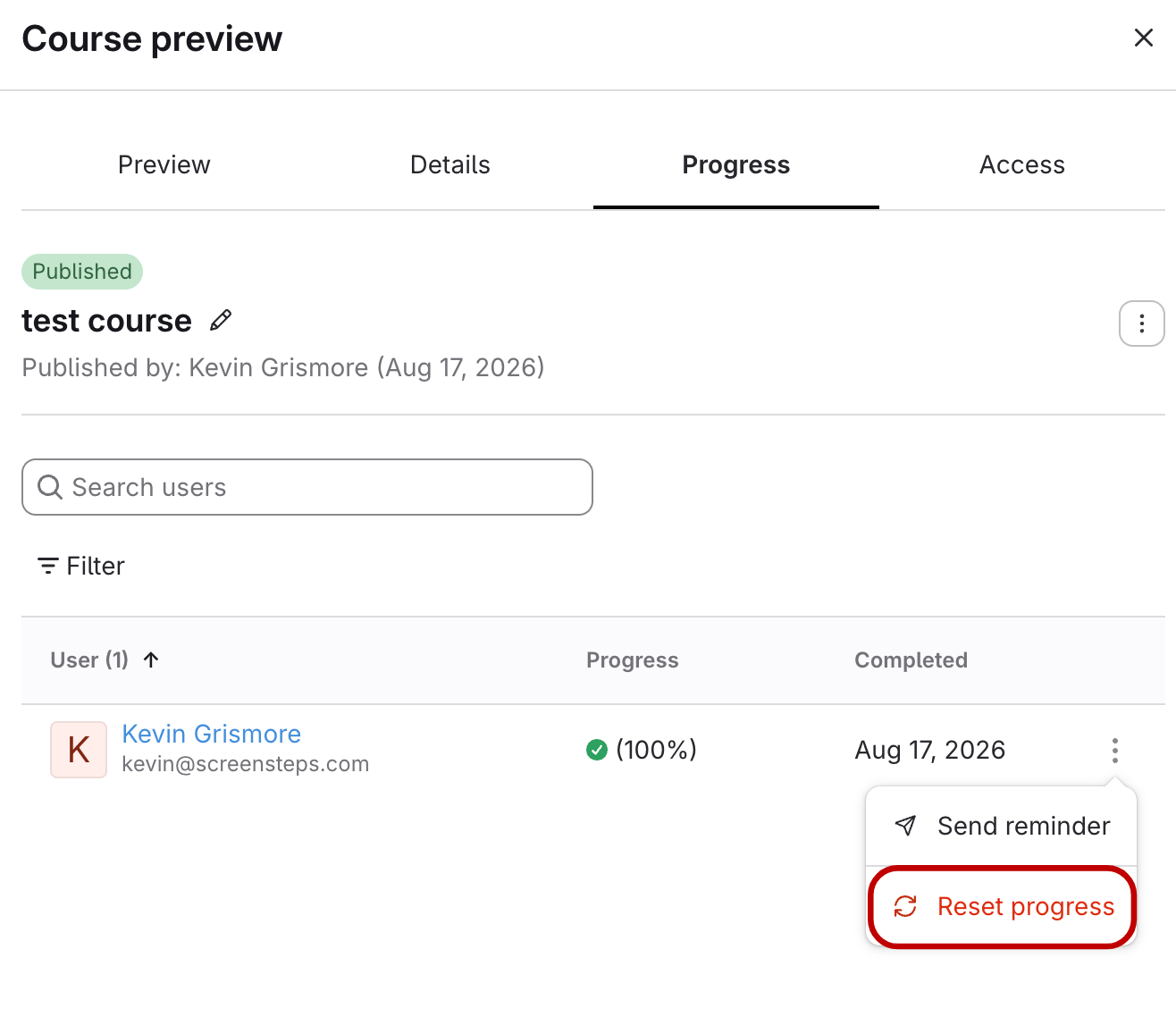
- Click the Progress tab.
- Click the three dots next to the user's name.
Click Reset progress.
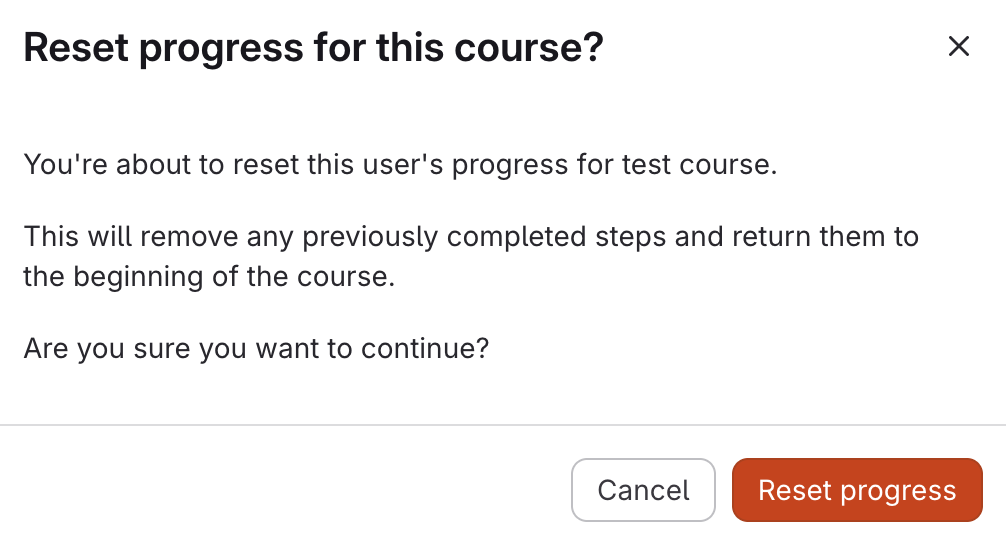
- Confirm
Click Reset progress in the confirmation dialog.
Option 2: Reset Progress for Everyone in the Course
- Open the Course
- Click Content > Courses in the left menu.
- Click the course title. The course preview opens.
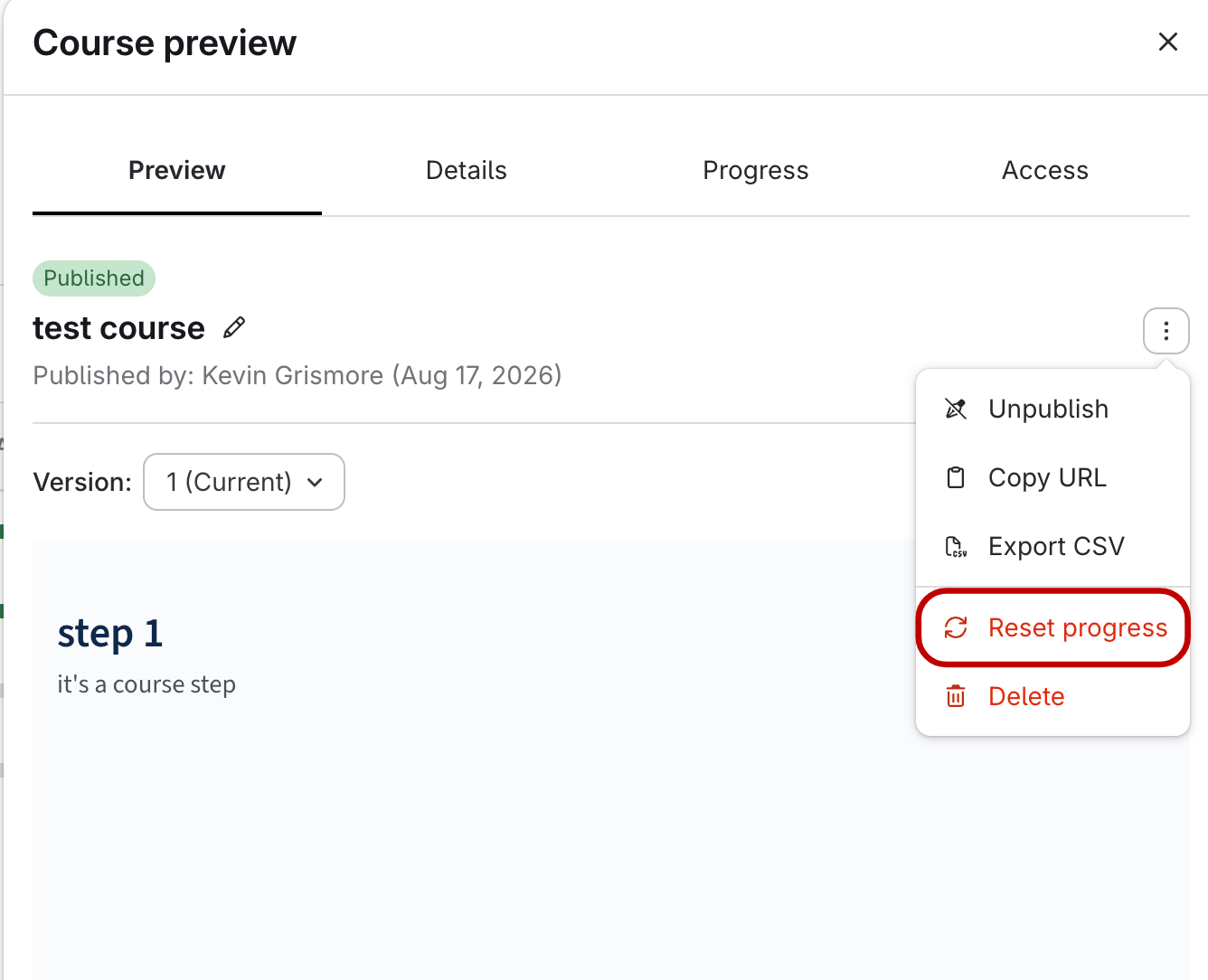
- Choose Reset Progress
- Click the three dots next to the course title.
Click Reset progress.
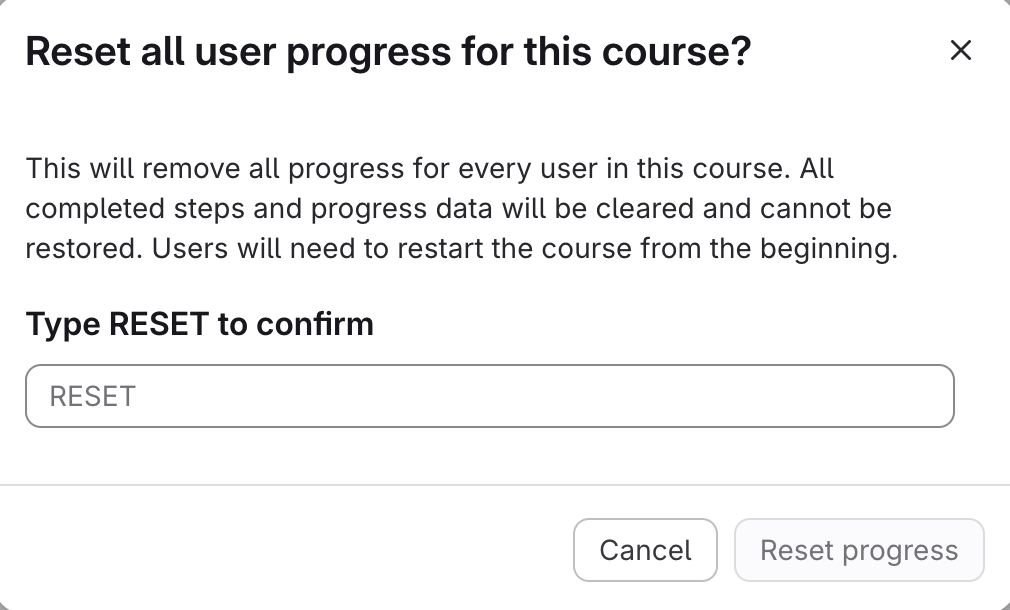
- Confirm
- Type RESET in the confirmation box.
- Click Reset progress. A Course progress reset message appears.