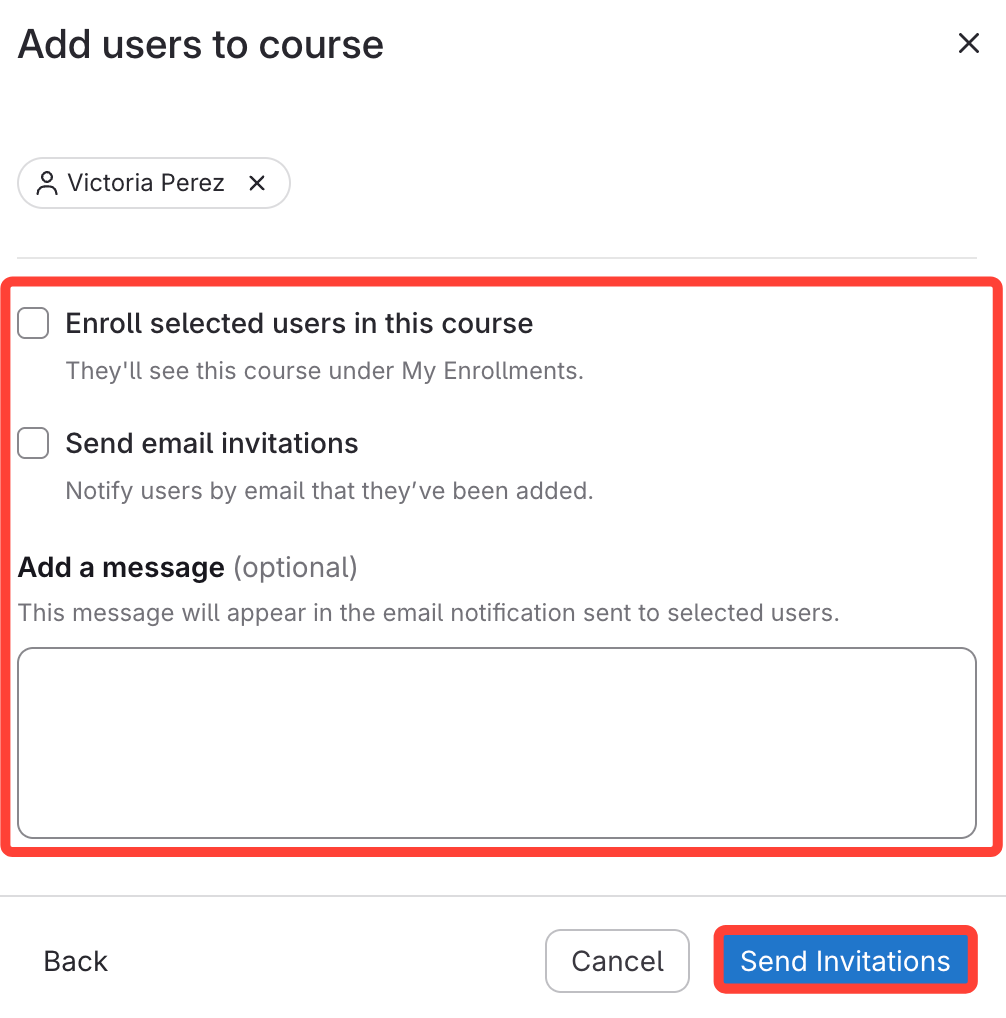
- Navigate to Courses
Click Courses on the left menu.
Click the desired Course.
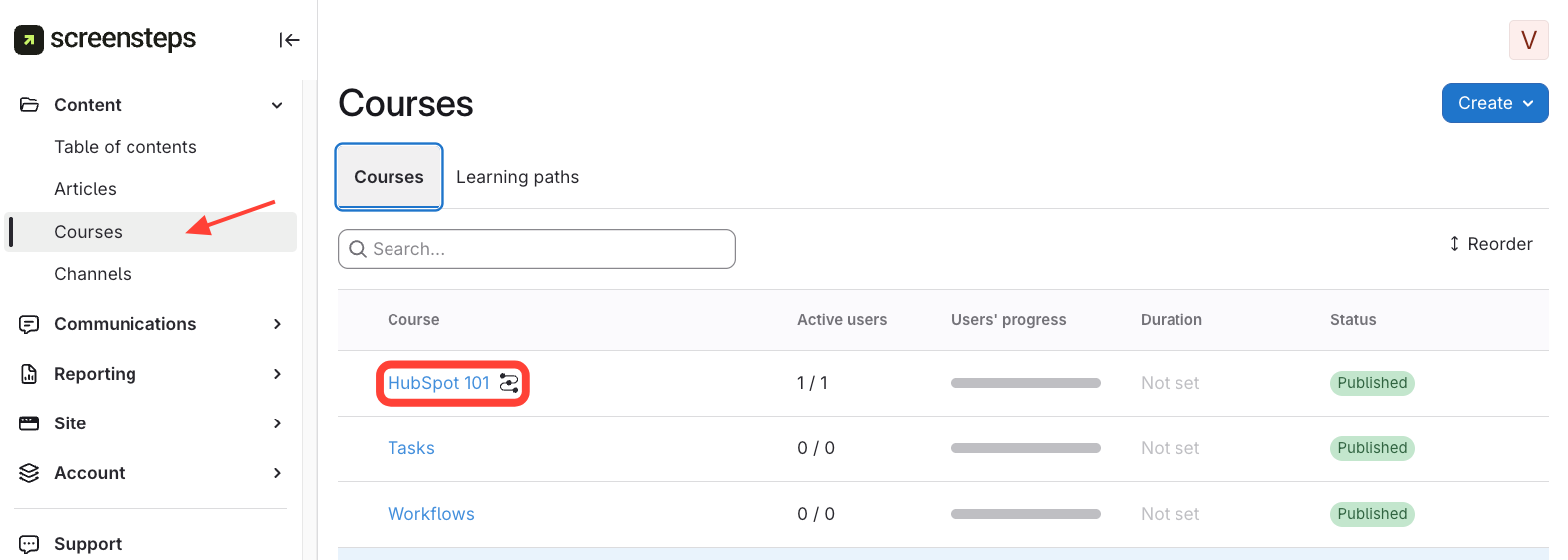
- Add User
Go to Permissions.
Click Add User.
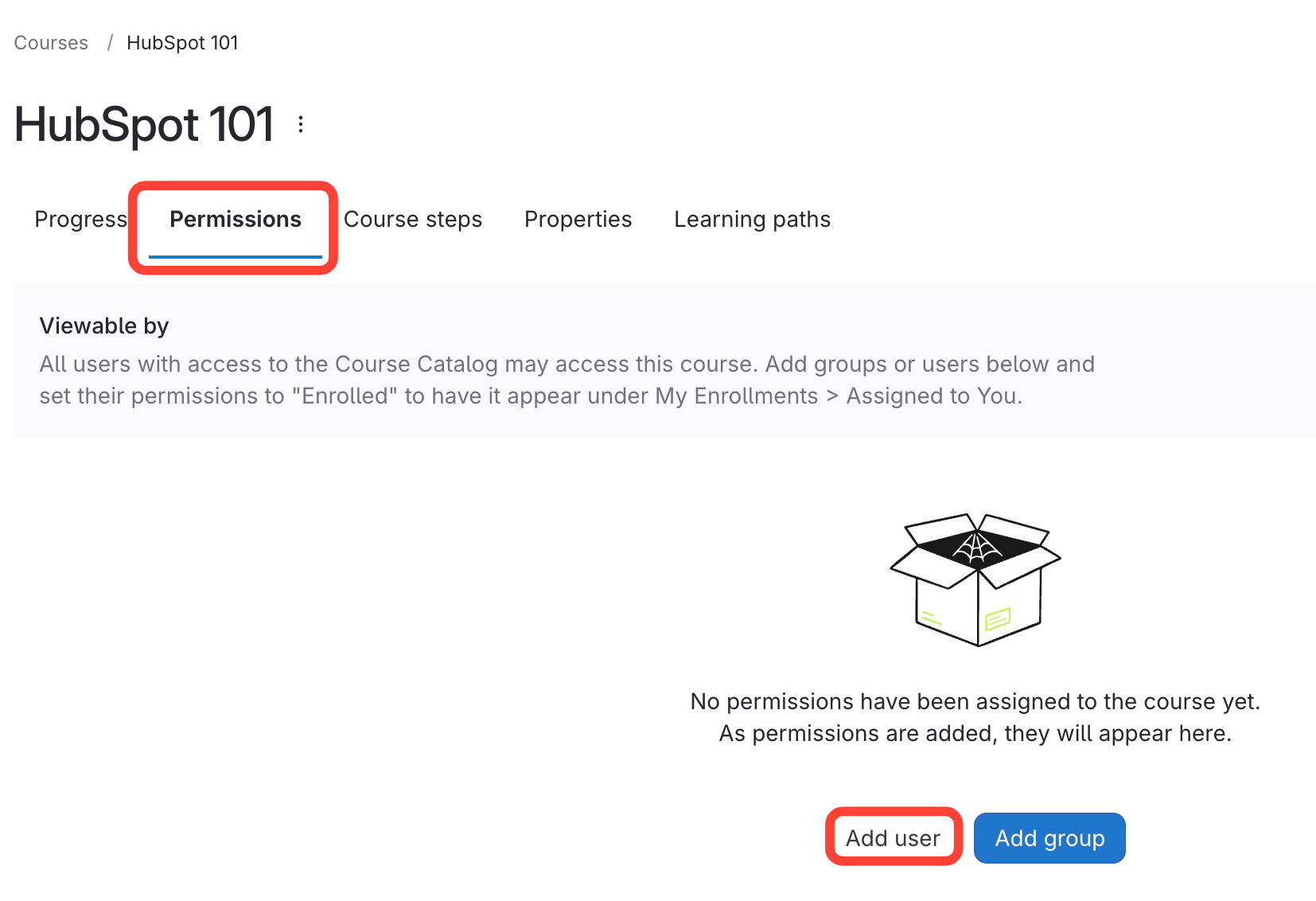
- Select User
Select the user from the dropdown.
Click Next.
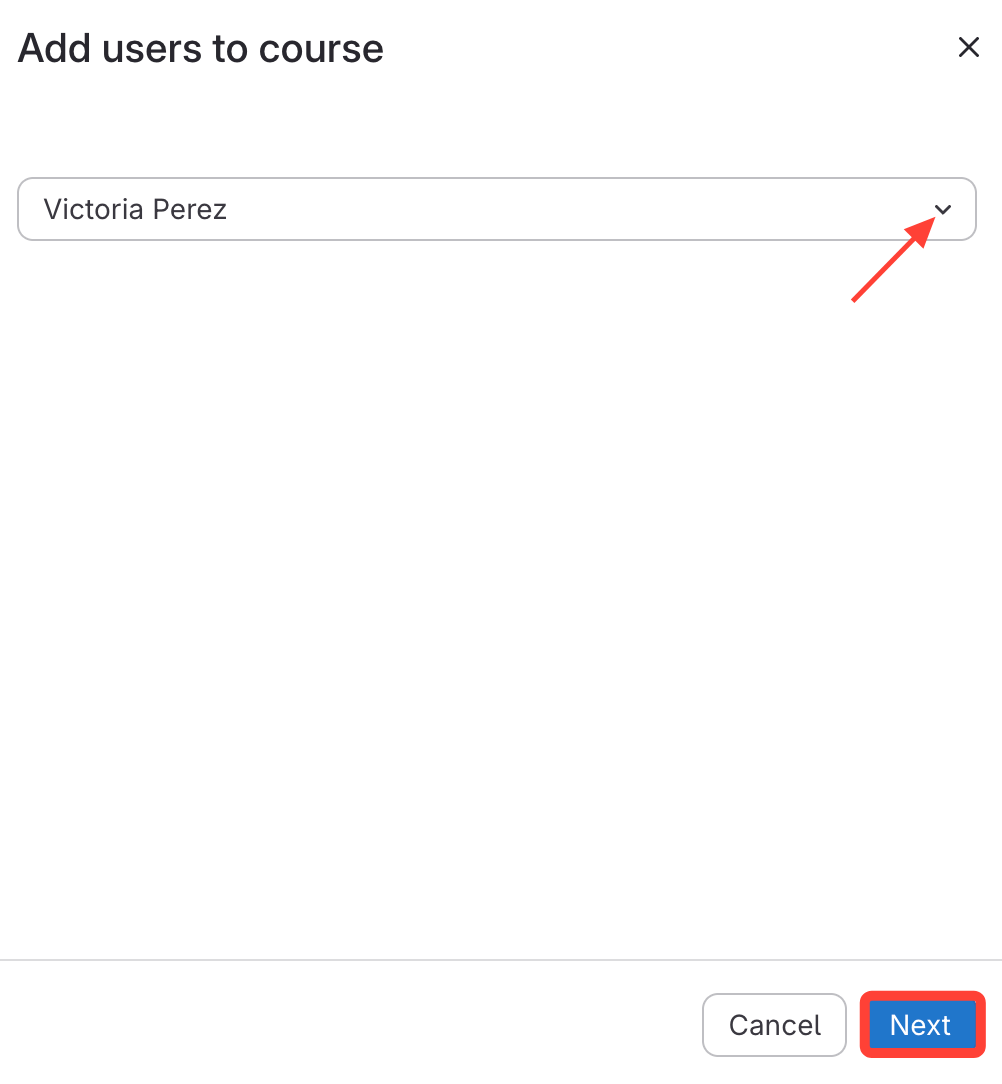
- Send Invitation to User
Choose your preferences:
Enroll selected users in this course
Send email invitations
Add a message (optional)
Click Send Invitations.