If you use Google Workspace or Microsoft Entra ID, see:
- How to Set up Single Sign-on with Google Workspace
- How to Set up Single Sign-on with Microsoft Entra ID
Before you begin
You will need:
- Administrator access to your identity provider
- Account Admin access in ScreenSteps
- A ScreenSteps subscription that includes Single Sign-on
- A ScreenSteps group that grants the appropriate site permissions
Decide whether SSO will apply to:
- The ScreenSteps Admin and Content Management Centers.
- A published site.
- Both of the above.
Each site can have its own identity provider configuration.
See How Identity Providers, domains, sites, and your account are associated.
- Start the SAML configuration in ScreenSteps
Change the login method to SAML for the area you are configuring:
- The Admin/Content Management Area/Primary Site (without a custom domain)
- The Primary Site (requires a custom domain)
- Your other sites
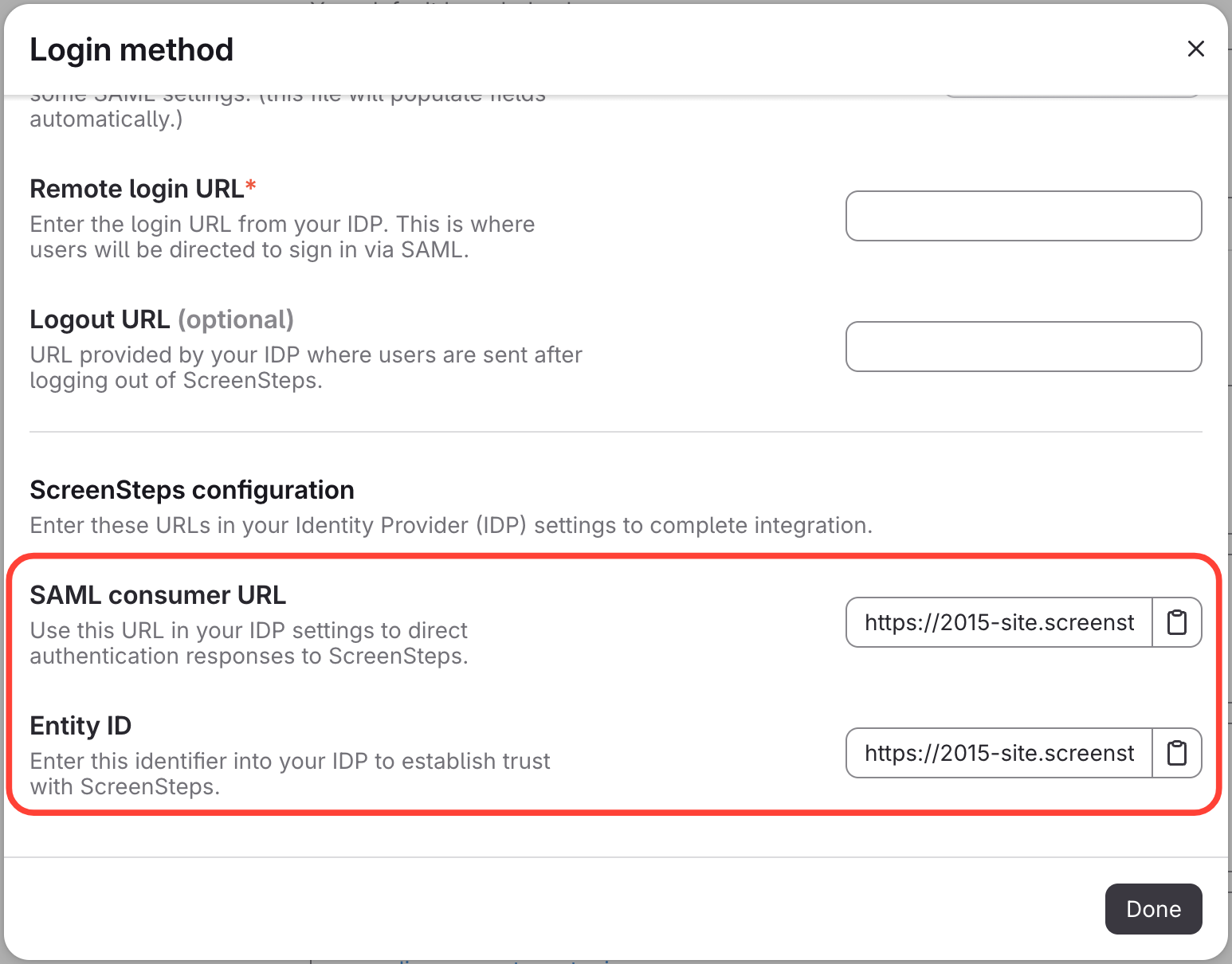
Scroll down to the bottom of the Configuration tab to find the SAML consumer URL and Entity ID. You will need these values for the next step.
Configure the NameID settings
Configure what the SAML NameID represents:
NameID field Use when Not configured You want to preserve the legacy ScreenSteps matching behavior. Email NameID contains the user's email address. Login NameID contains the user's ScreenSteps login. External ID NameID contains an immutable identifier that is stored as the user's External ID. When you configure a NameID mapping, ScreenSteps uses NameID as the only field for finding an existing user. Before selecting Login or External ID for an existing SAML configuration, make sure each existing ScreenSteps user already has a matching value. You can populate these values through a CSV user import or configure your identity provider to send values that already exist in ScreenSteps.
If an existing user does not have a matching Login or External ID, ScreenSteps will not connect that user based on email. It may attempt to create another user and reject the sign-in if the asserted email or login is already in use.
Next, choose the NameID format ScreenSteps should request:
Requested format Use when EmailAddress Your identity provider sends an email address as NameID. This is the default. Persistent Your identity provider sends a stable, opaque identifier as NameID. Unspecified Your identity provider requires the SAML Unspecified format. Do not specify Your identity provider requires ScreenSteps to omit the NameID format from its authentication requests and metadata. The requested NameID format and the NameID mapping are independent settings:
- The requested format controls what ScreenSteps advertises in SAML authentication requests and service provider metadata.
- The mapping controls which ScreenSteps user field is compared with the returned NameID.
ScreenSteps does not use the format returned by the identity provider to decide how to match a user, and it does not reject a response solely because the returned format is missing or differs from the requested format.
- Create a custom SAML application
Create a SAML 2.0 application in your identity provider and enter the values below.
Identity provider setting Value Single sign-on URL, ACS URL, or Reply URL The SAML Consumer URL from ScreenSteps Audience URI, SP Entity ID, or Identifier The Entity ID from ScreenSteps NameID format The format selected in ScreenSteps NameID value The value required by the NameID mapping selected in ScreenSteps Start URL Leave blank unless your identity provider requires one For example:
- With the Email mapping, send the user's email address as NameID.
- With the Login mapping, send the user's ScreenSteps login as NameID.
- With the External ID mapping, send the user's immutable identifier as NameID.
ScreenSteps sends users to your identity provider using an SP-initiated login. Your identity provider returns the SAML response to the SAML Consumer URL. ScreenSteps also accepts IdP-initiated responses sent to that URL.
- Configure the SAML assertion
Email address
ScreenSteps requires an email address for every user.
If NameID maps to Email, send the user's email address as NameID. ScreenSteps uses NameID as the user's email and as the only field for finding an existing user.
If NameID maps to Login or External ID, include the user's email in one of these SAML attributes:
emailmailhttp://schemas.xmlsoap.org/ws/2005/05/identity/claims/emailaddressurn:mace:dir:attribute-def:mail
With a Login or External ID mapping, ScreenSteps does not treat NameID as an email fallback. A user cannot sign in or be created without a separate email attribute.
When no NameID mapping is configured, ScreenSteps preserves its legacy behavior and accepts email in this order:
emailmailhttp://schemas.xmlsoap.org/ws/2005/05/identity/claims/emailaddressurn:mace:dir:attribute-def:mailNameID
Login
The ScreenSteps login field can be different from the user's email address.
If NameID maps to Login, send the user's existing ScreenSteps login as NameID. ScreenSteps uses NameID as the only field for finding an existing user and does not replace that user's login with a value from another assertion attribute.
When NameID does not map to Login, ScreenSteps accepts a login value from these attributes:
usernamehttp://schemas.xmlsoap.org/ws/2005/05/identity/claims/nameurn:mace:dir:attribute-def:eduPersonPrincipalName
For example, when no NameID mapping is configured and an existing user's ScreenSteps login is
employee-1042, send:employee-1042in theusernameattribute- The user's current email address in the
emailattribute
First and last name
ScreenSteps accepts the following optional attributes:
ScreenSteps field Accepted attributes First name givenName,http://schemas.xmlsoap.org/ws/2005/05/identity/claims/givenname,urn:mace:dir:attribute-def:givenNameLast name sn,http://schemas.xmlsoap.org/ws/2005/05/identity/claims/surname,urn:mace:dir:attribute-def:snExternal ID
ScreenSteps can use an immutable External ID to identify a user. This is the most reliable mapping when a user's email address or login might change.
To send the External ID as NameID, select External ID as the NameID mapping and configure your identity provider to send the user's immutable identifier as NameID. ScreenSteps then uses NameID as the only field for finding an existing user. A separate supported email attribute is required.
When NameID maps to External ID, ScreenSteps ignores the configured External ID attribute and Microsoft Entra ID's
objectidentifierclaim when resolving the user's External ID.If NameID does not map to External ID, ScreenSteps reads the External ID from Microsoft Entra ID's
objectidentifierclaim by default:<saml:Attribute Name="http://schemas.microsoft.com/identity/claims/objectidentifier"> <saml:AttributeValue>8f94e3d1-2c7a-4b6e-9f1a-6d2c5b0a7e11</saml:AttributeValue> </saml:Attribute>To use a different attribute without mapping NameID to External ID, ScreenSteps Support configures the attribute name it should read. Once that name is set, send the External ID in an attribute with the same name. For example, if the configured name is
userid:<saml:Attribute Name="userid"> <saml:AttributeValue>8f94e3d1-2c7a-4b6e-9f1a-6d2c5b0a7e11</saml:AttributeValue> </saml:Attribute>Contact [email protected] before activating SSO if you want to map a custom assertion attribute to External ID.
How ScreenSteps identifies a user
The matching behavior depends on whether a NameID mapping is configured.
When no NameID mapping is configured
ScreenSteps preserves its legacy behavior. It looks for an existing user in this order:
- External ID, when configured and included in the assertion
- Email address
- A ScreenSteps login that matches the asserted email address
- A ScreenSteps login that matches the asserted username
The first matching user is signed in. Make sure email addresses are current and unique within the ScreenSteps account.
If no user matches, ScreenSteps creates one using the values in the assertion. The new user's login is the asserted username when one is provided; otherwise, it is the email address. If an External ID is provided, it is stored with the user's record.
When a NameID mapping is configured
NameID is the only value ScreenSteps uses to find an existing user:
- Email: ScreenSteps finds the user whose email equals NameID.
- Login: ScreenSteps finds the user whose login equals NameID.
- External ID: ScreenSteps finds the user whose External ID equals NameID.
If a matching user exists, ScreenSteps signs in that user and updates profile information from the assertion. It does not replace the field mapped to NameID.
If no matching user exists, ScreenSteps attempts to create one and stores NameID in the mapped field. ScreenSteps does not find a user by email or another field and then attach the NameID to that user.
ScreenSteps rejects the sign-in when:
- NameID is blank.
- A required email is missing.
- More than one user has the asserted External ID.
- The user cannot be created because the email or login is already assigned to another user.
- The mapped value does not satisfy the selected ScreenSteps field's validation requirements.
Example assertion attributes
Email NameID mapping
This example uses the user's email as NameID and maps NameID to Email in ScreenSteps:
<saml:Subject> <saml:NameID Format="urn:oasis:names:tc:SAML:1.1:nameid-format:emailAddress"> [email protected] </saml:NameID> </saml:Subject> <saml:AttributeStatement> <saml:Attribute Name="givenName"> <saml:AttributeValue>Sam</saml:AttributeValue> </saml:Attribute> <saml:Attribute Name="sn"> <saml:AttributeValue>Taylor</saml:AttributeValue> </saml:Attribute> </saml:AttributeStatement>External ID NameID mapping
This example uses a persistent identifier as NameID, maps NameID to External ID in ScreenSteps, and sends the required email separately:
<saml:Subject> <saml:NameID Format="urn:oasis:names:tc:SAML:2.0:nameid-format:persistent"> 8f94e3d1-2c7a-4b6e-9f1a-6d2c5b0a7e11 </saml:NameID> </saml:Subject> <saml:AttributeStatement> <saml:Attribute Name="email"> <saml:AttributeValue>[email protected]</saml:AttributeValue> </saml:Attribute> <saml:Attribute Name="givenName"> <saml:AttributeValue>Sam</saml:AttributeValue> </saml:Attribute> <saml:Attribute Name="sn"> <saml:AttributeValue>Taylor</saml:AttributeValue> </saml:Attribute> </saml:AttributeStatement> - Finish the configuration in ScreenSteps
Return to the SAML configuration in ScreenSteps:
- Enter the identity provider's SSO or Login URL.
- Upload the identity provider's X.509 signing certificate.
- Select the ScreenSteps group users should join when they sign in through this identity provider.
- Save the configuration.
If your plan includes group management through SAML, see How to Manage User Groups Through your Identity Provider using the SAML Assertion.
- Test before activation
- Open the Activation tab in ScreenSteps.
- Copy the SAML Test URL.
- Open a private or incognito browser window.
- Paste the test URL and sign in through your identity provider.
- Confirm that ScreenSteps found the correct user or created the expected user.
- Confirm that the user's NameID matched the field selected in the ScreenSteps NameID mapping.
Confirm the user's login, email, External ID when applicable, name, group membership, and permissions.
Test with both an existing ScreenSteps user and a user who has not signed in before. When using Login or External ID mapping, confirm before activation that existing users already have values matching the NameIDs your identity provider will send.
After the tests pass, activate the identity provider in ScreenSteps.
Troubleshooting
ScreenSteps cannot find or create the user
Confirm that the assertion includes a valid email address. Email is required even when the user's login or NameID contains another identifier.
If a NameID mapping is configured, confirm that the assertion includes a nonblank NameID and that it matches the selected ScreenSteps field. With Login or External ID mapping, the email must be sent in a supported email attribute rather than only as NameID.
ScreenSteps tries to create a duplicate user
When a NameID mapping is configured, ScreenSteps matches only the field mapped to NameID. It does not fall back to email or login.
Before activating Login or External ID mapping for existing users, populate the corresponding ScreenSteps field through CSV import or configure the identity provider to send values already stored in ScreenSteps.
ScreenSteps signs in the wrong user
When no NameID mapping is configured, ScreenSteps checks email before checking the asserted username. Confirm that the asserted email belongs to the expected ScreenSteps user and is not assigned to another user in the account.
When a NameID mapping is configured, confirm that NameID contains the expected user's Email, Login, or External ID. ScreenSteps uses only that mapped field to select the user.
The NameID format is incorrect
Confirm that the requested NameID format in ScreenSteps matches what your identity provider supports. The requested format and the field to which NameID maps are separate settings.
Select Do not specify if your identity provider requires ScreenSteps to omit the NameID format from authentication requests and service provider metadata.
The certificate or signature is rejected
Confirm that ScreenSteps has the current X.509 signing certificate for the SAML application. If your identity provider recently rotated its certificate, upload the new certificate to ScreenSteps.
The identity provider rejects the request
Confirm that its ACS URL and Entity ID exactly match the values shown in ScreenSteps. These values can differ between sites or domains.
Also confirm that the requested NameID format is supported by the identity provider.
The assertion is not valid yet or has expired
Confirm that the identity provider's system clock is synchronized with a reliable time source.