Skip to content
ScreenSteps Help
Search guides and tutorials...
Search guides and tutorials...
ScreenSteps Help
/
Authentication (SSO, SCIM, SAML, Usernames, Passwords)
/
Single Sign-on
How to update your certificate from Azure/Entra and add it to ScreenSteps
Updated on
Feb 04, 2026
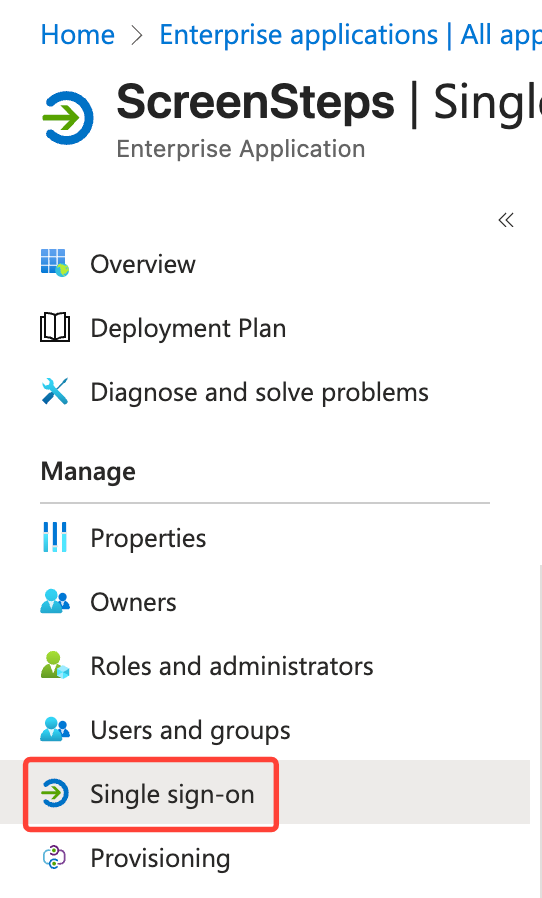
Navigate to ScreenSteps Single sign-on in Entra ID
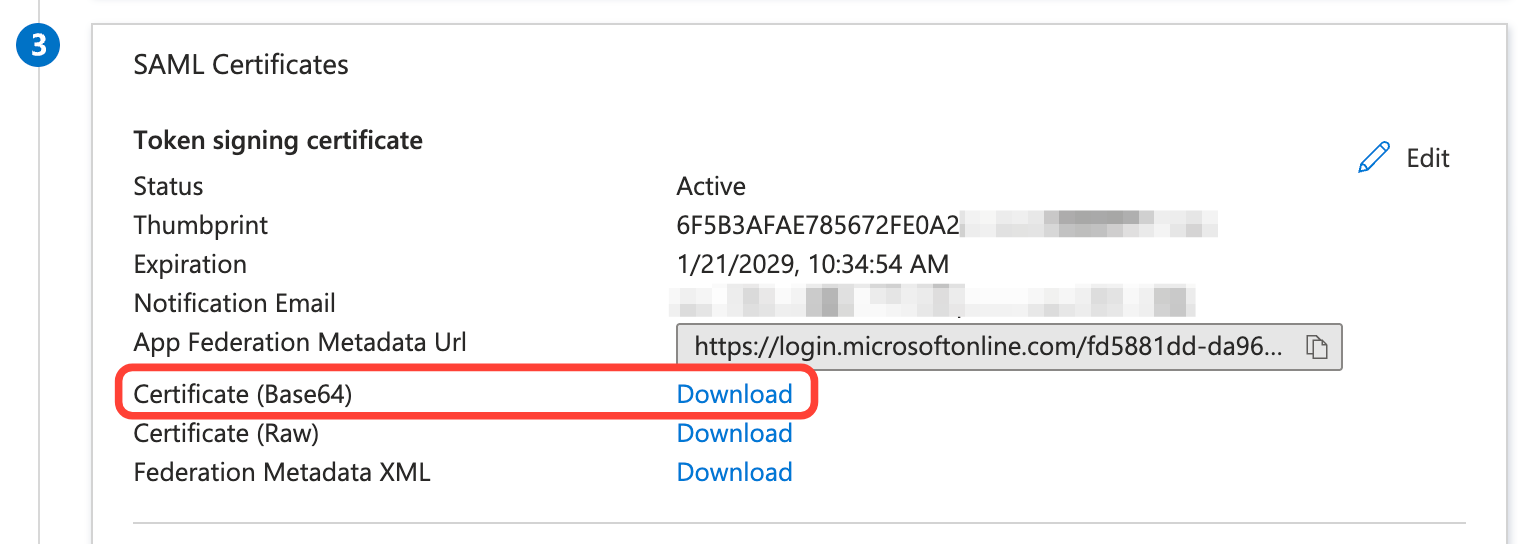
Download Certificate (Base64)
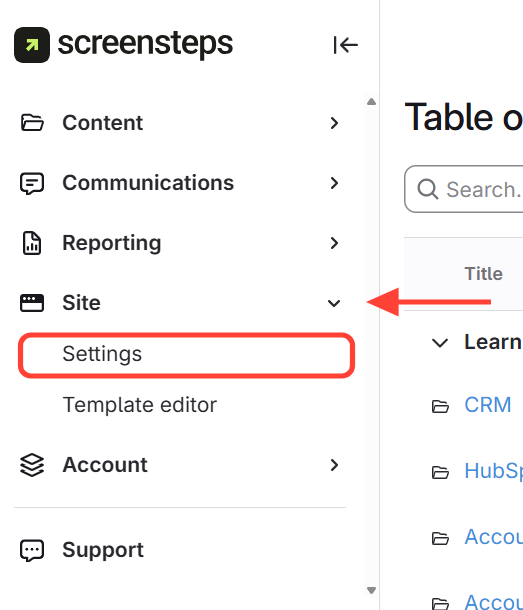
Navigate to ScreenSteps Settings
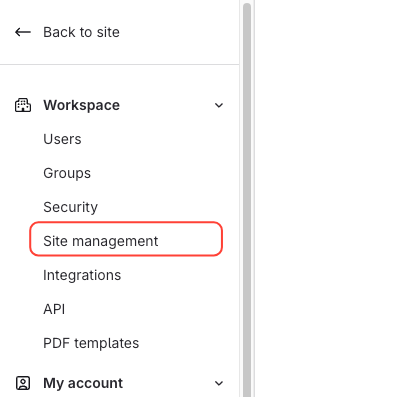
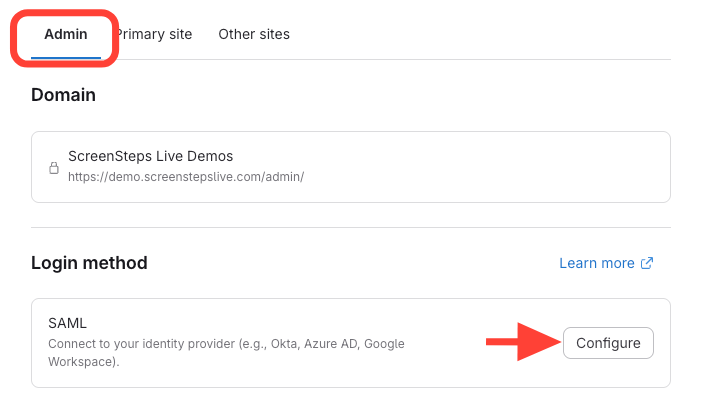
Click Sit management
Click Configure
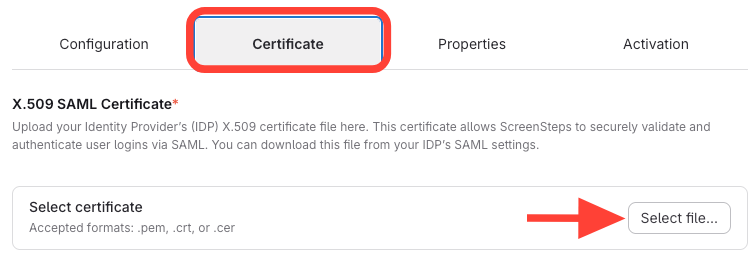
Upload the Certificate
Checklist item
Previous Article
How to Set up Single Sign-on with Google Workspace
Next Article
Checklist item
Adding a user to a group in Entra ID
Authentication (SSO, SCIM, SAML, Usernames, Passwords)
Passwords
1
How to reset a password
Single Sign-on
11
What is Single Sign-on?
Setting Up Your Application to Use ScreenSteps Remote Authentication (Not SAML)
Deciding on your Single Sign-on Strategy
How Identity Providers, domains, sites, and your account are associated
How to Manage User Groups Through your Identity Provider using the SAML Assertion
Configure a custom SAML identity provider
How to Set up Single Sign-on with Microsoft (Azure/Entra ID) for your Account and Primary Site
How to Set up Single Sign-on with Google Workspace
How to update your certificate from Azure/Entra and add it to ScreenSteps
Adding a user to a group in Entra ID
Setting up Your Identity Provider (IDP) to Sync User Groups
Single Sign-on FAQs
4
I use Single Sign-on (SSO) and I locked myself out – how do I get back into my account?
How to Bypass Single Sign-on (SSO) so Users Can Log in Without SSO
How to request an email with a link that will log you in one time
What to do if you request an email with a link to log you in but it's not working
Using ScreenSteps Remote Authentication with Atlassian Crowd
2
Configuring the PHP Script
Uploading the PHP scripts
Other Resources
Getting Started
Organizing ScreenSteps
Managing Articles
Authoring Content
Working with a Team of Authors
Customize Your Site
PDFs
Admin Tasks
User and Group Permissions
Accessibility
Integrations
Notifications
Browser Extension (Contextual Help)
FAQs
Courses
Migrating to the New Version of ScreenSteps
Print Article