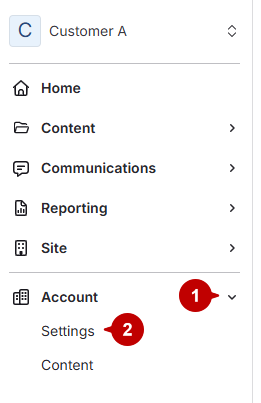
- Open account settings
- Click Accounts.
Click Settings under Accounts.
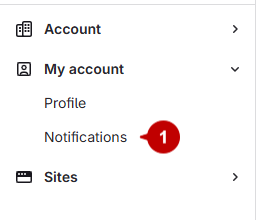
- Access notifications
Select Notifications under My Account.
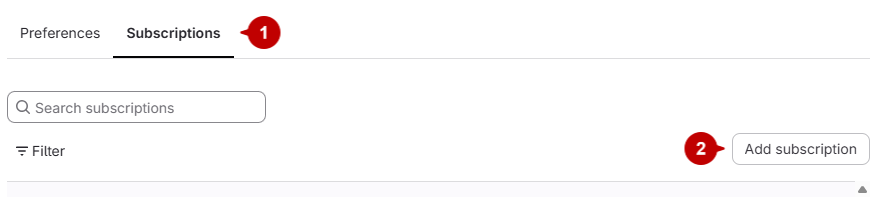
- Add a subscription
- Navigate to the Subscriptions menu.
Click the Add Subscription button on the right.
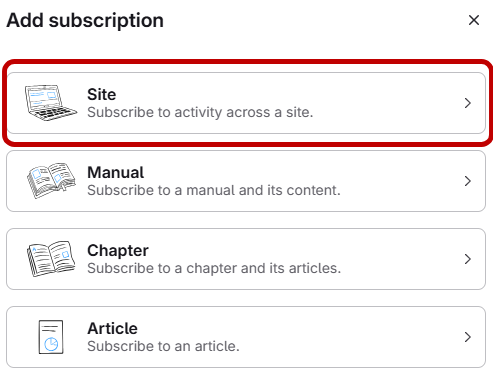
- Select the site
- Click Site.
- Click on the site you want to add a subscription to.
Click Next.
- Set notification preferences
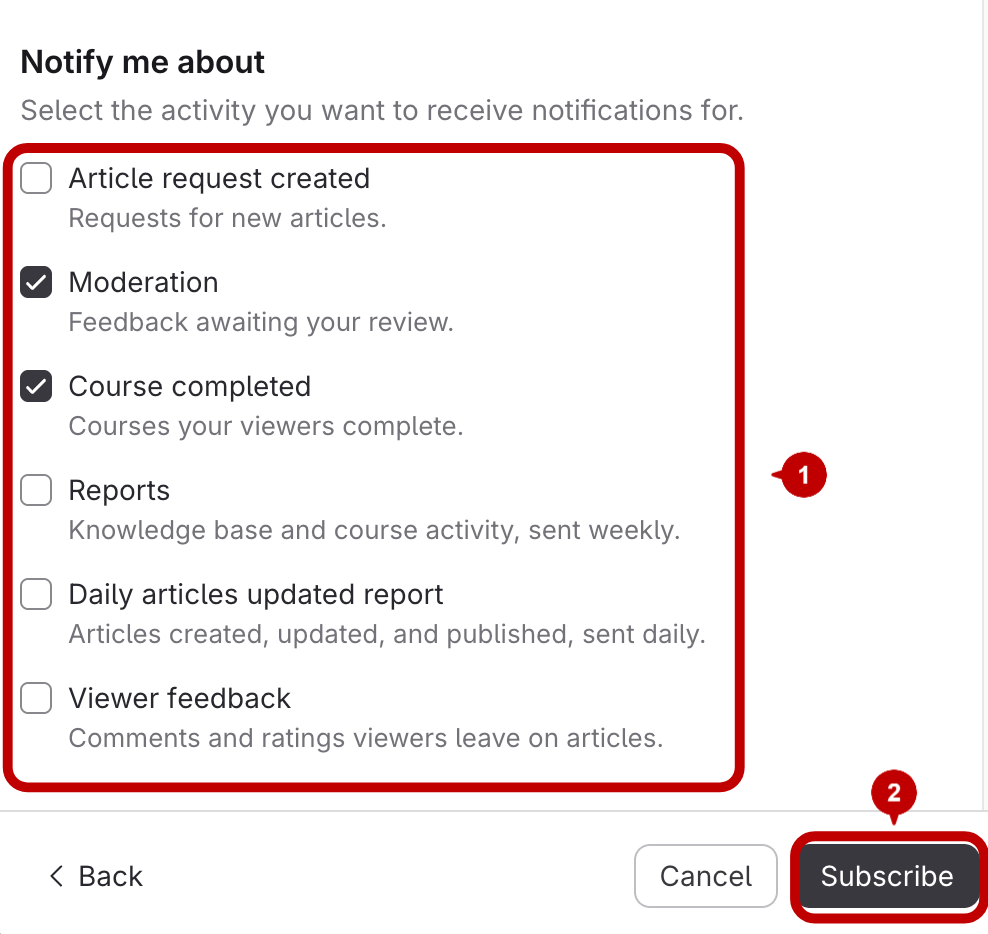
- Check the boxes for the notifications you want:
- Article request created: Requests for new articles.
- Moderation: Feedback awaiting your review.
- Course completed: Courses your viewers complete.
- Reports: Knowledge base and course activity, sent weekly
- Daily articles updated report: Articles created, updated, and published, sent daily.
- Viewer feedback: Comments and ratings viewers leave on articles.
2. Click Subscribe.
How to Subscribe to Notifications for a Site
Updated on