From a ScreenSteps answer
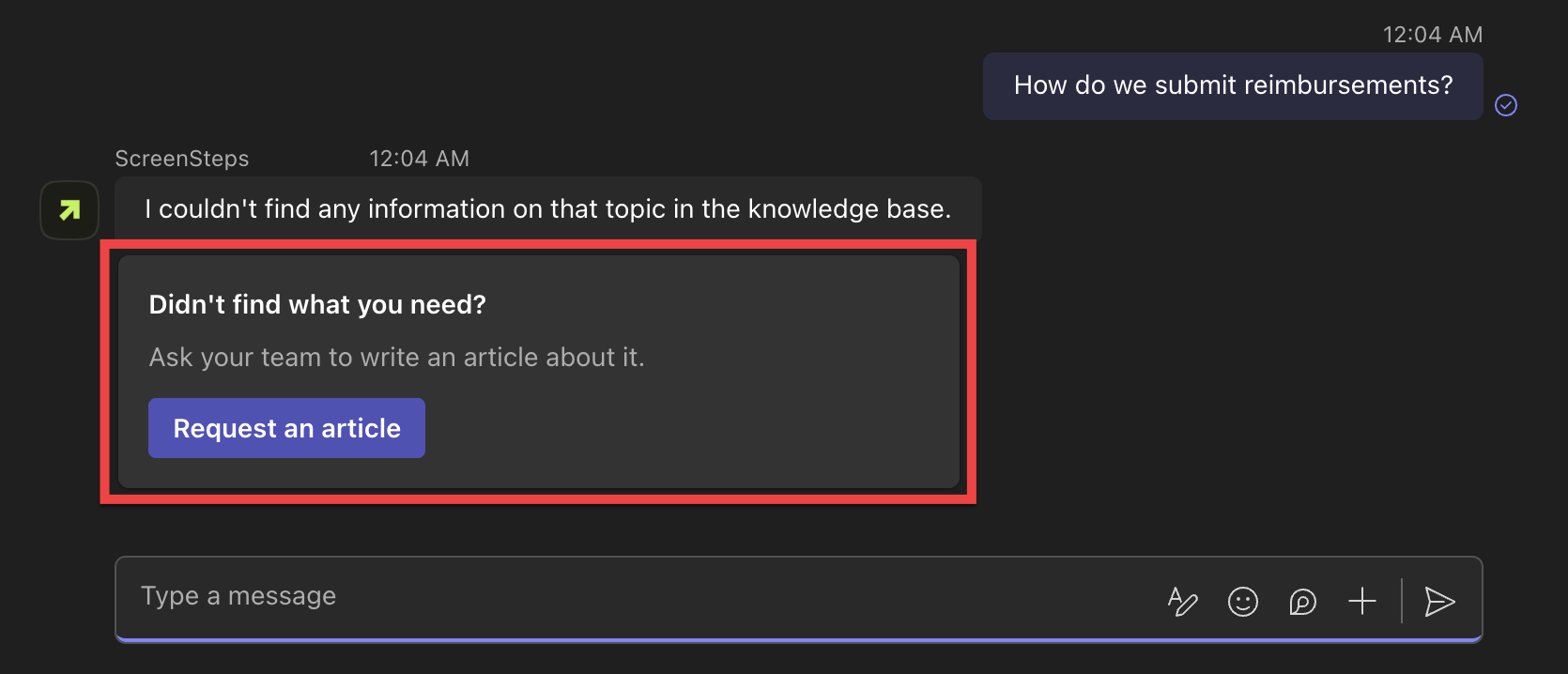
- Click Request an article
When ScreenSteps can't find an answer to your question, it shows Didn't find what you need? with a Request an article button. Click it.
- Review the request and submit it
ScreenSteps fills in the details from your conversation. Check the question and details, make any changes, and click Submit request.
From any message
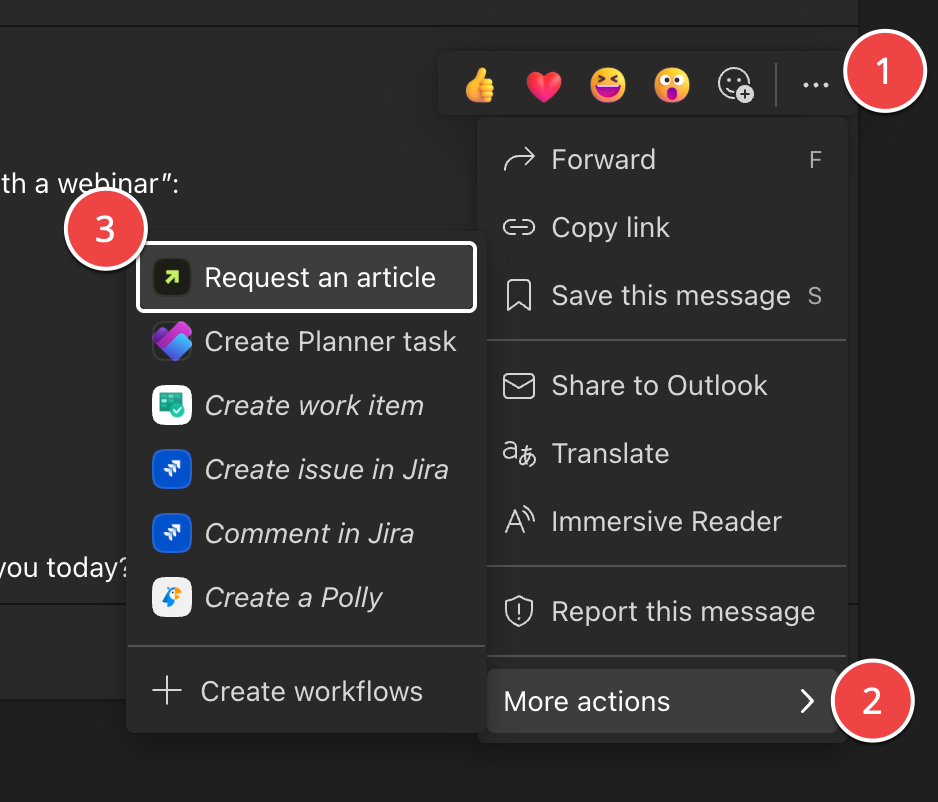
- Open the message's More options menu
Hover over a message, click … (More options), then select More actions > Request an article.
- Fill in the request and submit it
The message text is added to the details. Enter the article you need and click Submit request.
What happens next
ScreenSteps confirms that your request was submitted.
Your knowledge base team reviews requests in ScreenSteps and decides which articles to write. Administrators can find requests under Feedback > Article Requests. See How to Navigate to Article Requests in your Content Management site.