- Find ScreenSteps in the Teams admin center
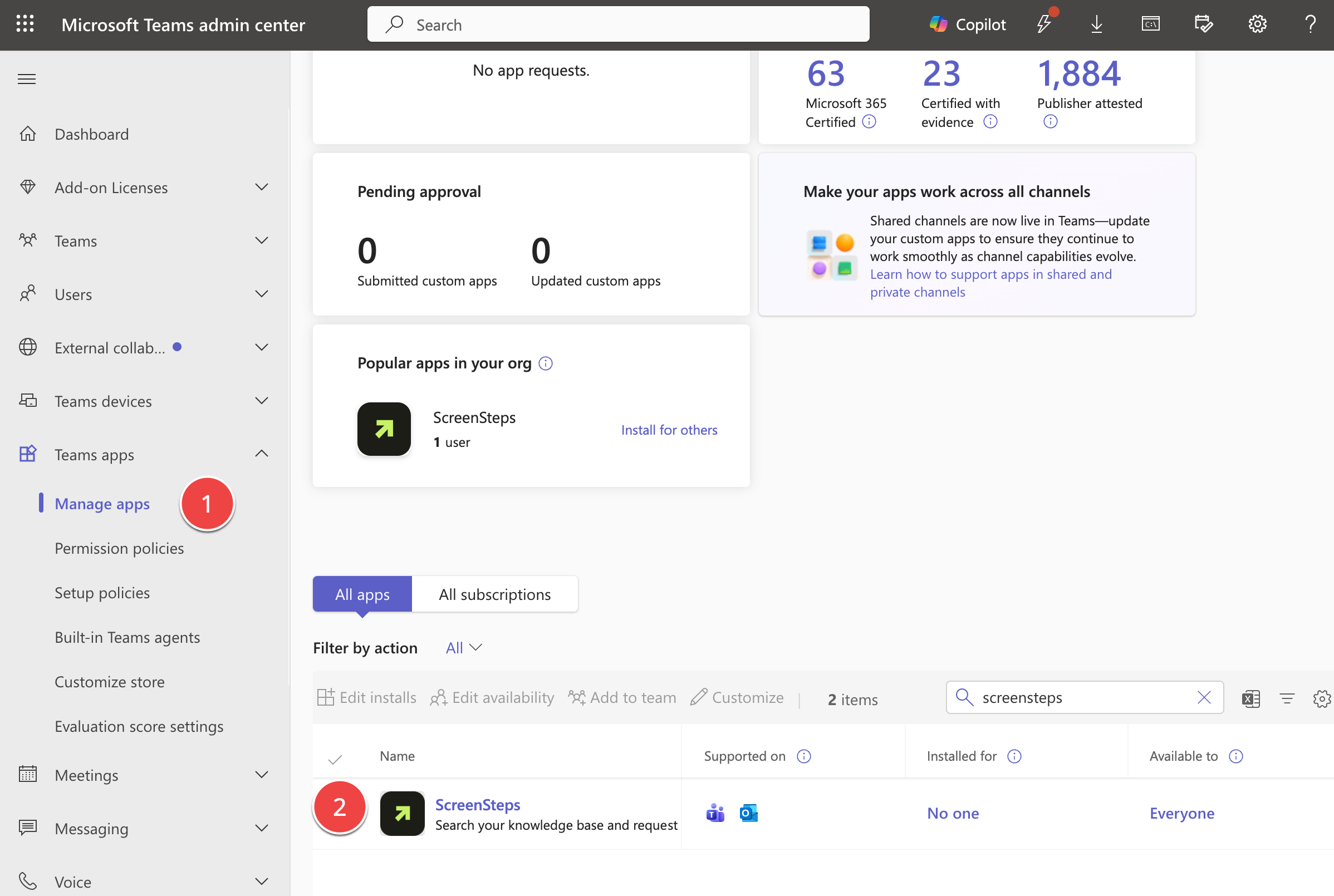
- Sign in to the Teams admin center.
- Go to Teams apps > Manage apps.
- Search for ScreenSteps and open it.
- Allow the app
Set the app's status to Allowed. Until you do, employees can't add ScreenSteps. They can only send you a request for it.
- Choose who can use ScreenSteps
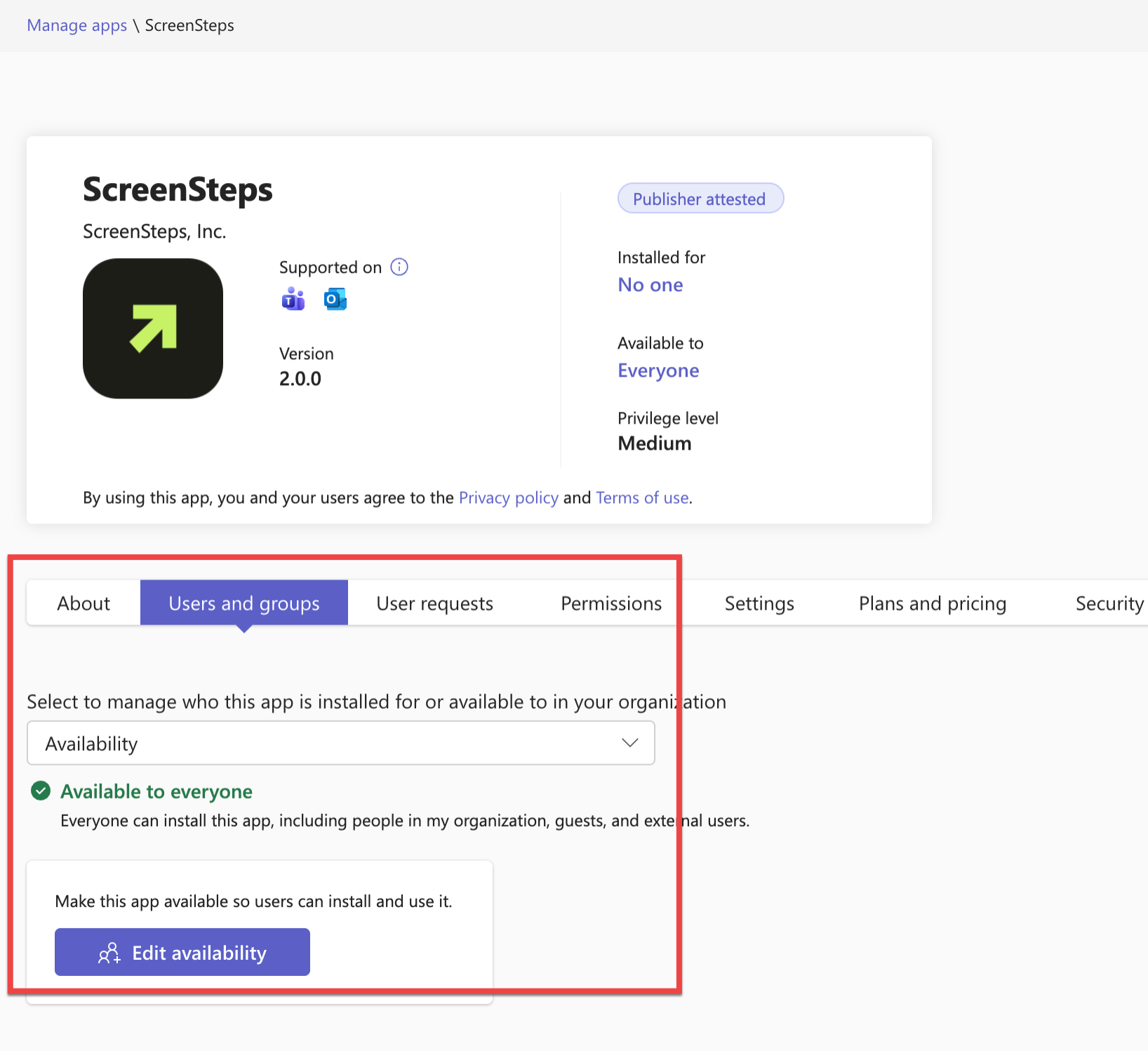
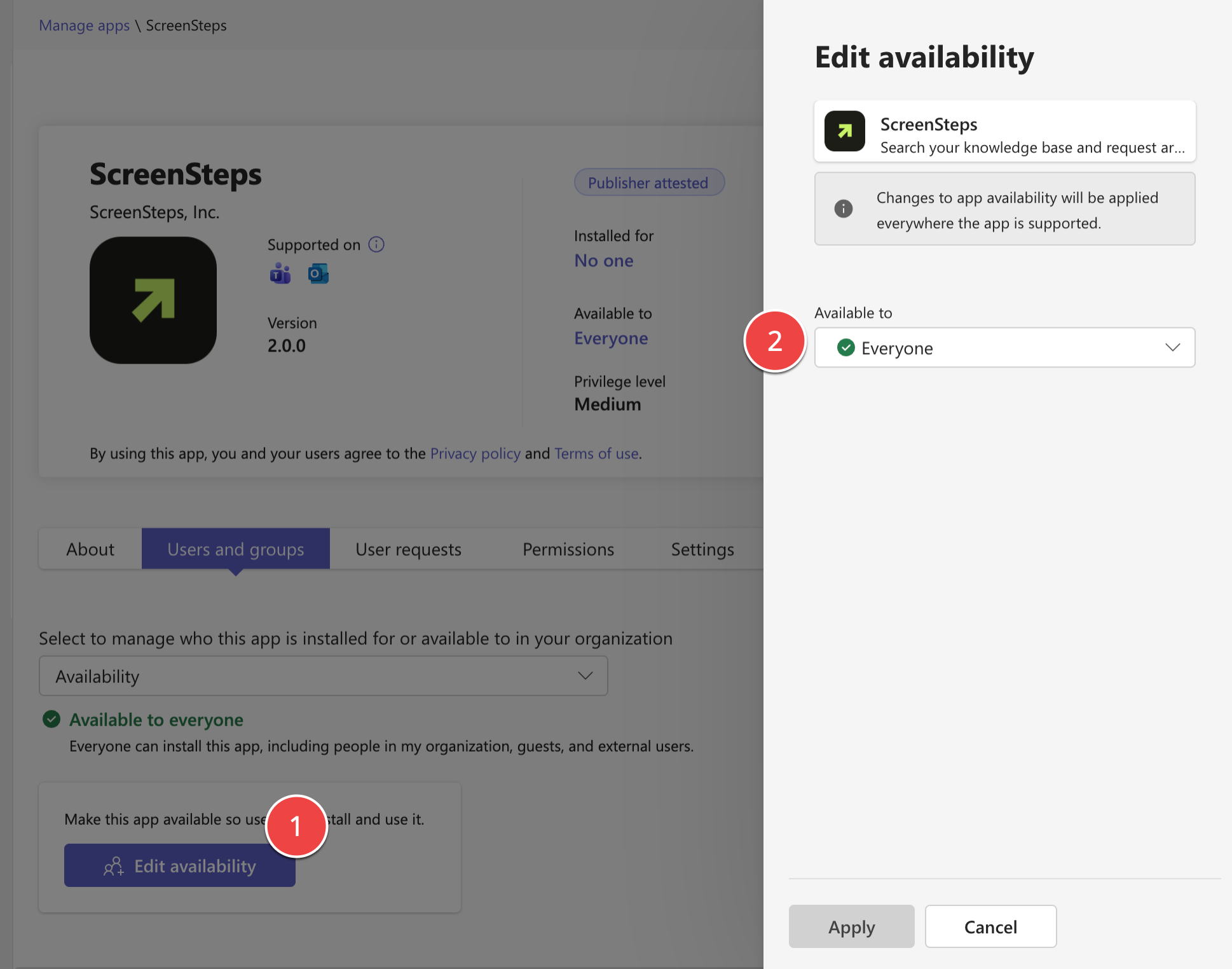
On the app's details page, choose whether everyone in your organization can use ScreenSteps, or only specific users and groups.
Once the app is allowed, employees can add it themselves from Apps in Teams. To add it for them instead, see Microsoft's guide: Install apps for users in Teams.
- Pin the app for your employees (optional)
To put ScreenSteps in your employees' Teams app bar, add it to an app setup policy:
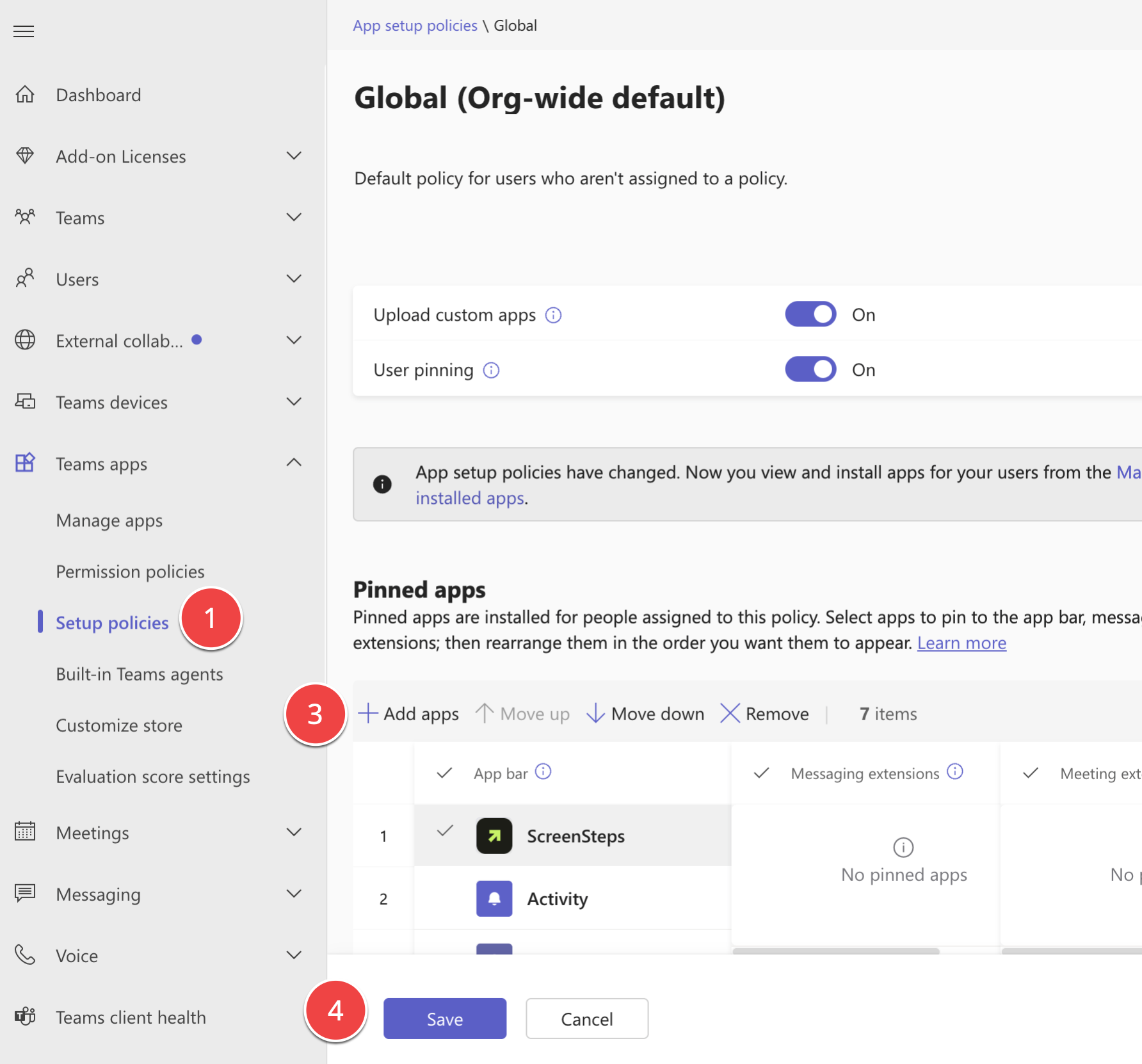
- Go to Teams apps > Setup policies.
- Select the policy you want to use, such as Global (Org-wide default), and click Edit.
- Under Pinned apps, click Add apps, search for ScreenSteps, and click Add.
- Click Save.
It can take a few hours for policy changes to reach everyone. See Microsoft's guide: Use setup policies to pin apps.
- Test the app
In Microsoft Teams, open Apps, find ScreenSteps, and open it. You should see a welcome message from ScreenSteps.
Then try it out: How to Use ScreenSteps in Microsoft Teams.