Chat directly with ScreenSteps
- Open the ScreenSteps app
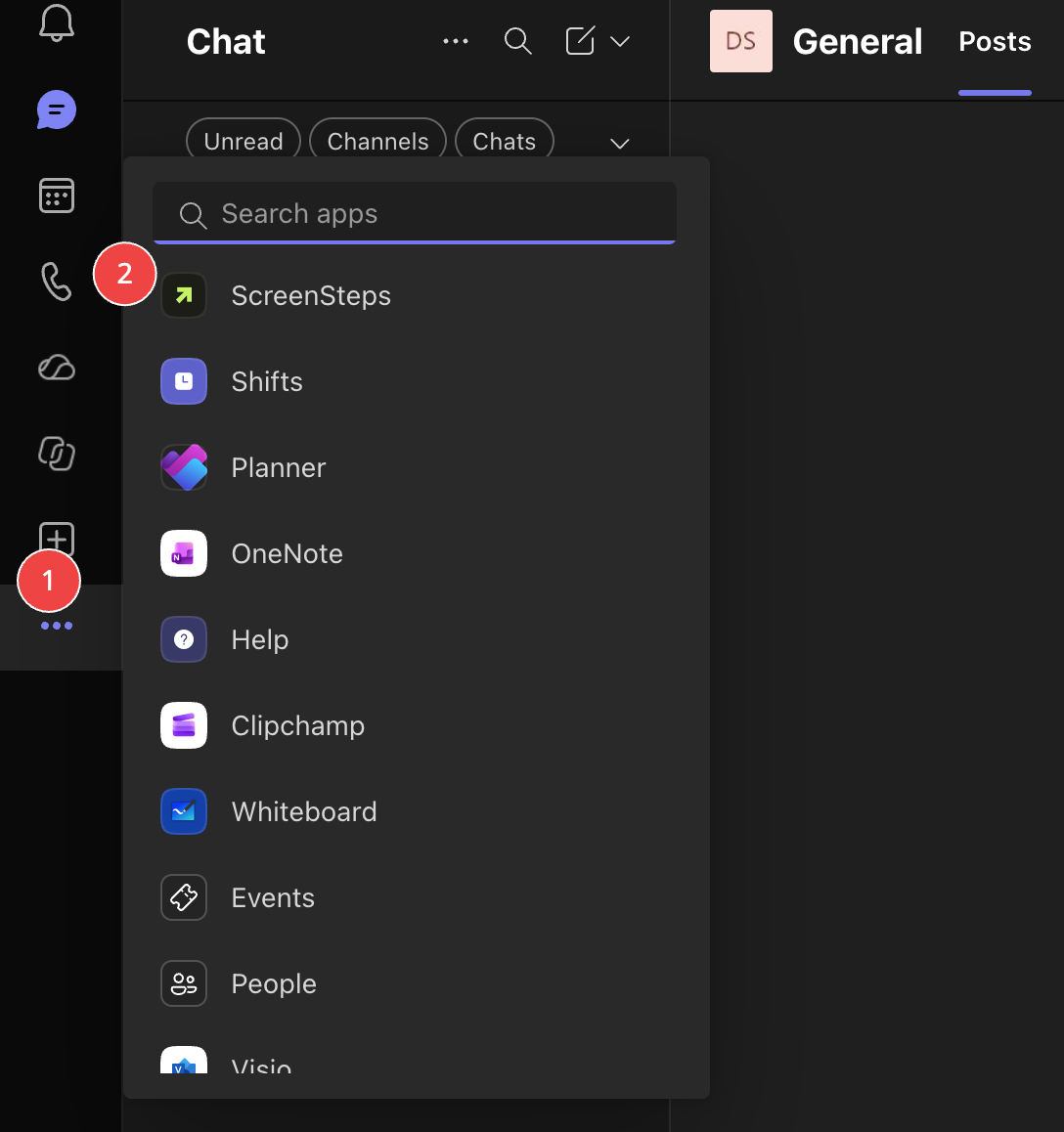
In Microsoft Teams, click Apps and open ScreenSteps. If ScreenSteps is pinned to your app bar, click it there.
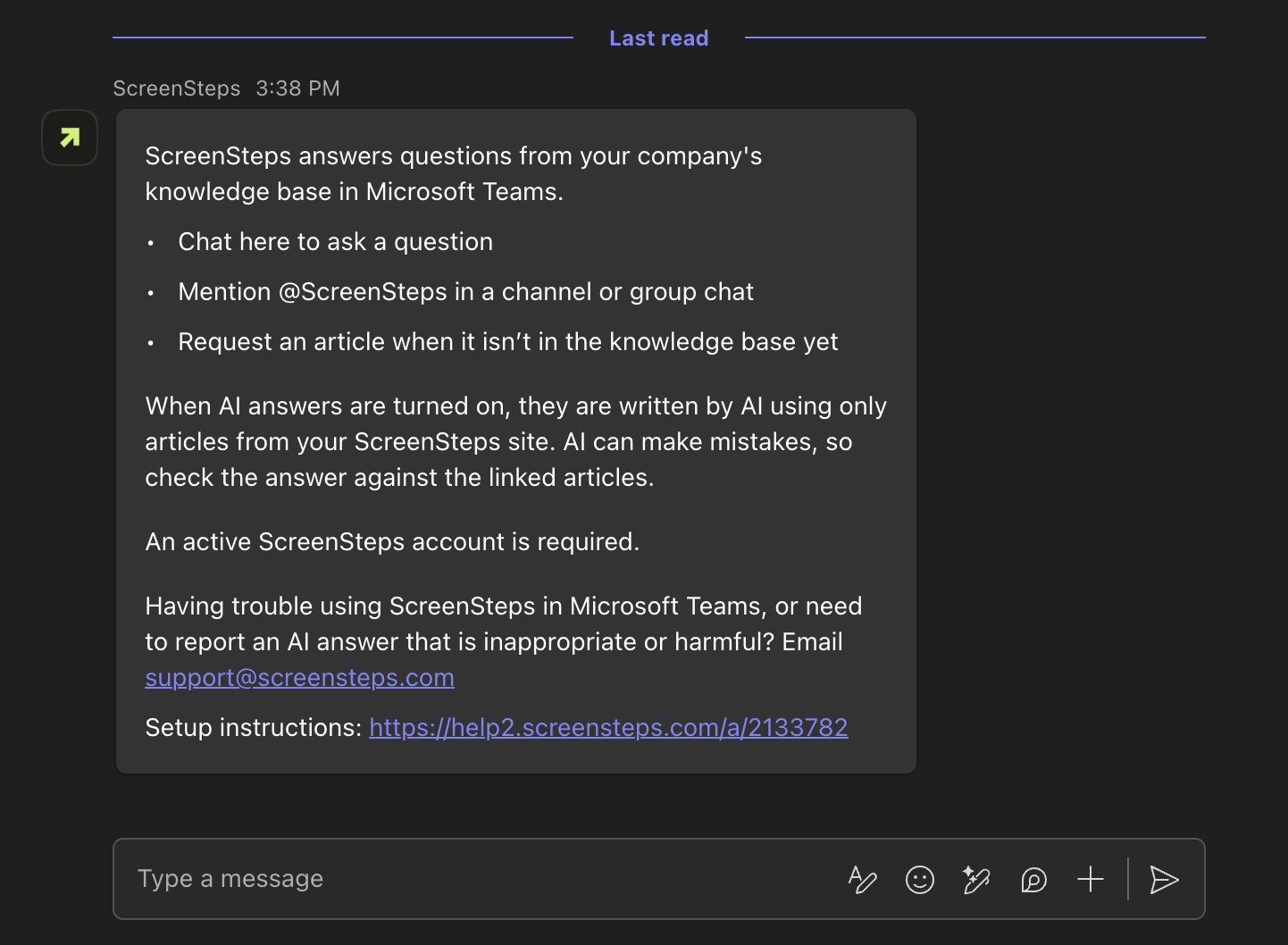
The first time you open it, ScreenSteps sends a welcome message.
- Ask your question
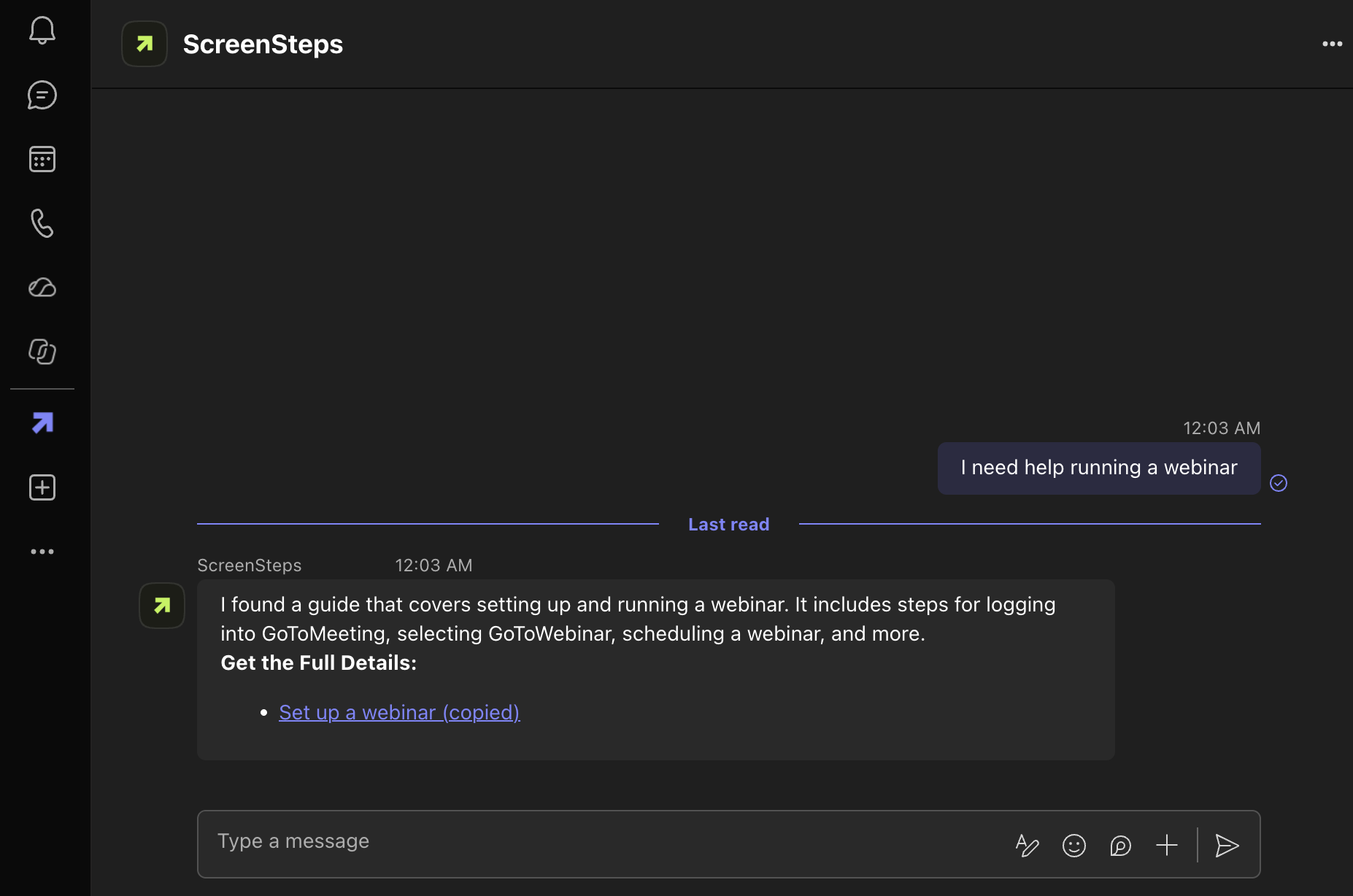
Type your question the way you would ask a coworker, and press Enter.
ScreenSteps answers from your company's knowledge base and links to the articles it used. Click a link to open the full article.
- Ask a follow-up question
Keep asking in the same chat to get more detail.
Ask ScreenSteps in a channel or group chat
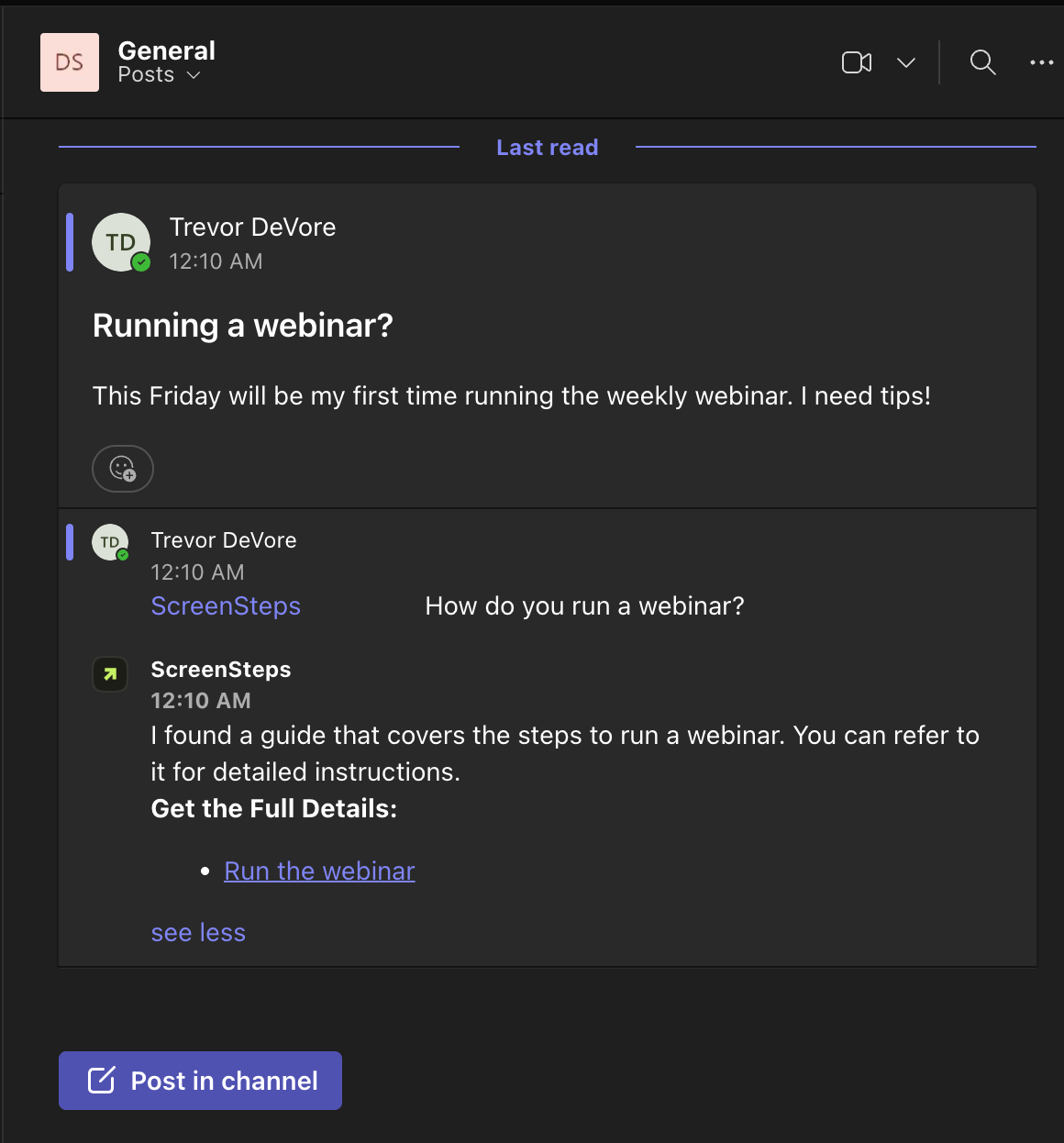
- Type @ScreenSteps and your question
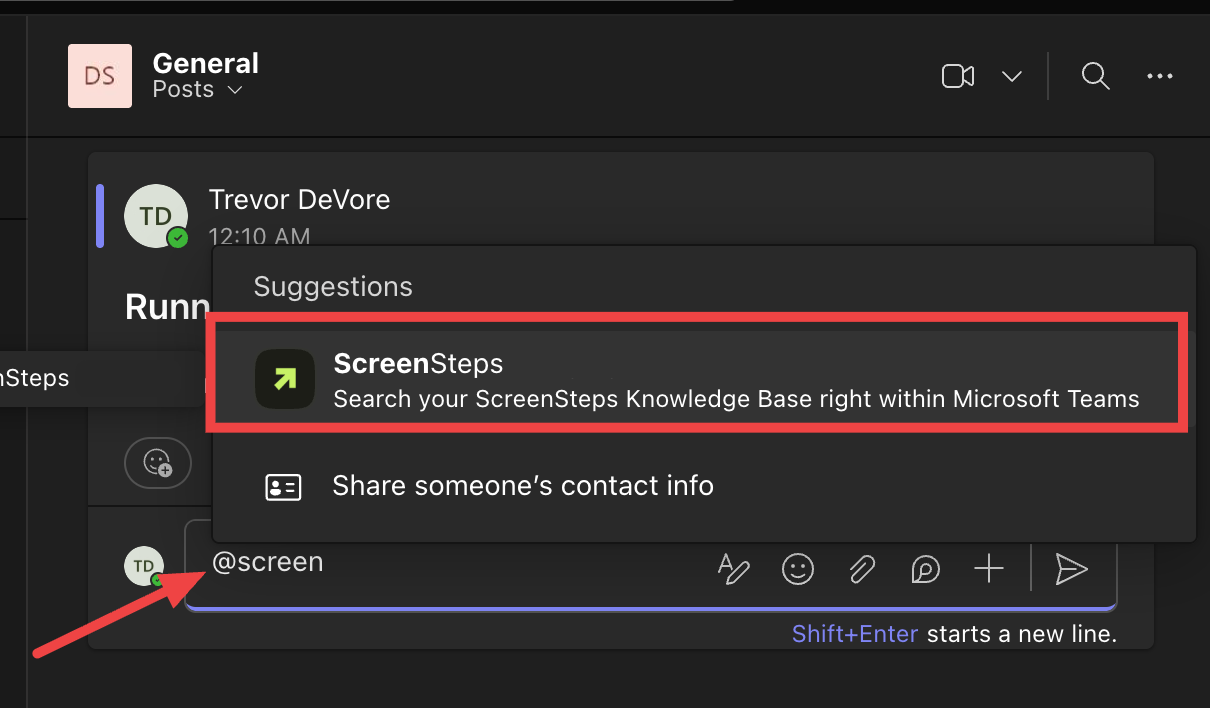
In a channel post, reply, or group chat, type @ScreenSteps, select it, and type your question.
- Read the answer in the thread
ScreenSteps replies in the thread, so everyone in the conversation can see the answer.
Didn't find what you need?
If the knowledge base doesn't have an answer yet, you can ask your team to write one. See How to Request an Article from Microsoft Teams.