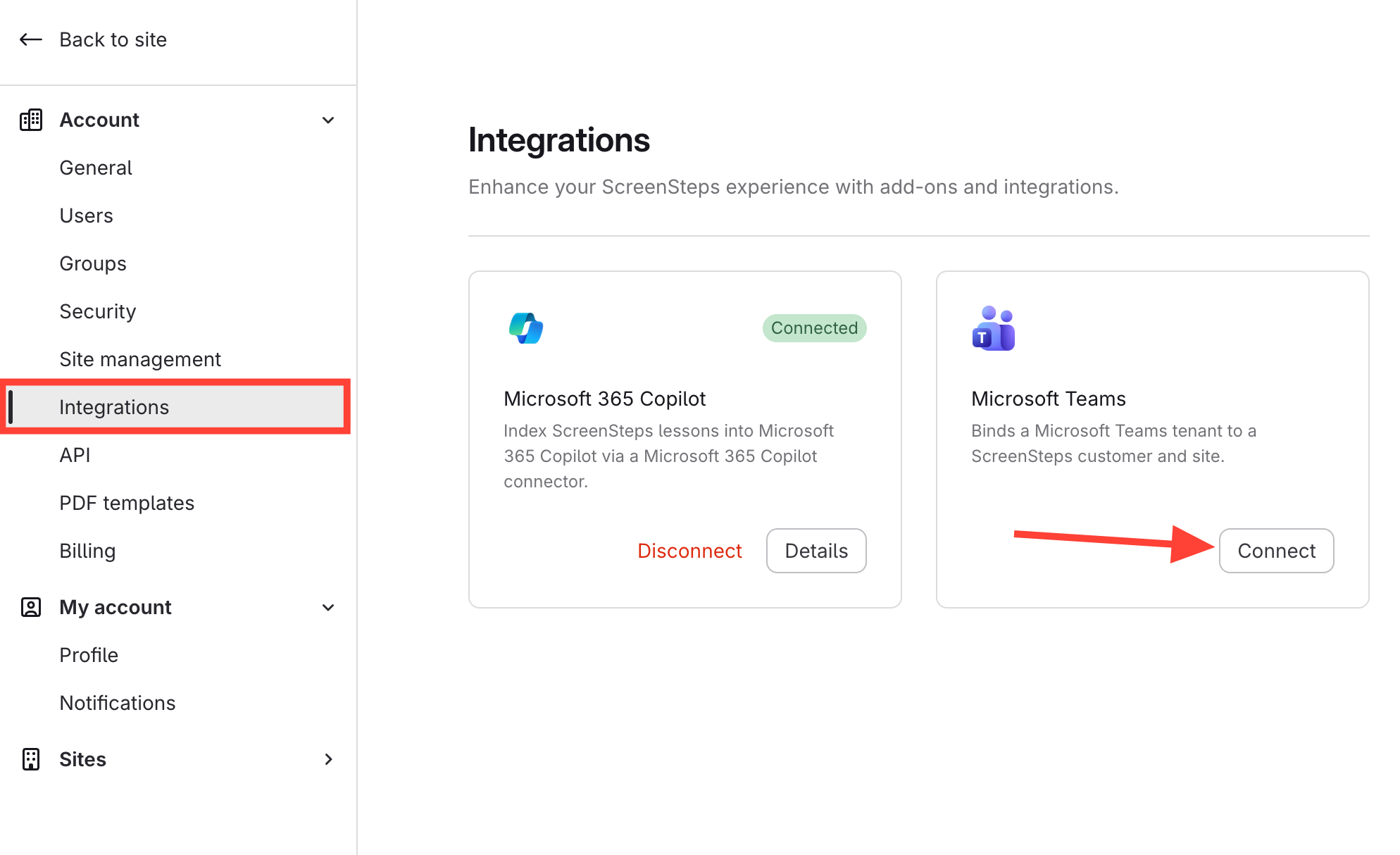
- Go to Account > Settings > Integrations
Click Connect on the Microsoft Teams integration.
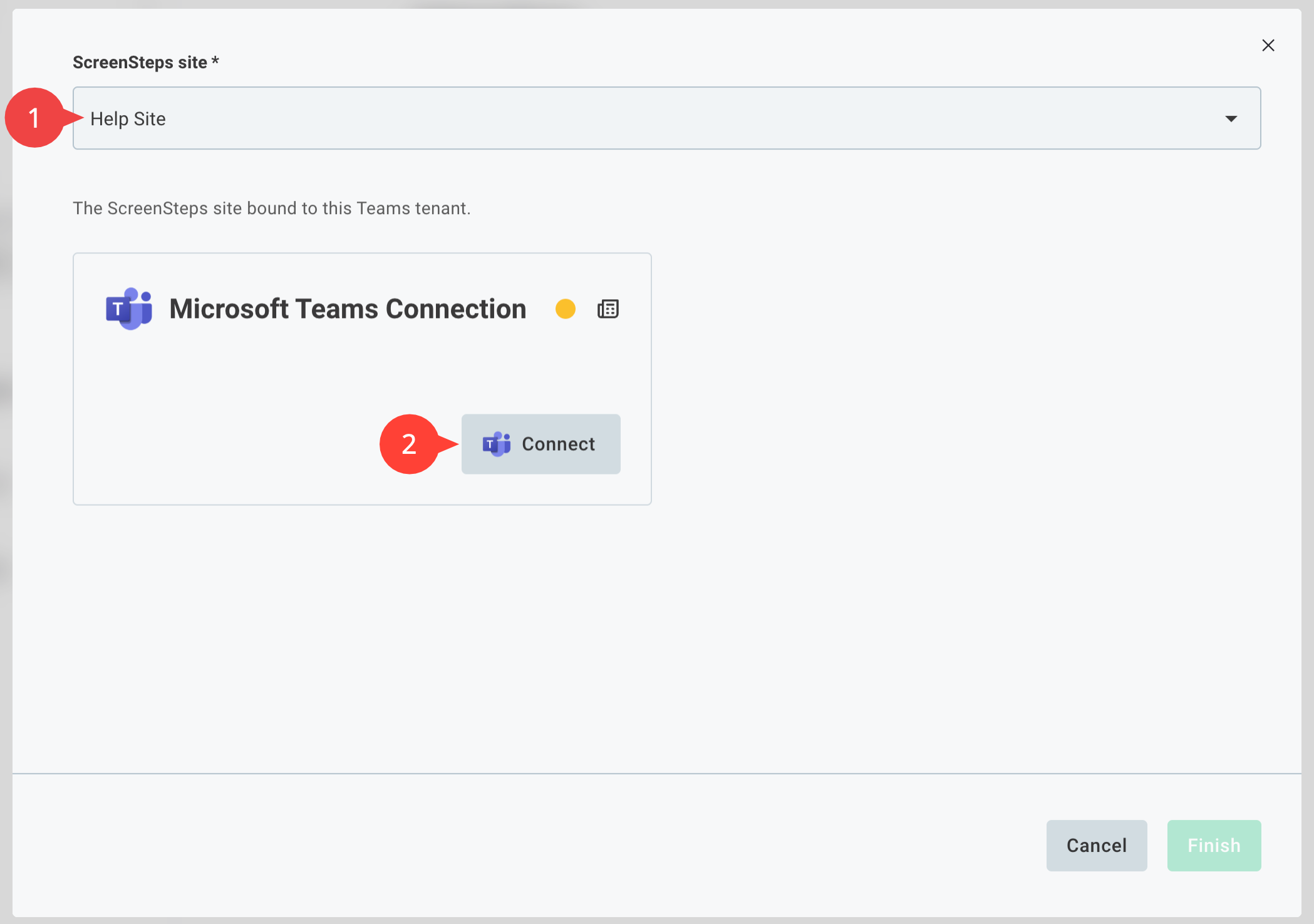
- Choose your settings
- Select the site you want to make available in Microsoft Teams.
- Click Connect.
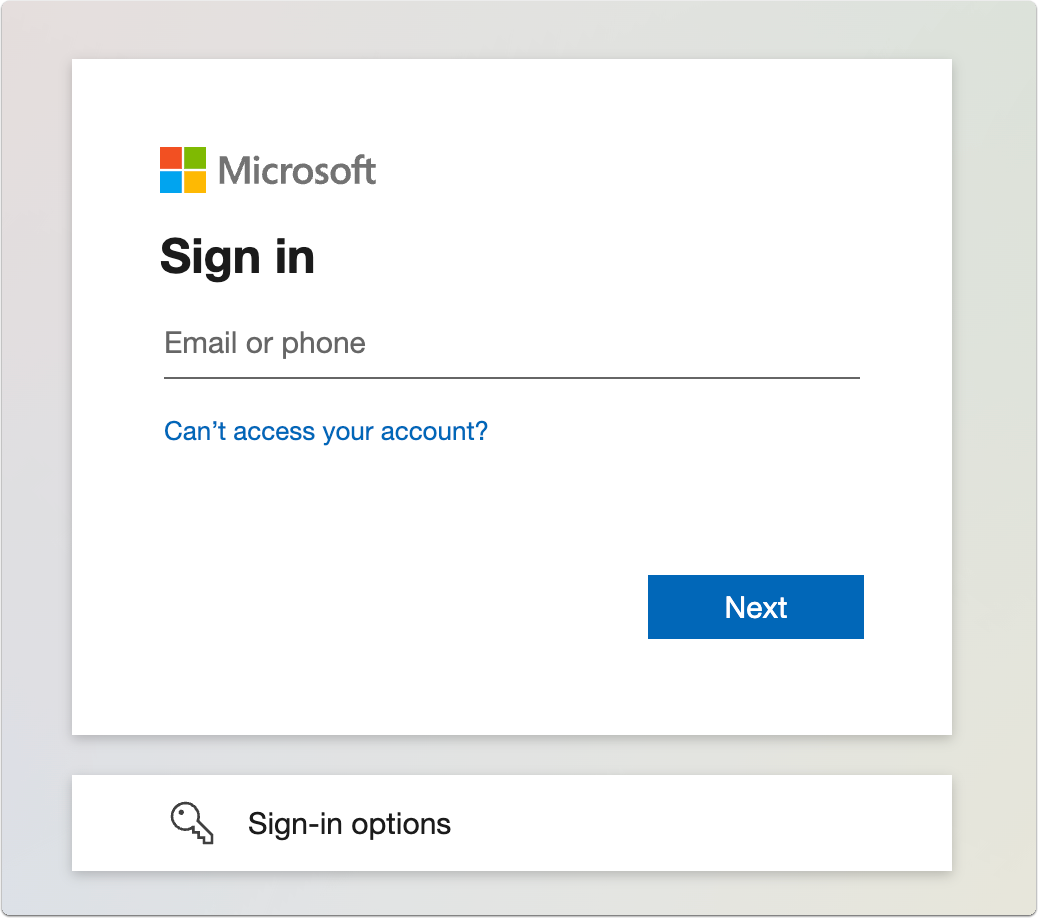
- Sign in to Microsoft and approve the permissions
A new browser tab opens on the Microsoft website. Sign in if you are asked to, review the permissions, and click Accept.
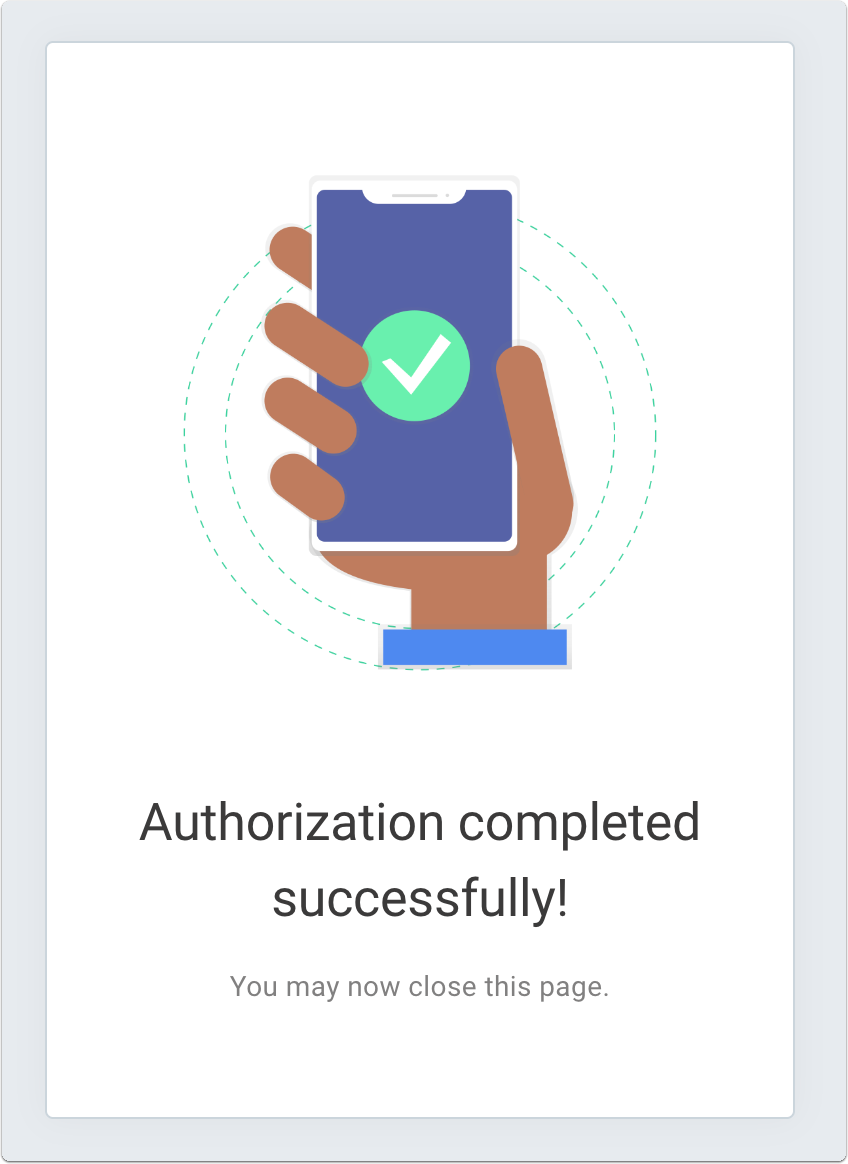
When you see the authorization complete message, close the tab and return to ScreenSteps.
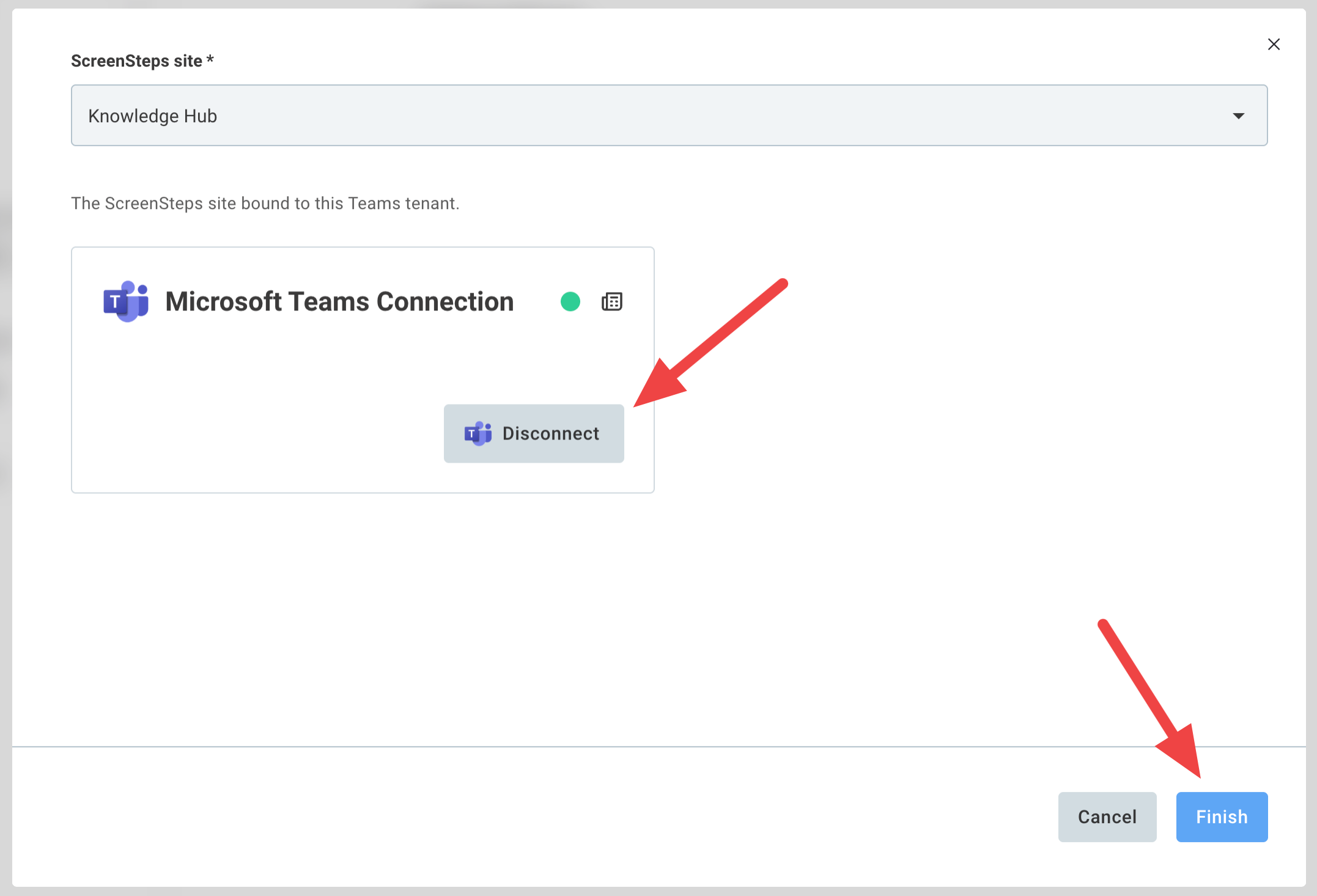
- Click Finish
Back in ScreenSteps, the Connect button now reads Disconnect. Click Finish.
- Confirm the connection
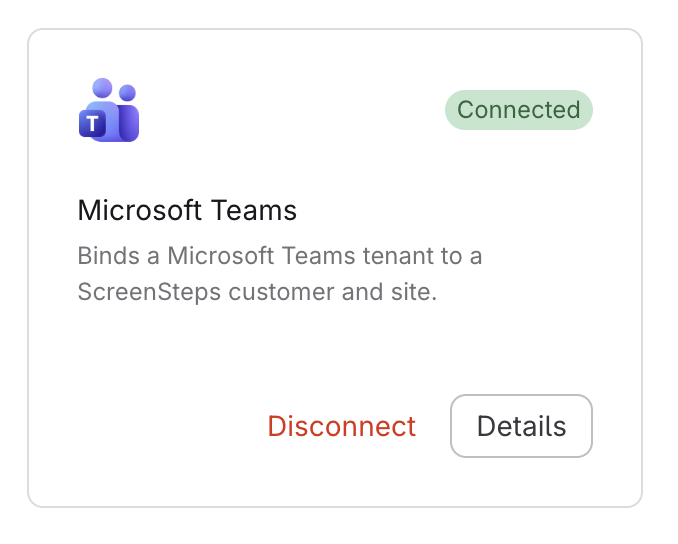
The Microsoft Teams integration now shows Disconnect and Details. Use Details if you need to change your settings later.
Next step
Your Microsoft 365 administrator needs to make the ScreenSteps app available to people in Teams. Send them How to Make the ScreenSteps App Available in Microsoft Teams.