Where to Find an Article's Activity
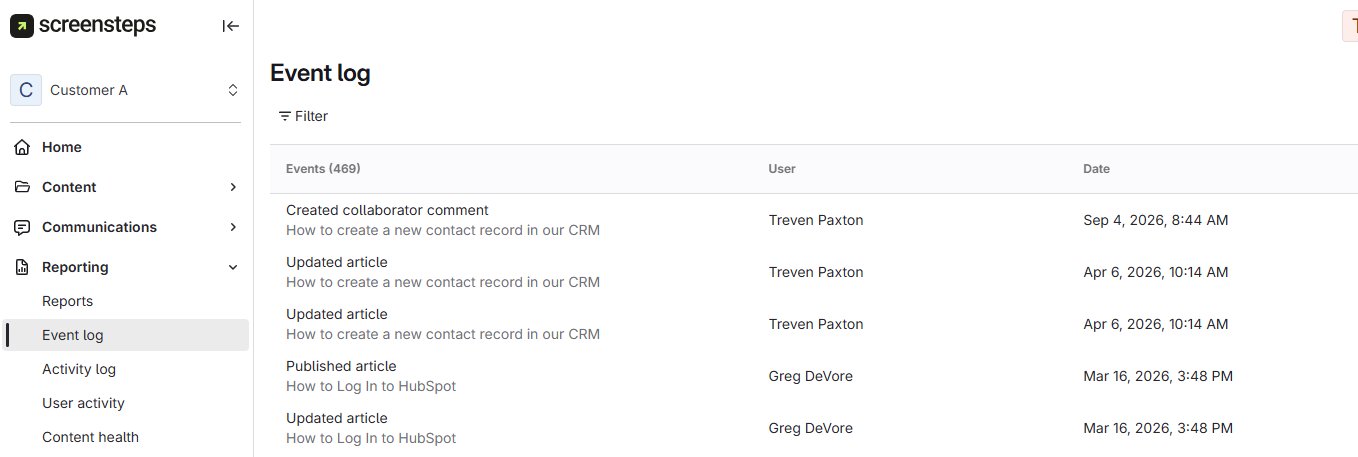
Open the article preview, click the Details tab, and scroll to Article associations. Expand the Event log card and click View event log. The Event log opens filtered to that article. For step-by-step instructions, see How to View Article Activity.
To see activity across your whole site, go to Reporting > Event log.
What Each Event Shows
- Event: what happened to the article.
- User: the person who caused the event.
- Date: when the event happened. Events are sorted newest first.
Select any event to open its details. Where possible, the details include a record of what changed, such as the change summary the author entered when creating a new article version.
Why Article Activity Matters
Article activity helps teams monitor important changes to content, ensuring accountability and transparency for published information. It is especially useful for tracking who made key updates and when those updates occurred.
- Supports content management and oversight.
- Helps identify when and by whom major changes were made.