Create Channel from Sidekick
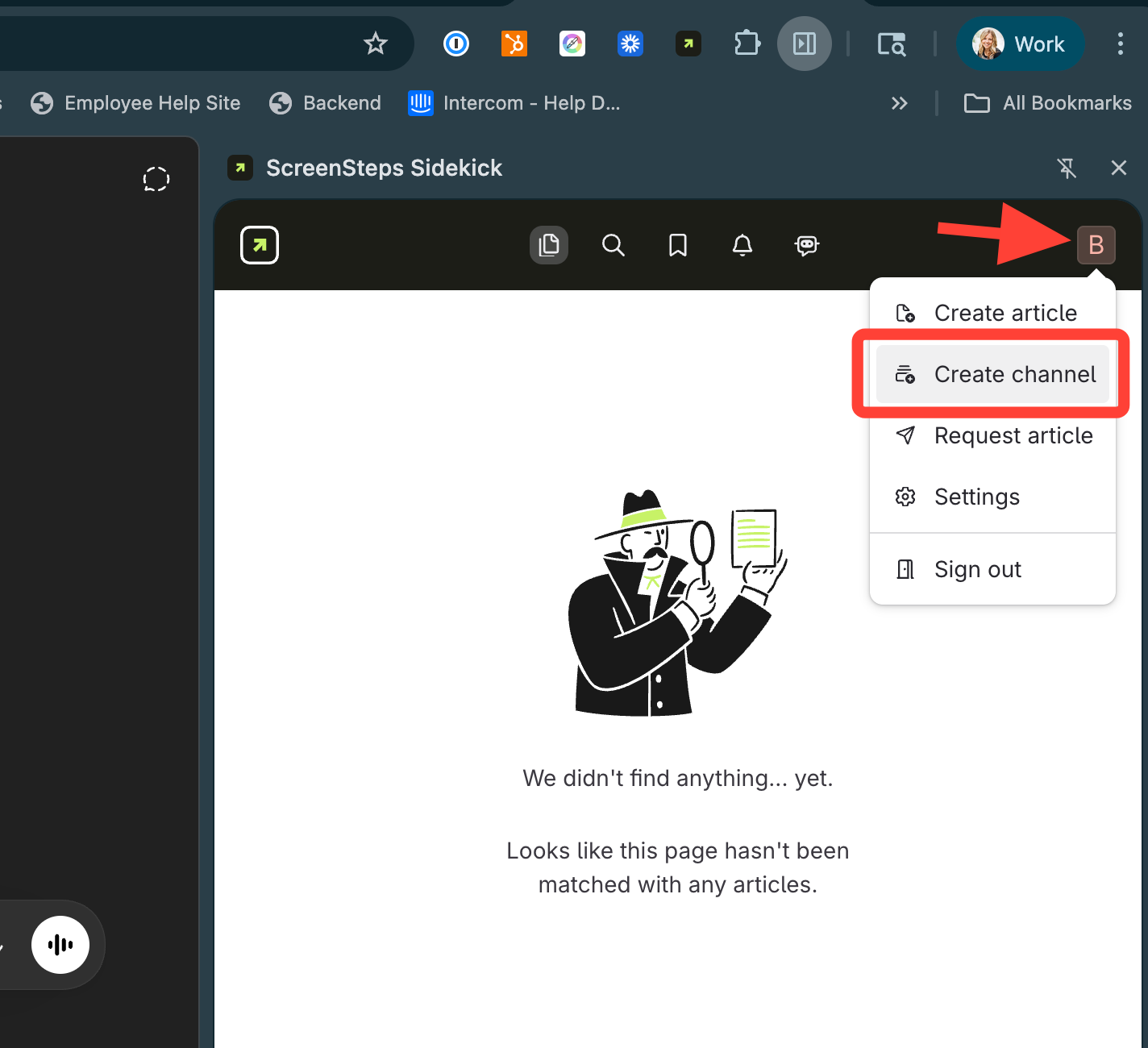
- Open the Sidekick Browser Extension
- Click your Profile Initial > Create channel
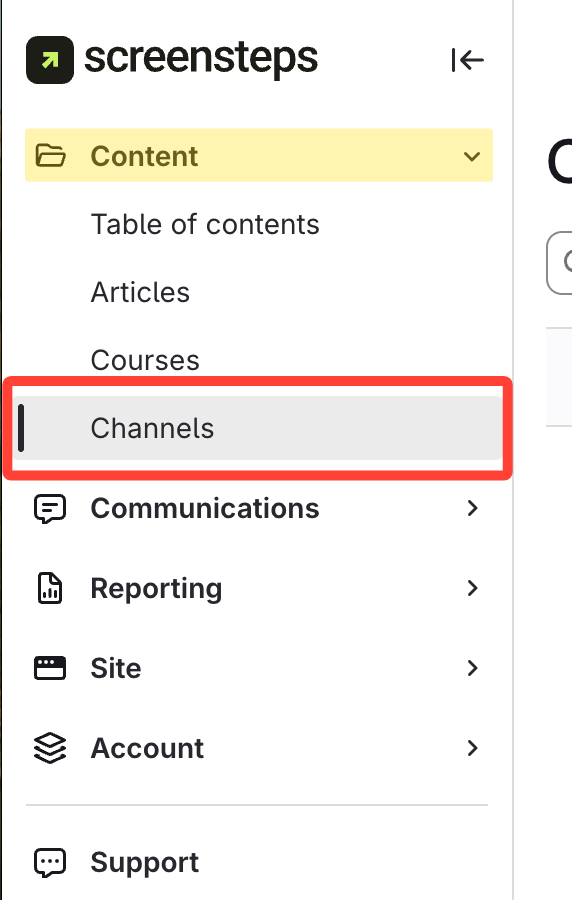
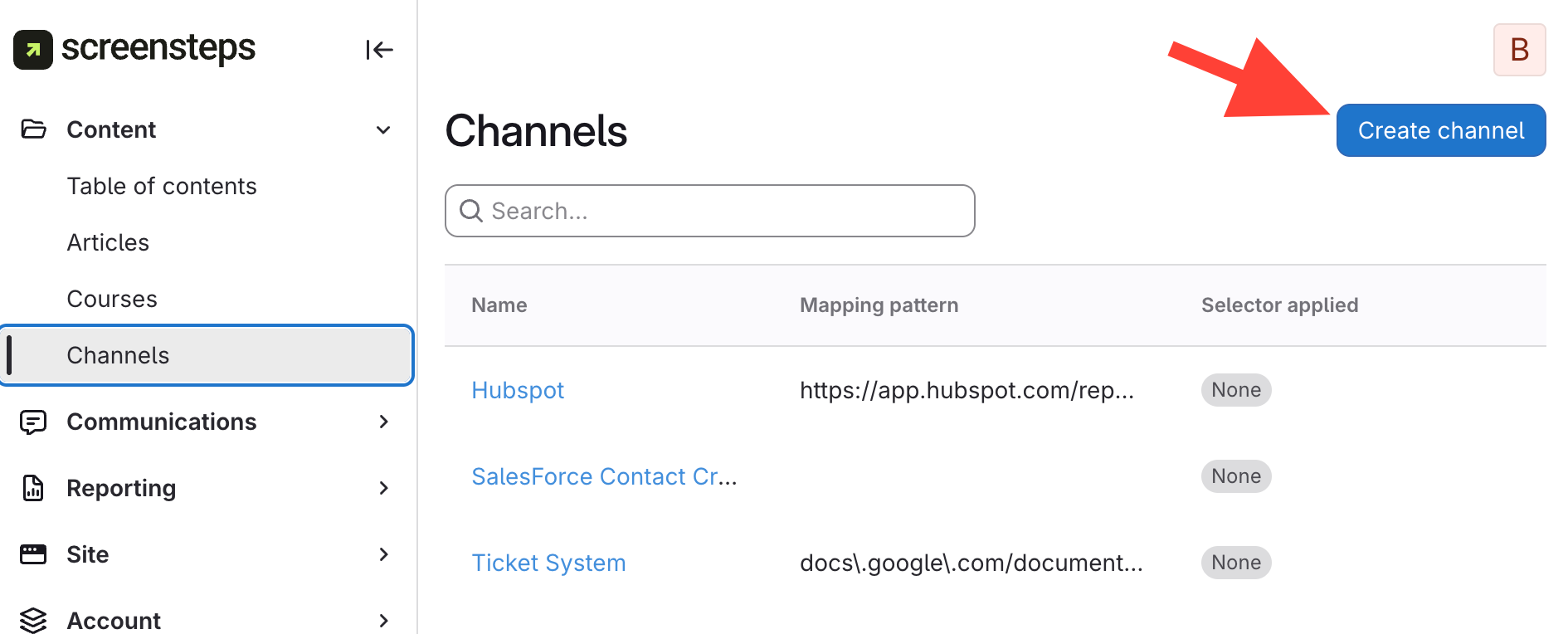
- Select Channels under Content
- Click Create Channel
- Add Channel Details
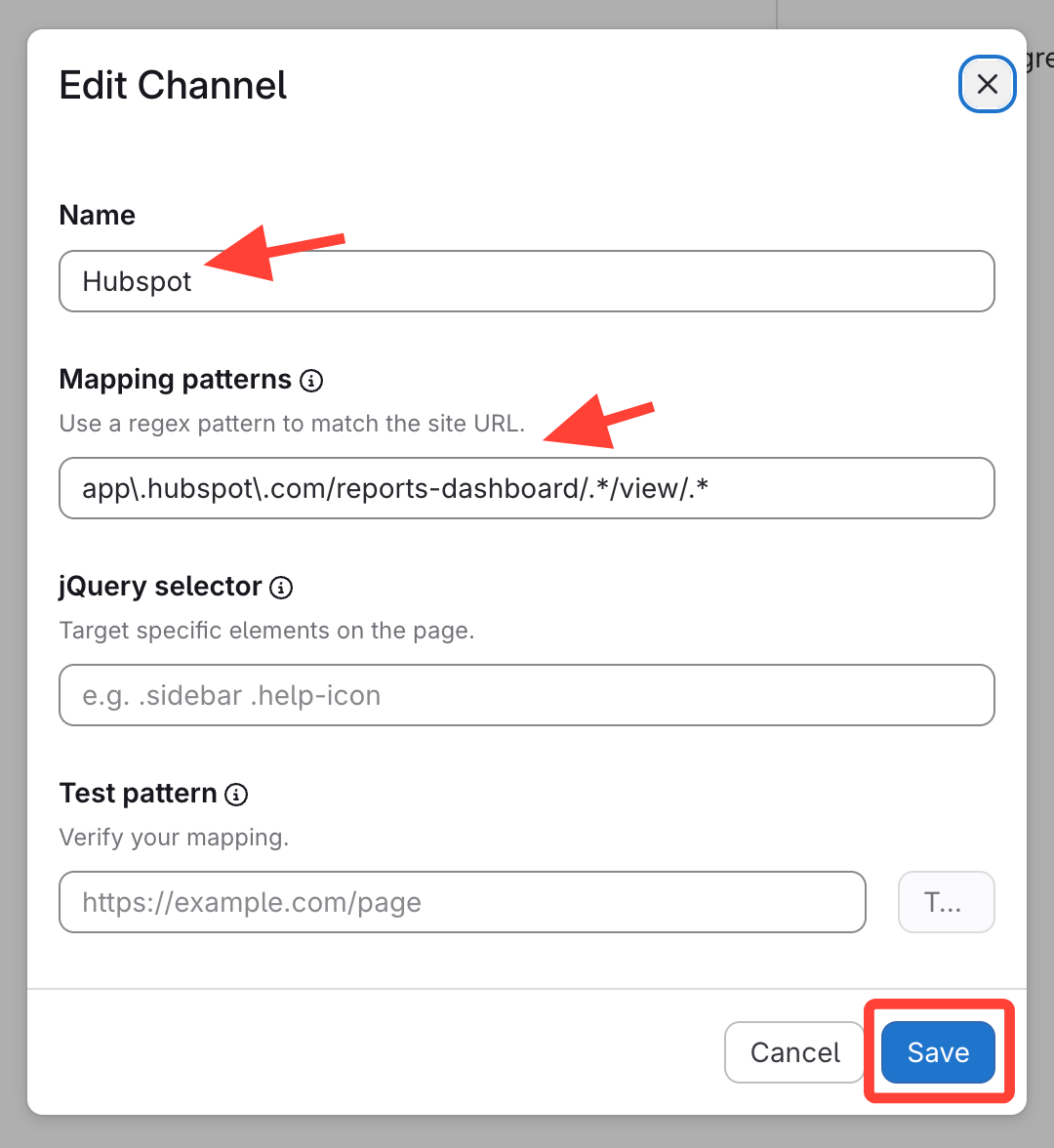
- Enter Channel Name (make it descriptive)
- e.g., Hubspot
- Add Mapping patterns
Make modifications to the channel mapping pattern
Mapping patterns are regular expression patterns so you can use
.*to match portions of a url.Example: The mapping pattern
app\.domain\.tld/.*/importwould match on eitherhttps://app.domain.tld/q361z/importorhttps://app.domain.tld/a235q/import.Example: The URL for
https://app.hubspot.com/reports-dashboard/120/view/131195would beapp\.hubspot\.com/reports-dashboard/.*/view/.*
- Click Create & edit
- Enter Channel Name (make it descriptive)
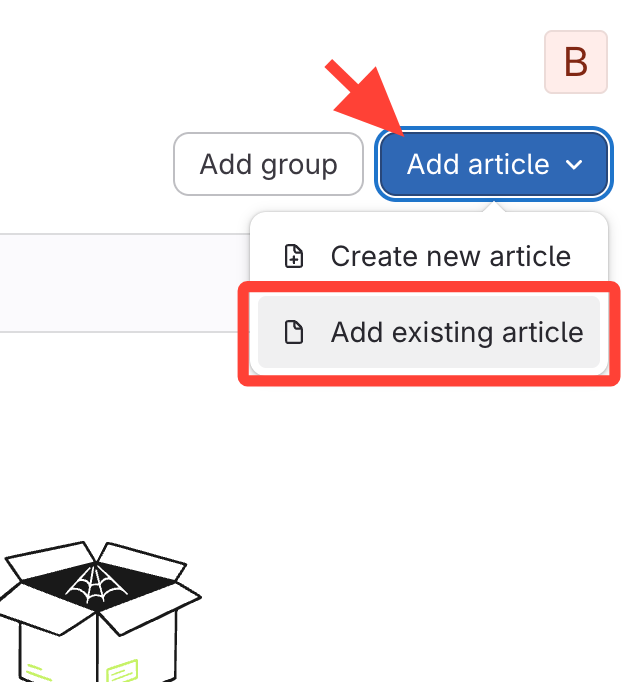
- Add articles from your content library
- Click Add article > Add existing article
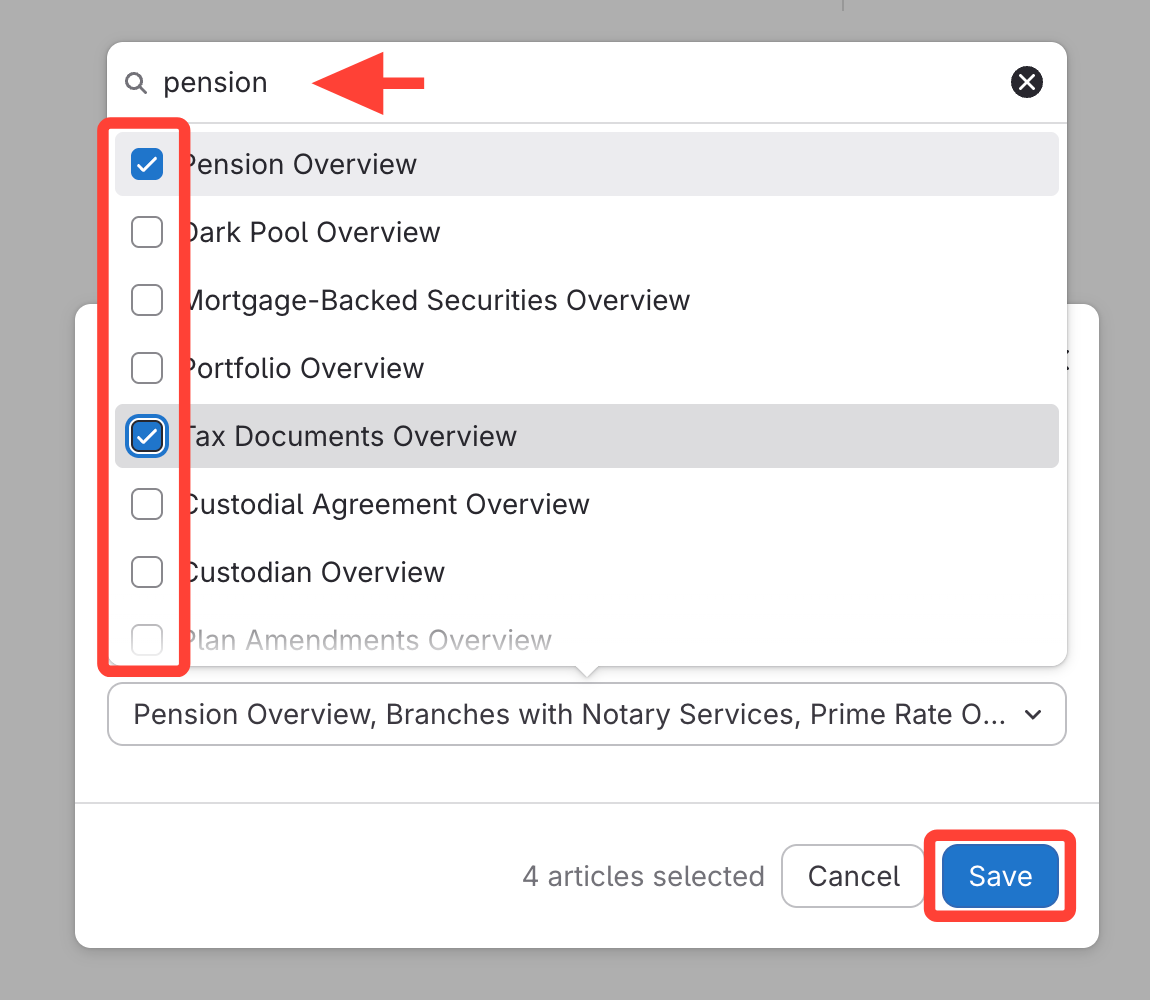
- Select article titles from the dropdown
- Use the Search feature to narrow results
- Save
- *Optional* Assign users or groups to the channel
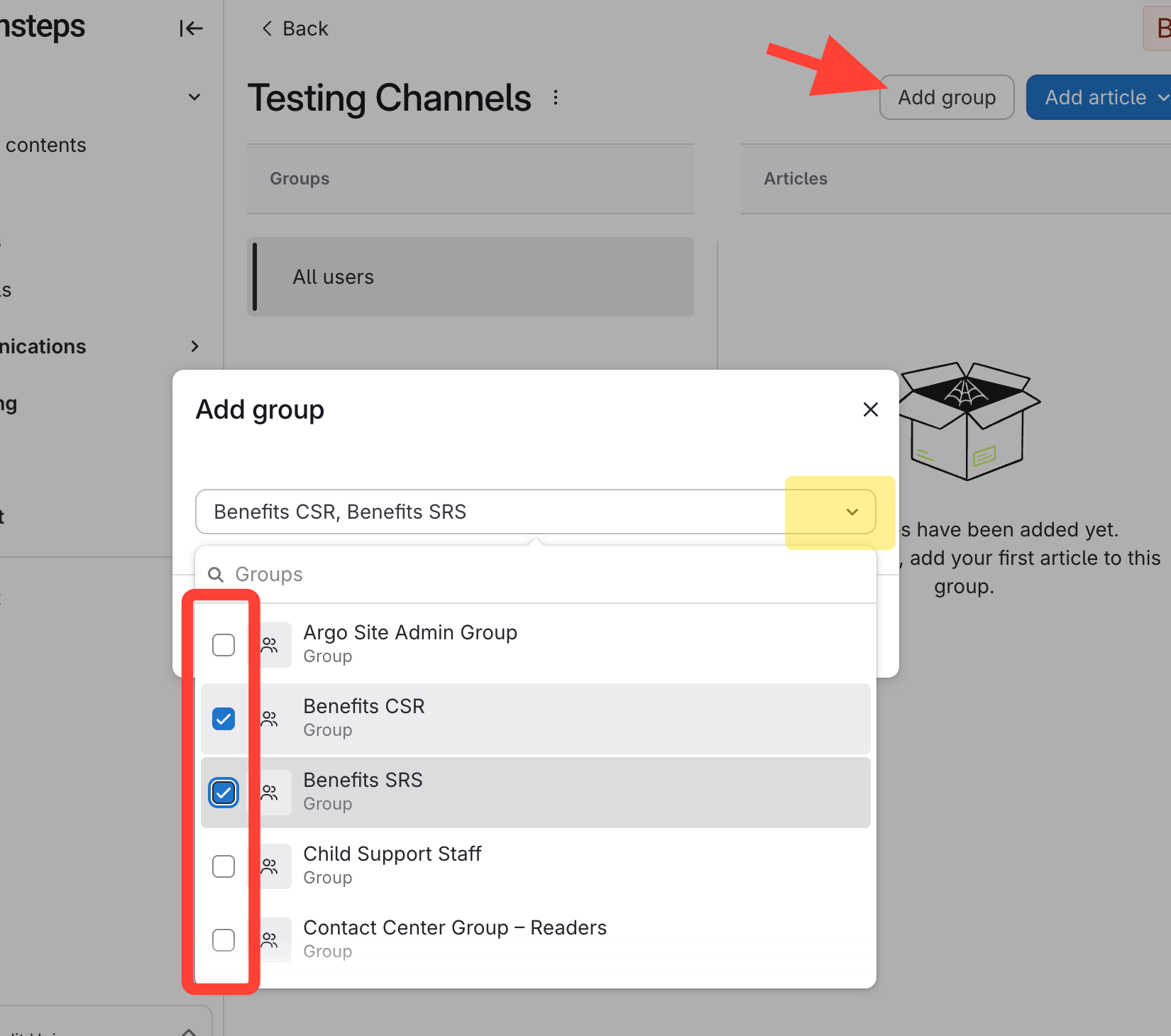
- Click Add group
- Select applicable groups from dropdown
- Click above the dropdown box (in the white box) to minimize list
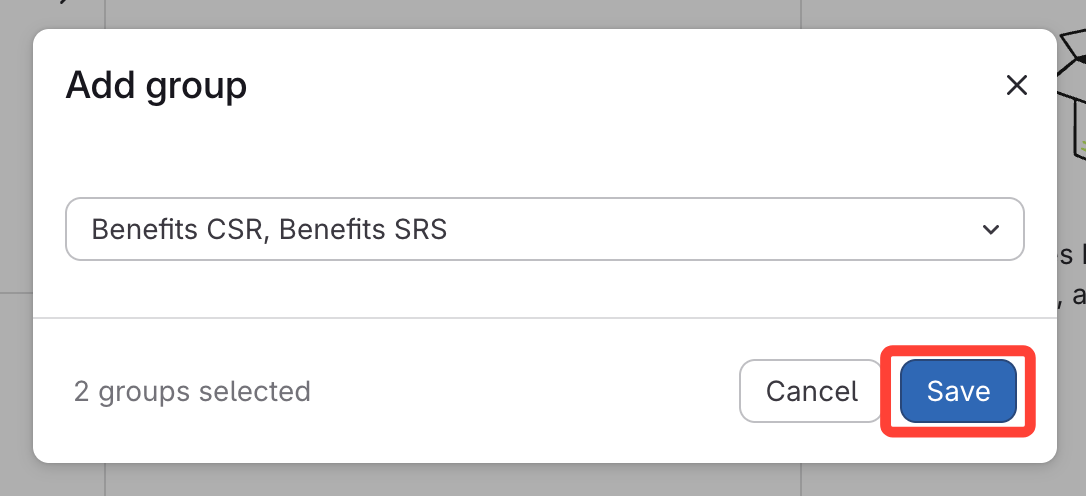
- Click Save