Skip to content
ScreenSteps Help
Search guides and tutorials...
Search guides and tutorials...
ScreenSteps Help
/
PDFs
/
Managing PDF Templates
How to Add a Logo to a PDF Template
Updated on
Feb 10, 2026
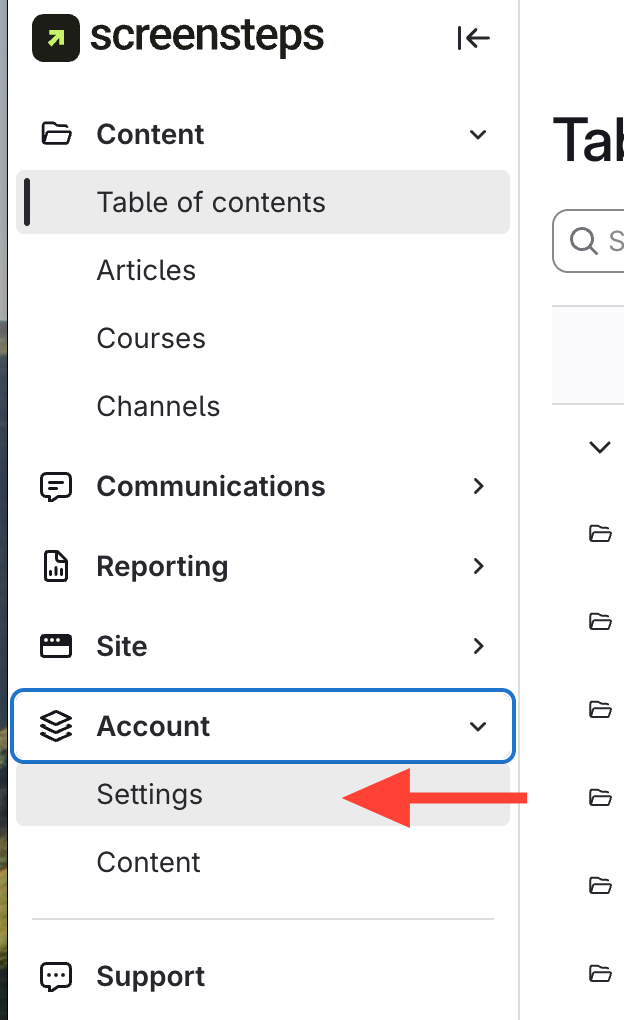
Open Account Settings
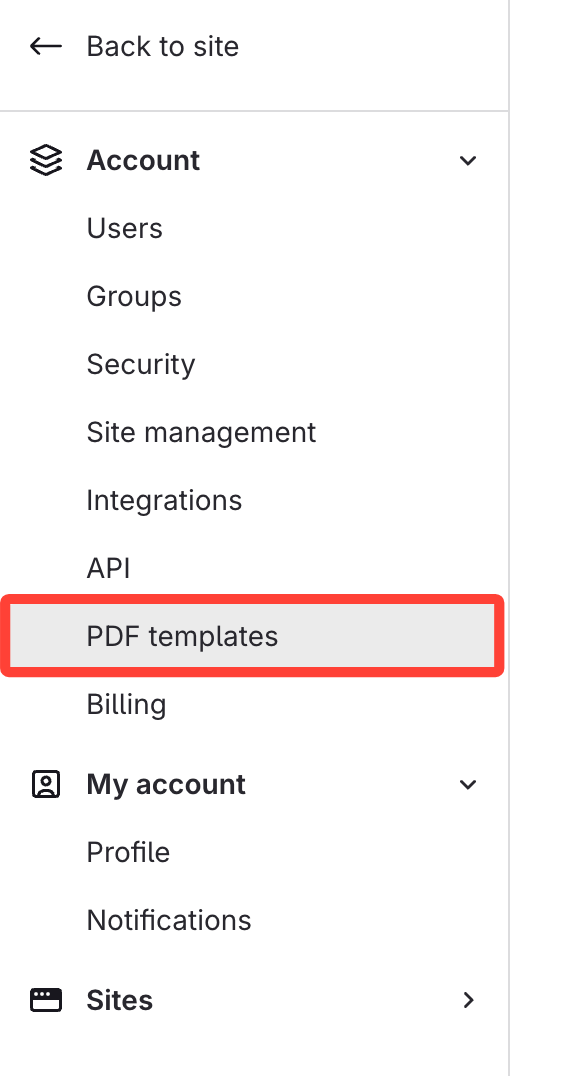
Click PDF Templates
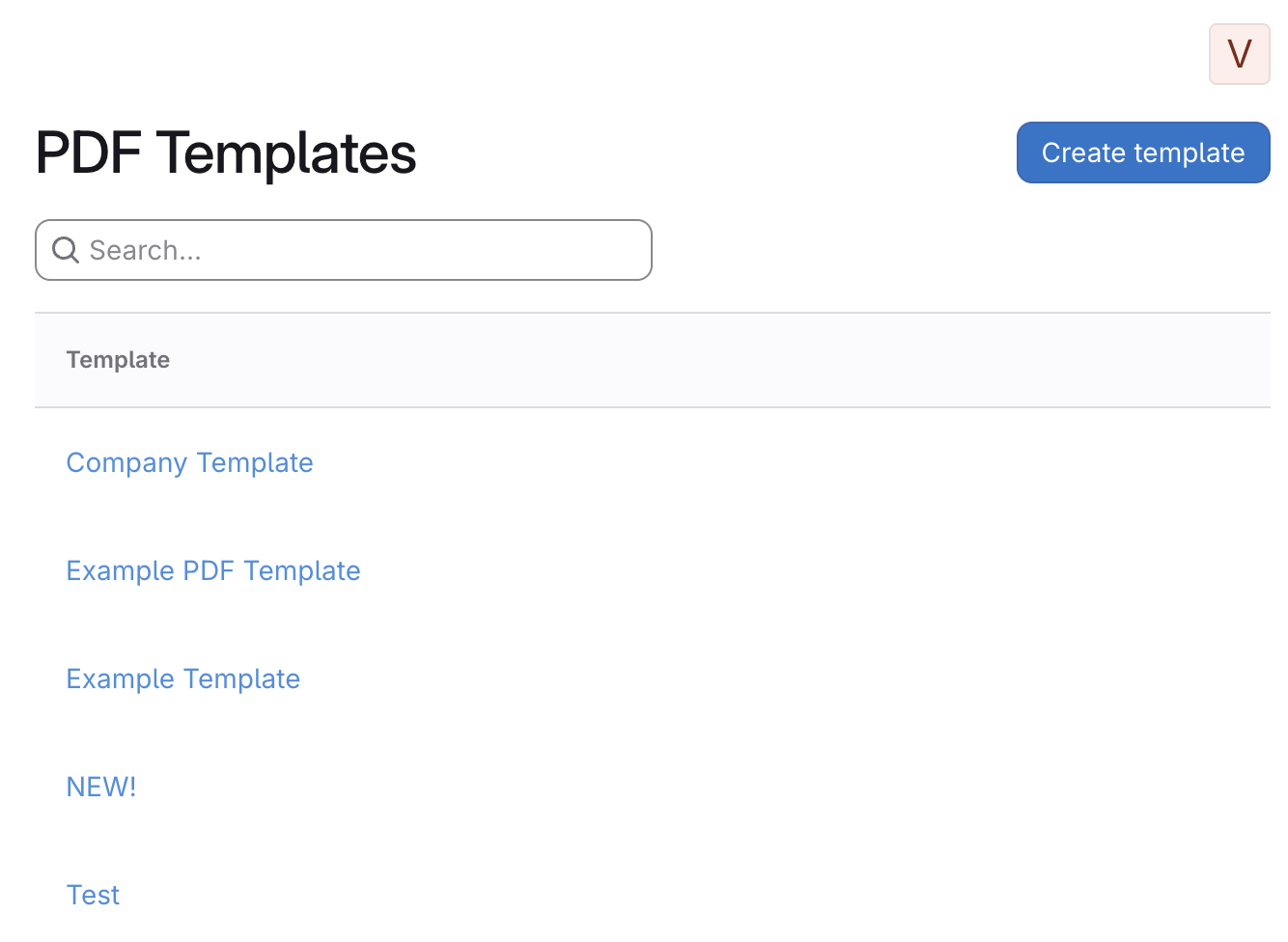
Click the Title of the Template to Edit
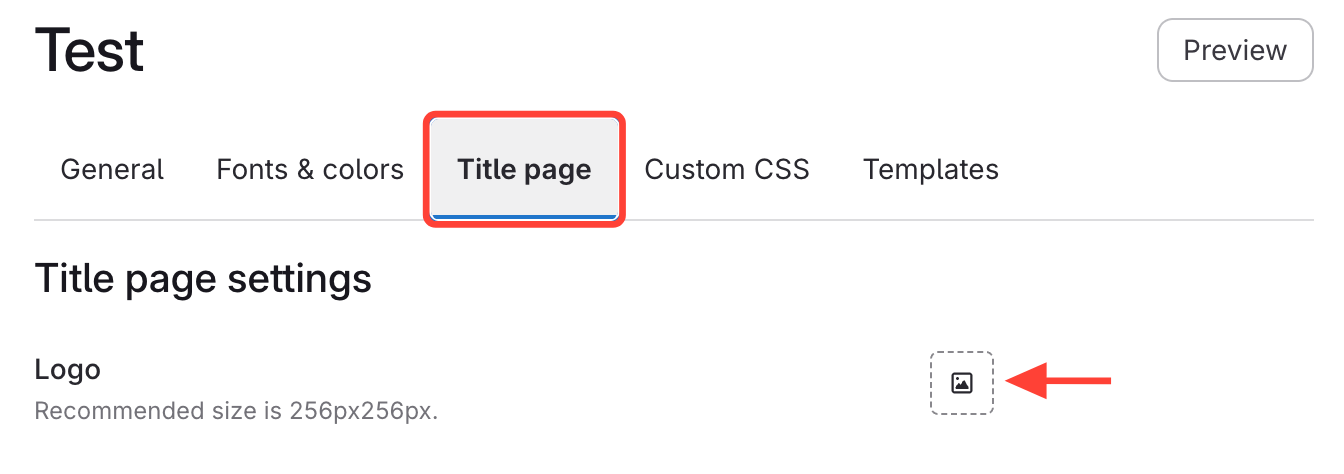
Upload Your Logo
Click
the
Title Page
tab.
Click
the image next to
Logo
.
Add
your logo.
Scroll Down and Click Save at the Bottom of the Title Page Settings
Checklist item
Previous Article
How fonts in PDF templates work
Next Article
Checklist item
How to use variables in a PDF template to insert dynamic content
PDFs
Getting Started with PDFs
8
How to Download a PDF Version of your Article from the Web Browser Application
How to Choose a Specific PDF Template for a Site
How to Create a PDF Template
How to Delete a PDF Template
How to Choose a Specific PDF Template for a Manual
An Overview of PDFs in ScreenSteps
Who Can Edit PDF Templates?
How to generate a PDF for a manual
Managing PDF Templates
7
Custom CSS recipes for PDF templates
How fonts in PDF templates work
How to Add a Logo to a PDF Template
How to use variables in a PDF template to insert dynamic content
How to customize the HTML used for article and manual templates
Where can I find PDF templates?
How can I change where page breaks appear in PDF documents?
Other Resources
Getting Started
Organizing ScreenSteps
Managing Articles
Authoring Content
Working with a Team of Authors
Customize Your Site
Admin Tasks
User and Group Permissions
Authentication (SSO, SCIM, SAML, Usernames, Passwords)
Accessibility
Integrations
Notifications
Browser Extension (Contextual Help)
FAQs
Courses
Migrating to the New Version of ScreenSteps
Print Article