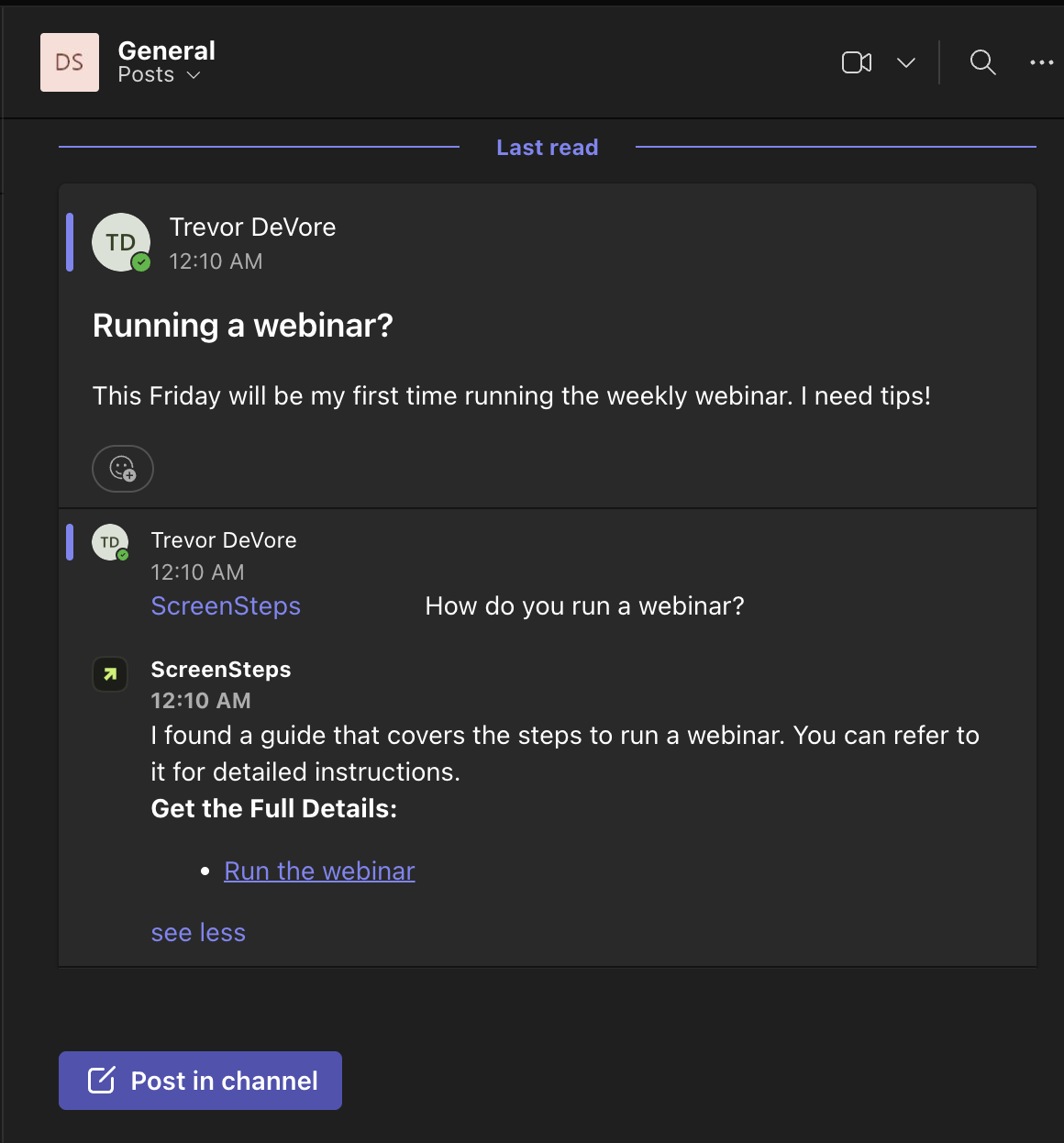
Installation
- Navigate to Account > Settings > Integrations
Click on the Connect button to connect your Microsoft tenant to ScreenSteps for Microsoft Teams.
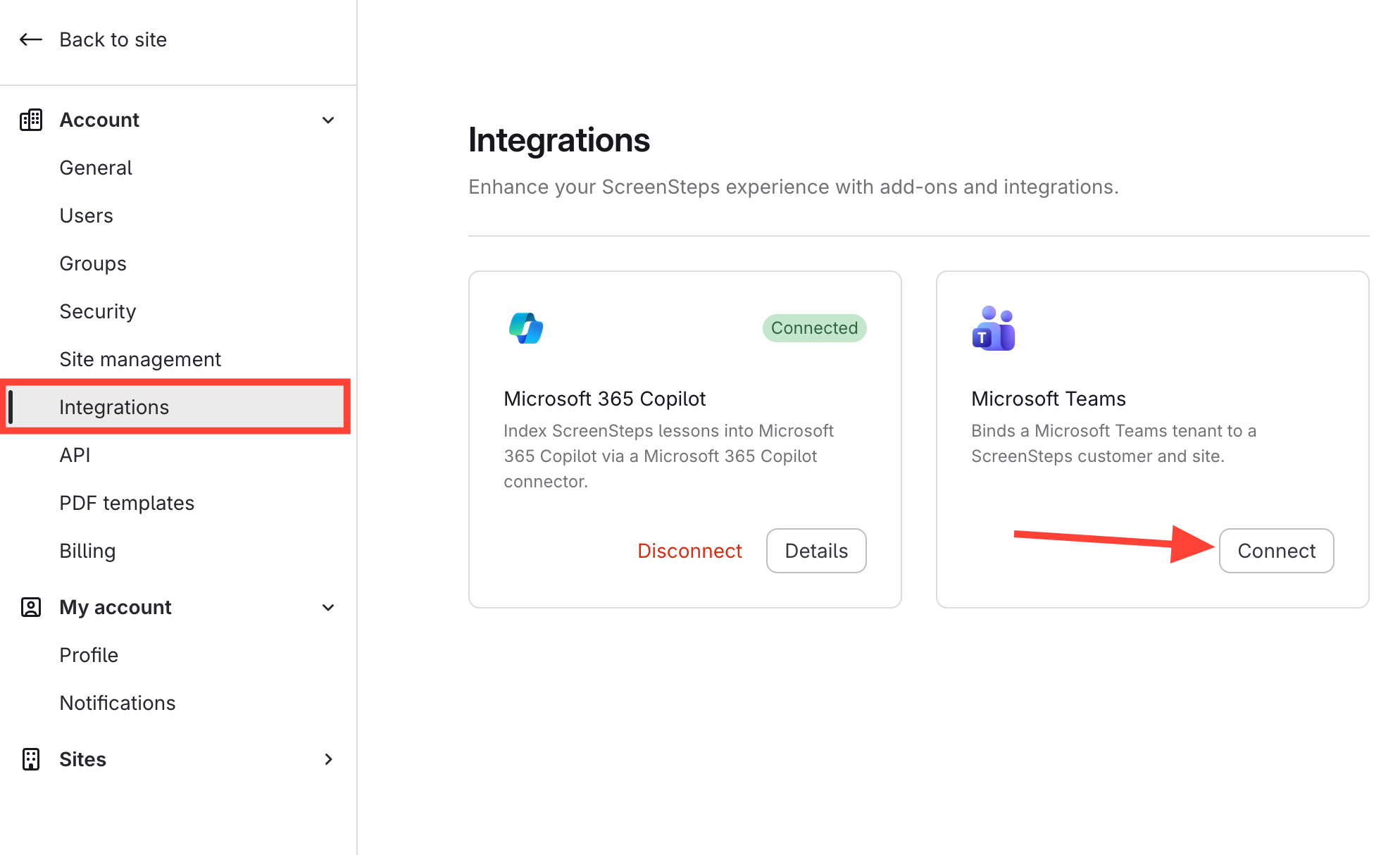
- Configure Microsoft Teams
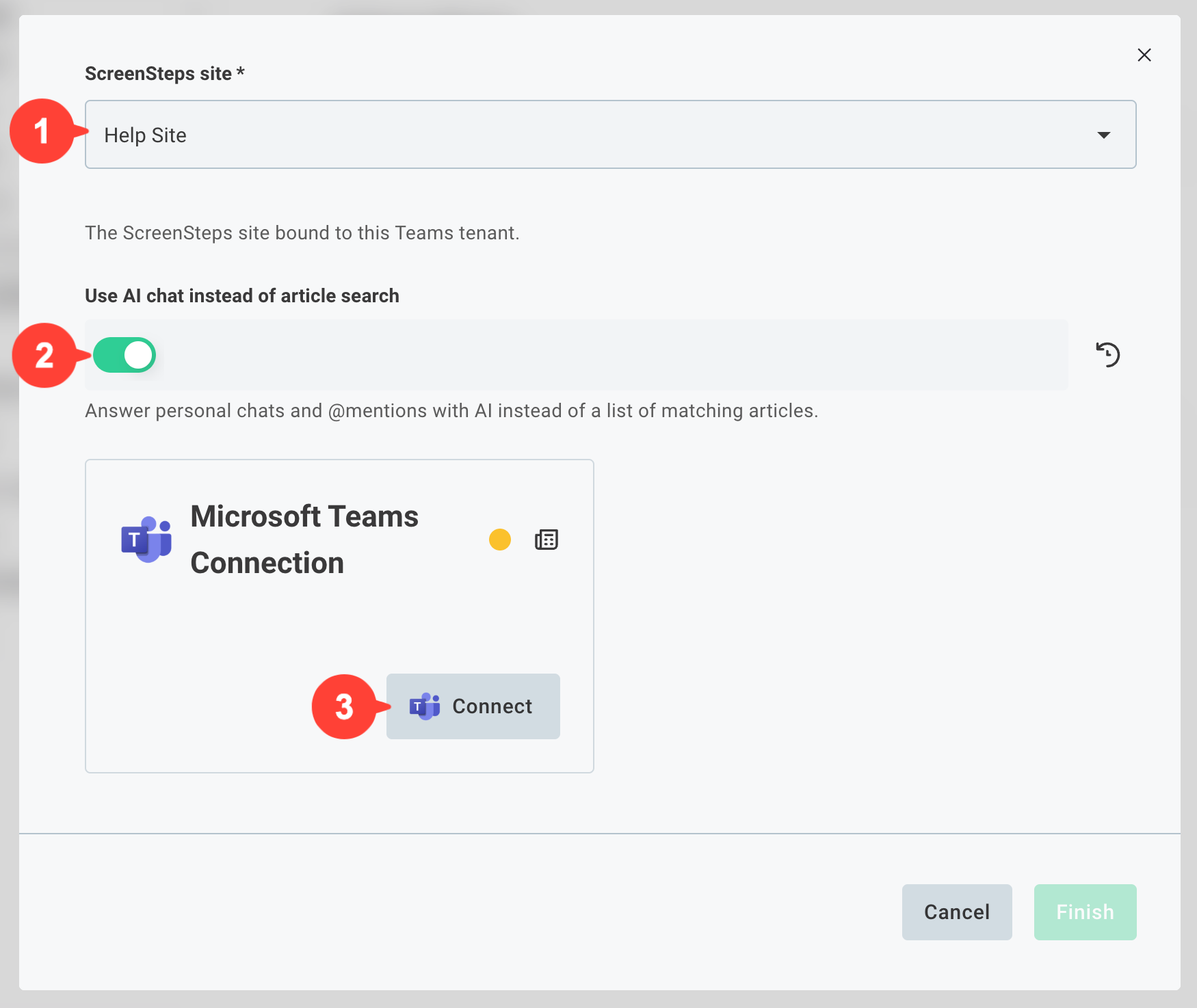
In the configuration dialog configure the following:
- Select the site that you will connect to Microsoft Teams.
- For a chat-like experience, turn on Use AI chat instead of article search. This uses ScreenSteps's AI chat which only provides answers from your ScreenSteps knowledge base.
- Click the Connect button to connect ScreenSteps to your Microsoft tenant.
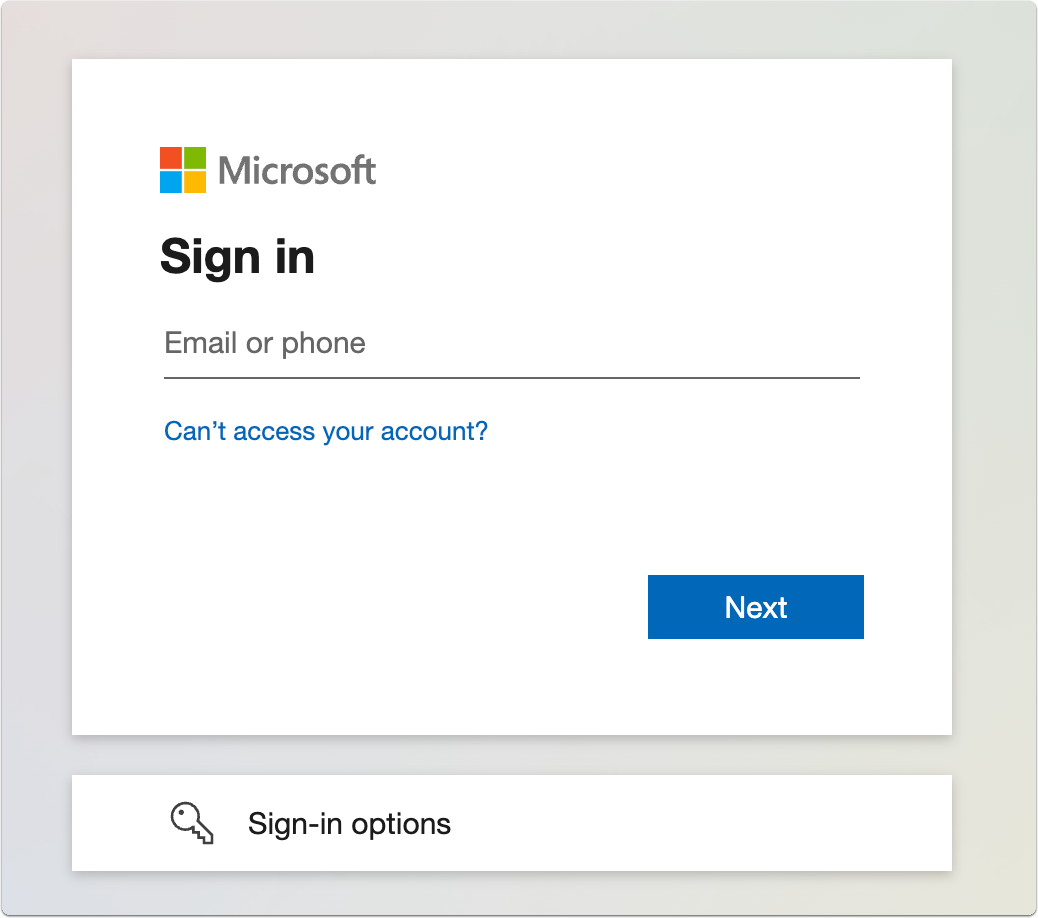
A new browser tab will open on the Microsoft website and you will be asked to login if you have not logged in already. Go through the authorization screens that appear.
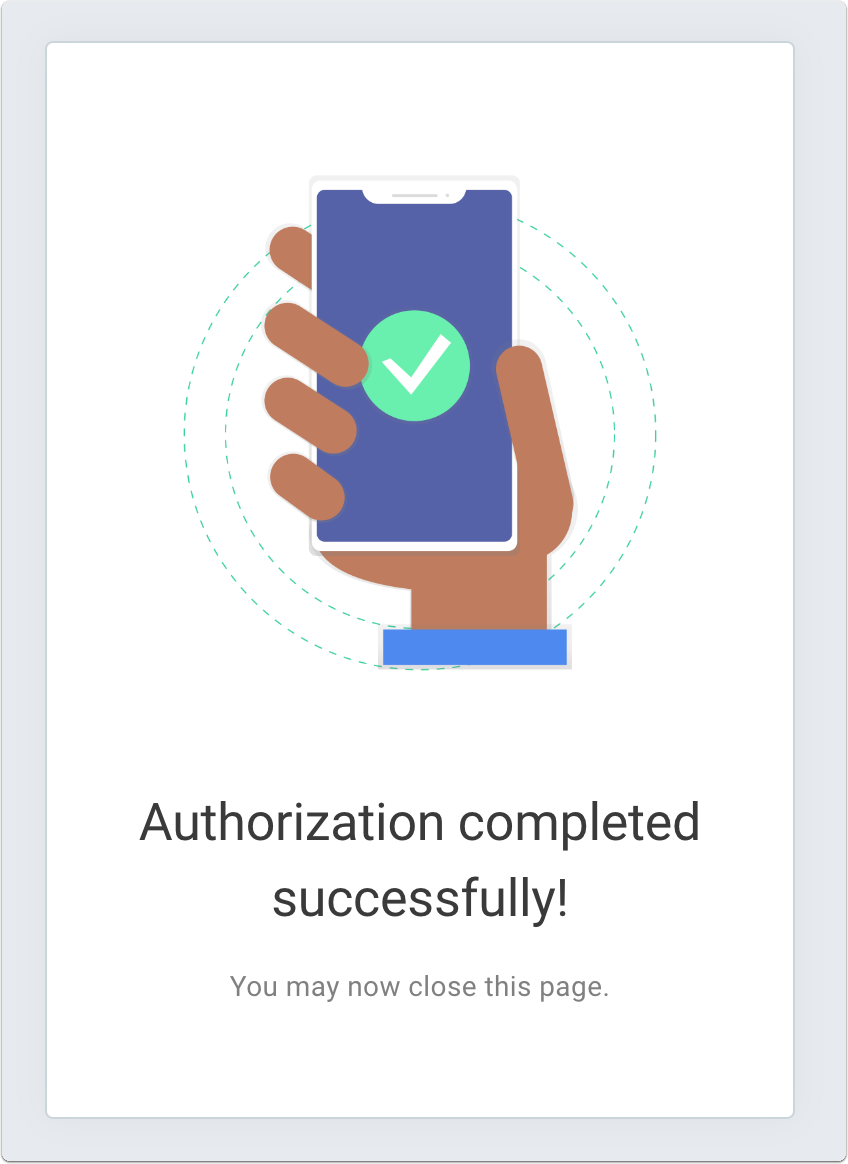
After successfully connecting ScreenSteps to Microsoft Teams you will see this screen. Once you do you can close the browser tab which should return you to the ScreenSteps website where you continue the configuration.
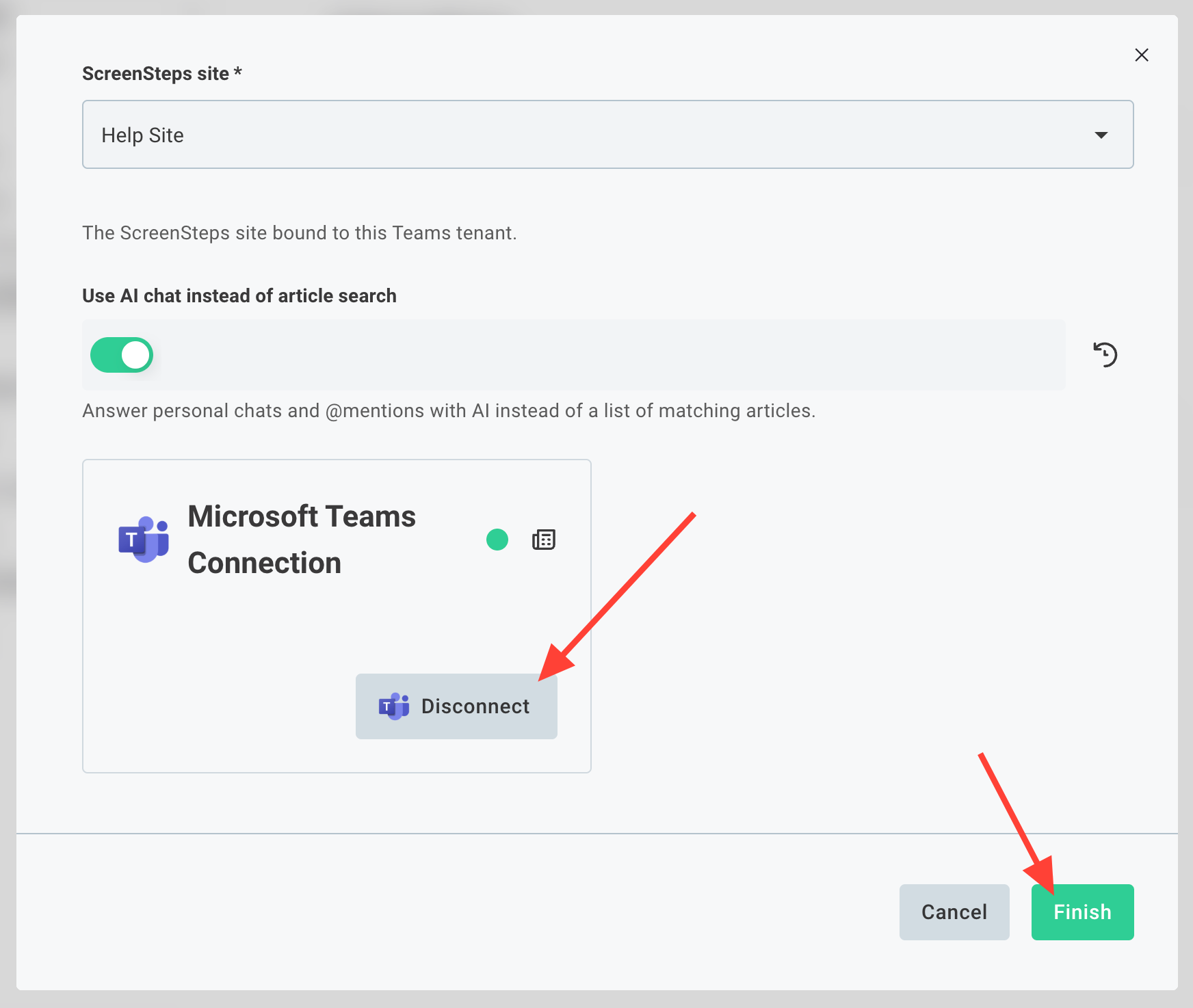
In ScreenSteps you should now see Connect button label changed to Disconnect.
Click Finish.
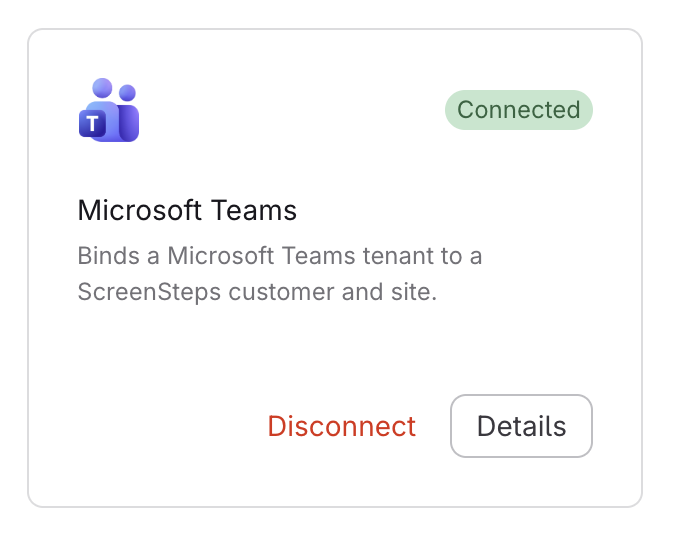
The Microsoft Teams integration tile should now show the Disconnect and Details button. If you need to make changes later on, click on the Details button to open the configuration screen again.
- Install the Microsoft Teams app
The ScreenSteps Microsoft Teams app can be installed from Microsoft AppSource using the following link:
https://appsource.microsoft.com/en-us/product/office/WA200005131
Test in Microsoft Teams
Now it is time to test out the integration within Microsoft Teams. You can access ScreenSteps features from the Search bar as well as from messages.
- Chat with ScreenSteps
ScreenSteps will become your go-to chat for all answers on how to do things at your business.
- Click the "View more apps" button
- Select ScreenSteps
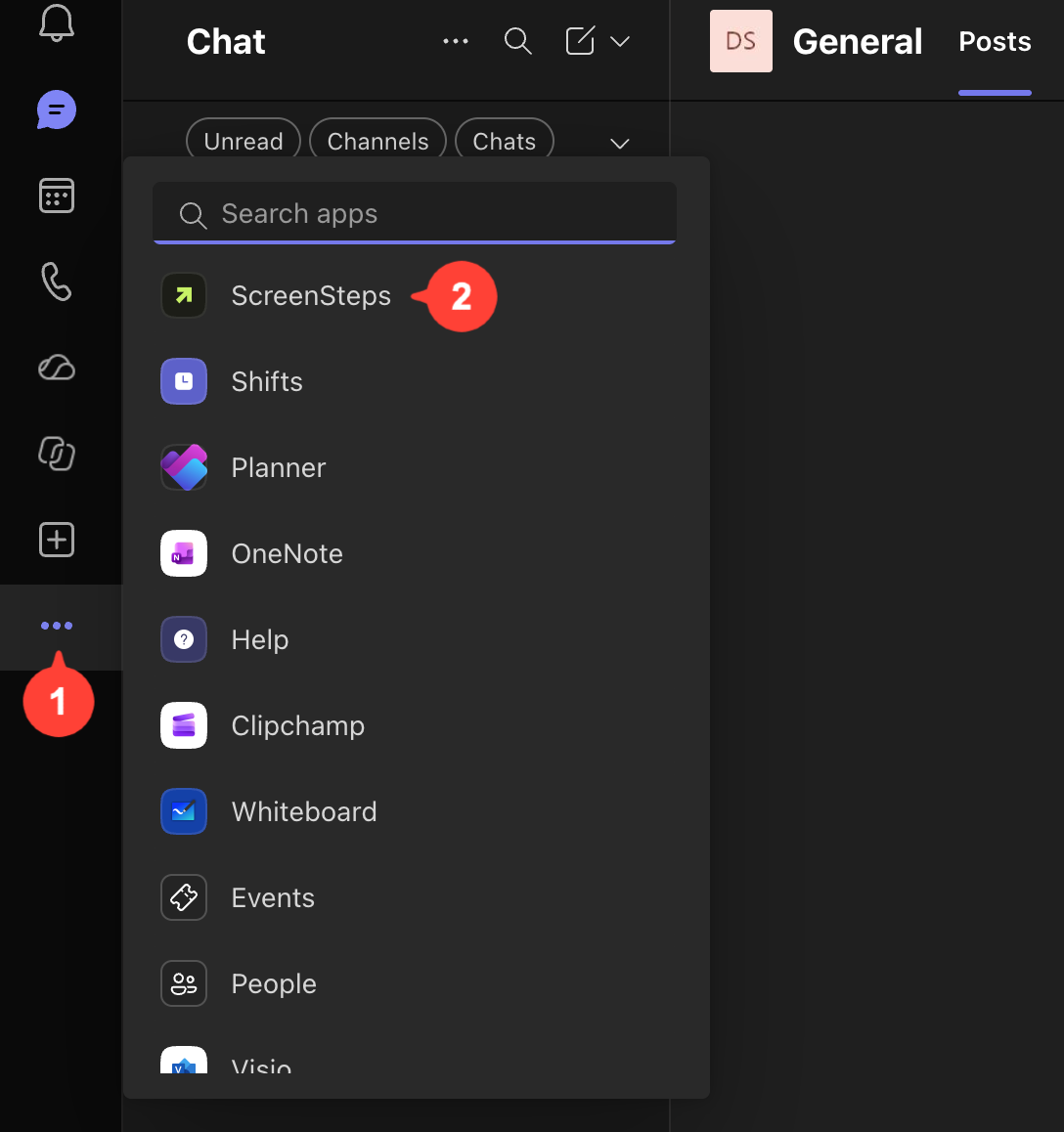
Now you can ask questions directly to ScreenSteps. If you've enabled the AI chat feature then ScreenSteps will behave like a chatbot. Otherwise it will return search results.
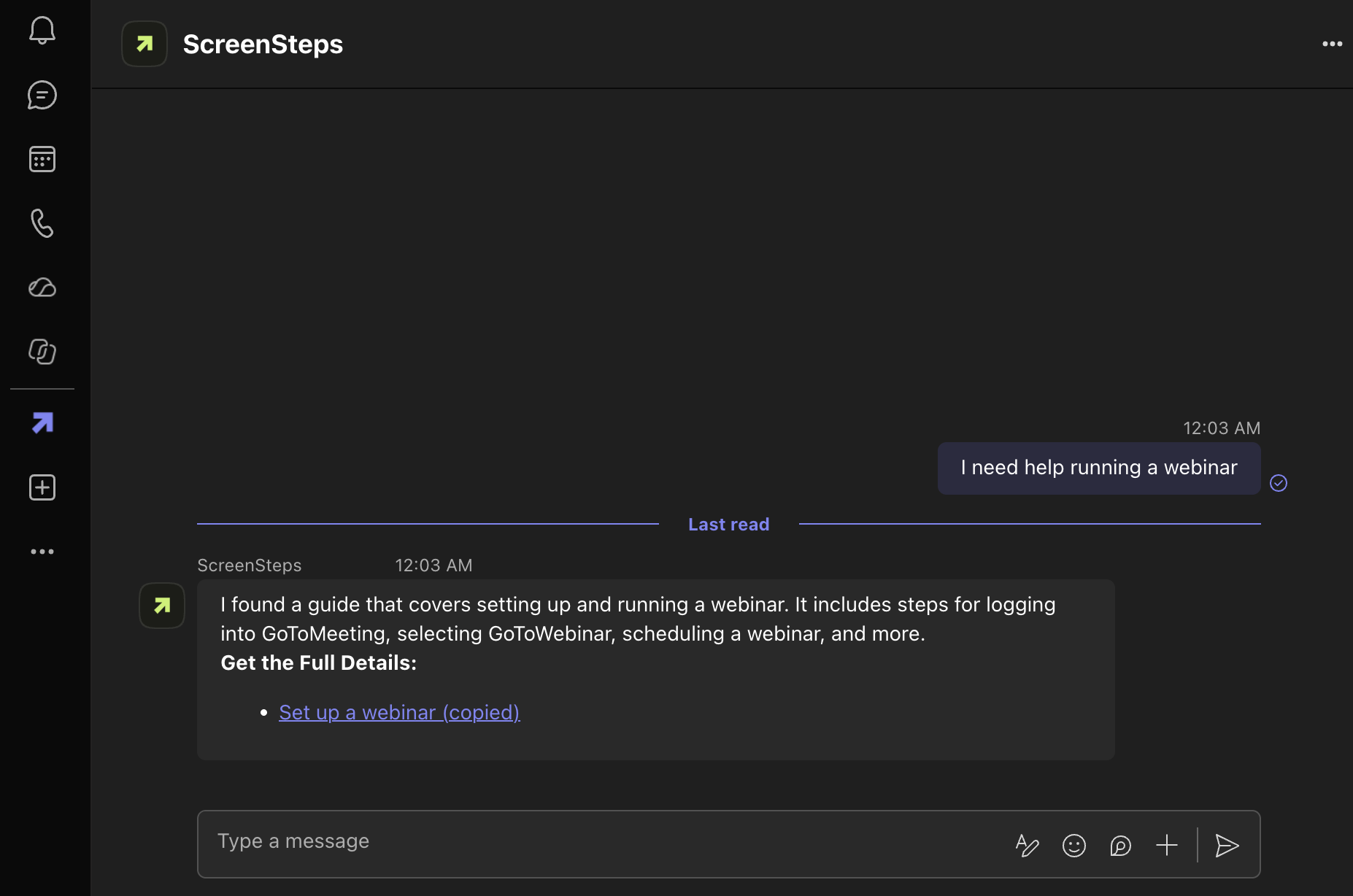
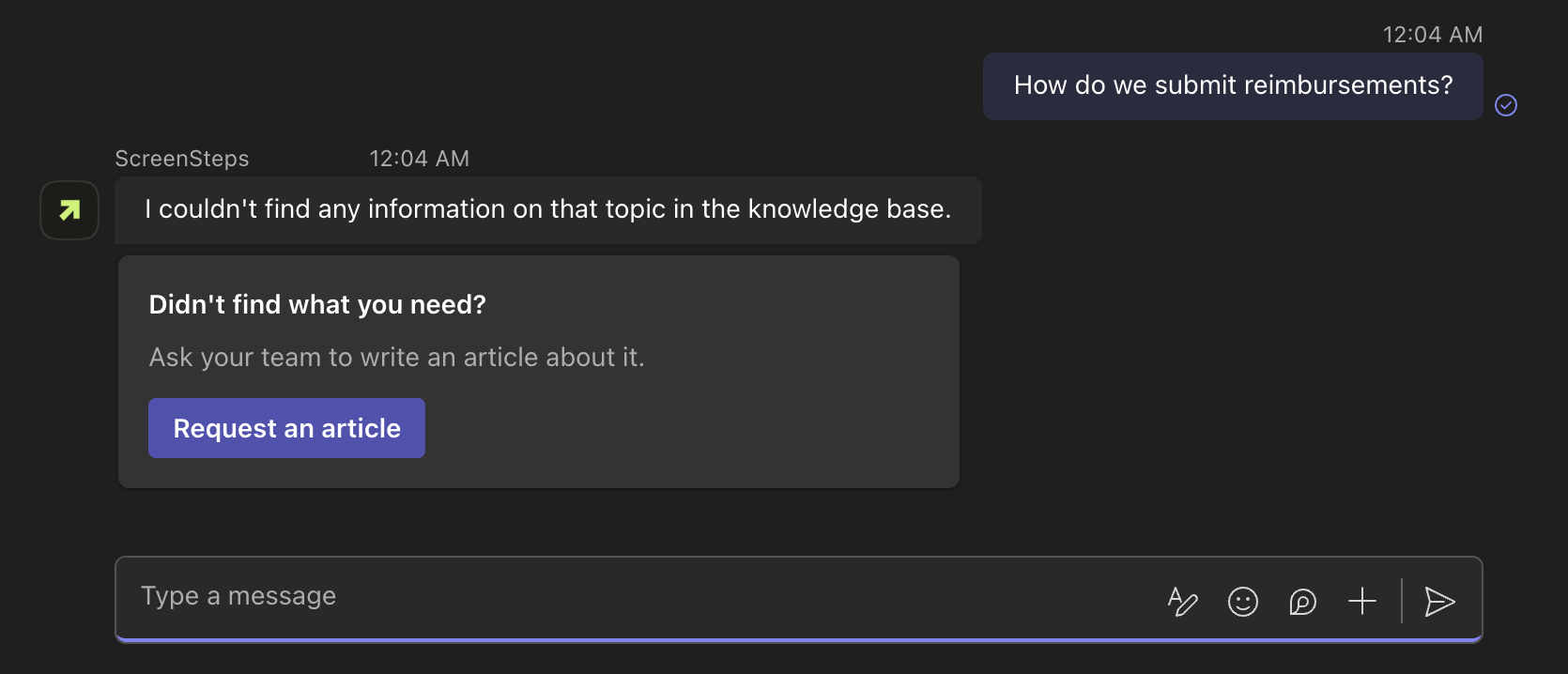
If the AI chatbot can't find an answer to your question a "Request an article" button will appear so you can ask your team to add an answer to the knowledge base.
- Mention ScreenSteps
Use
@screenstepsto ask ScreenSteps in conversations with your co-workers.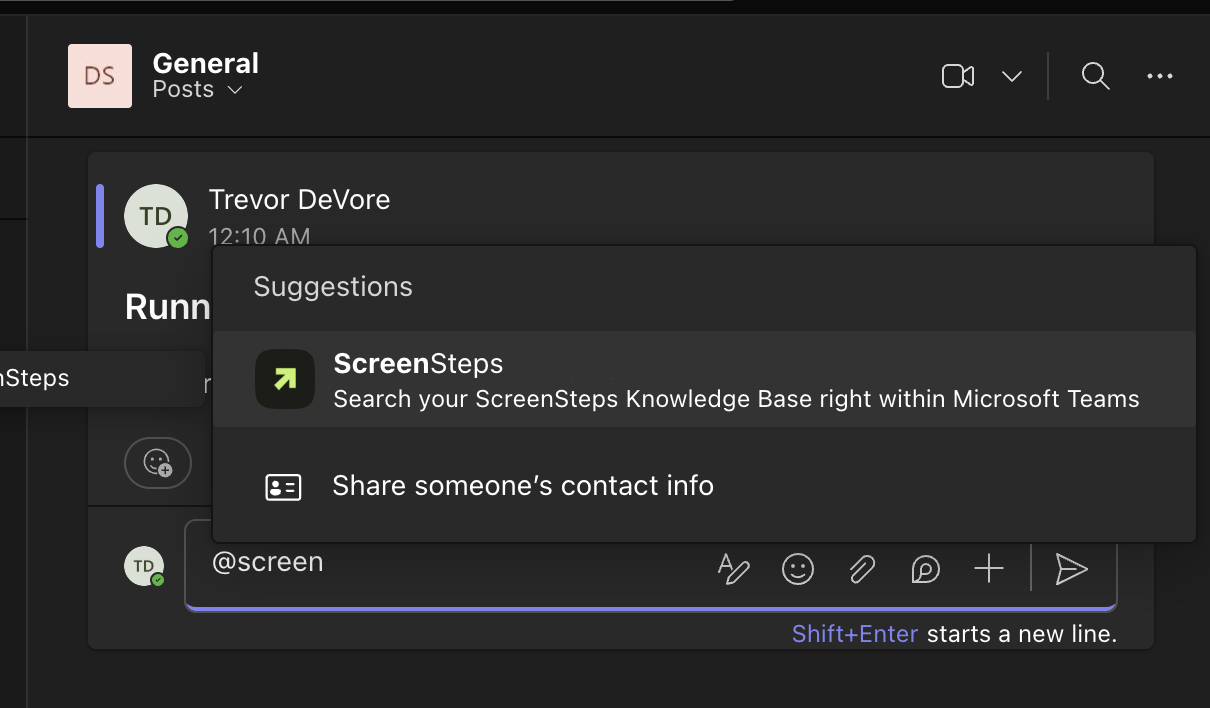
ScreenSteps will respond with answers pulled only from your knowledge base.