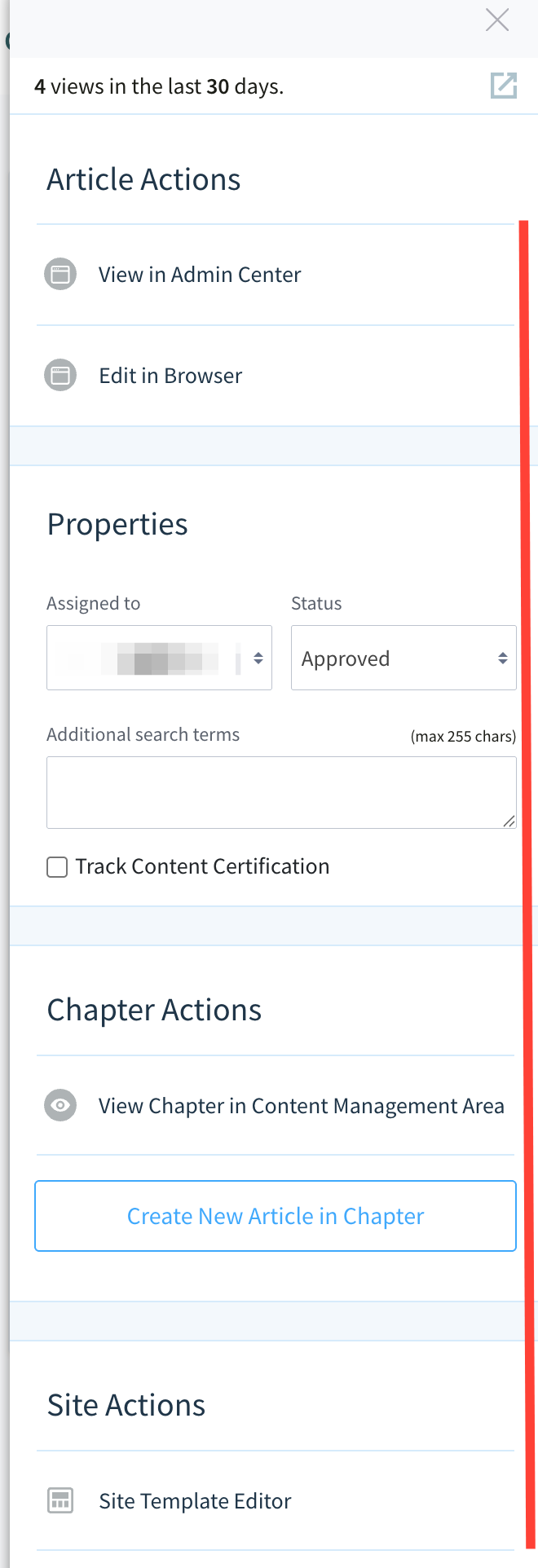
The Author Action Button
The Author Action button appears on published ScreenSteps sites for Account Admin, Site Admins, Managers, and Contributors who are logged into their ScreenSteps account and have permissions to edit articles/manage content.
The button appears at the top of the screen.

The Author Action Panel
Clicking the Author Action button will display the Author Action Panel. From here, Contributors and Admin can perform several different actions.
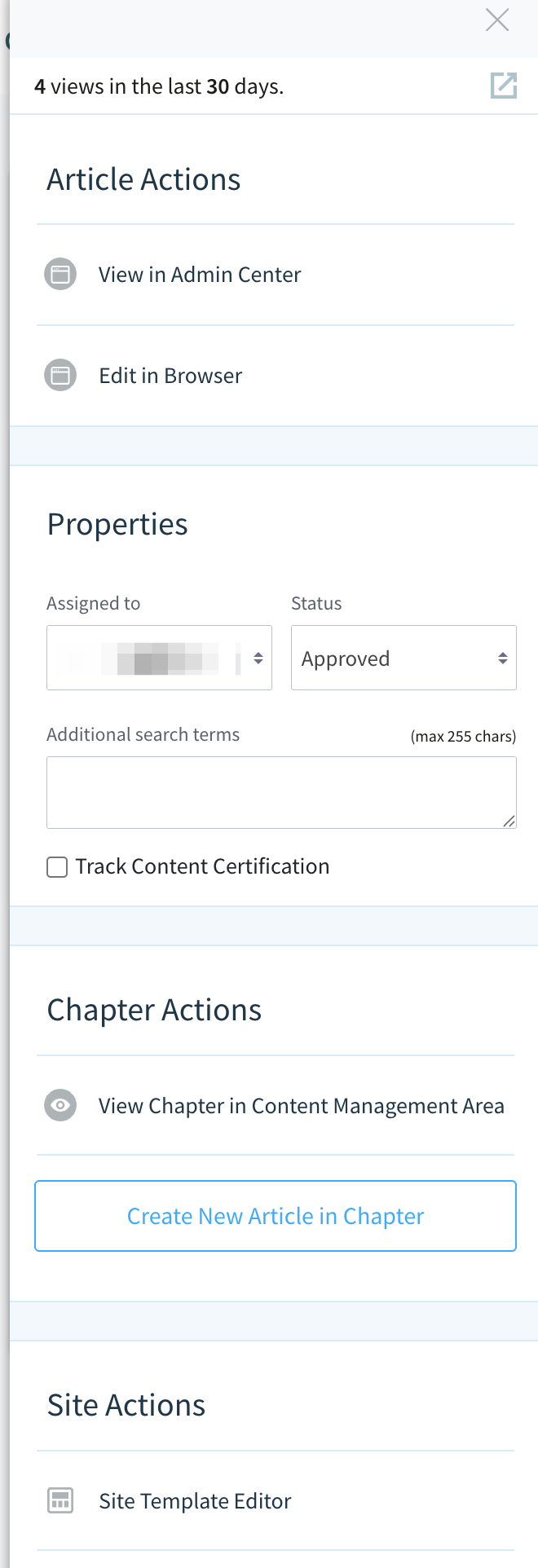
The Panel's Options Change Depending on When it is Clicked
The Author Action Panel's options change depending on when it is clicked. For example, if you are viewing an article, then you will be able to edit the article, assign the article, add additional search terms, etc. Those options will not appear if you pull up the panel while viewing a manual.
Below is an overview of what options are available depending on where the panel is viewed.
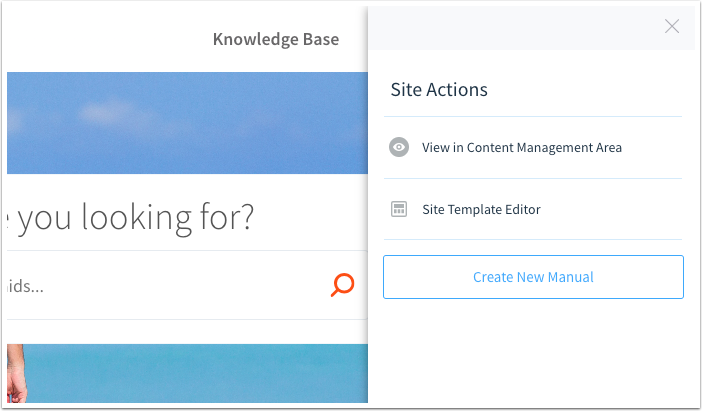
The Panel when viewing the site home page
On the site's home page, you will see the following options:
View in Content Management Area
Site Template Editor
Create New Manual
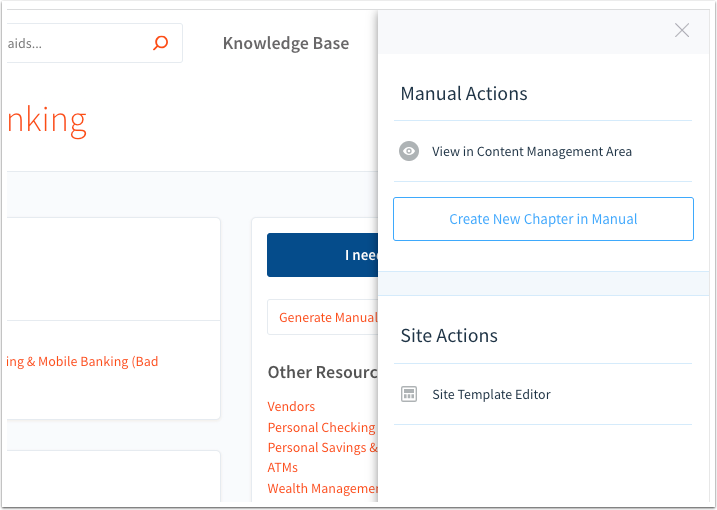
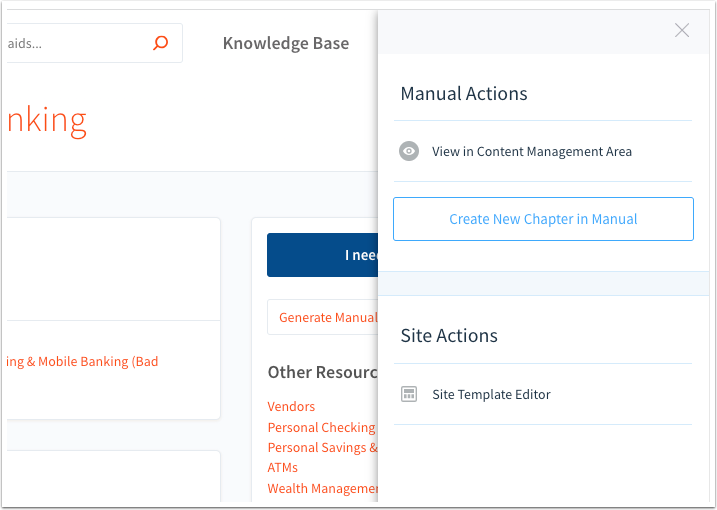
The Panel when viewing a manual's table of contents
When viewing a manual's table of contents, you will see the following options:
View in Content Management Area
Create a new Chapter within that Manual
Site Template Editor
The Panel when viewing a chapter's table of contents
When viewing a chapter's table of contents, you will see the following options:
View in Content Management Area
Create a new Article within that Chapter
Site Template Editor
The Panel when viewing an Article
When viewing an article, you will see the following options:
View in Admin Center
Edit in Browser
Assign to
Status
Additional search terms
Track Content certification
View Chapter in Content Management Area
Create a new Article within the same chapter
Site Template Editor